
Setting up local post-processing volumes
This follows on from the previous page where we set up a global post-process volume Next, let's cover adding a custom effect that only affects a small specific zone in the scene - a post-process volume.
-
Create a new GameObject in your scene and add a collider to it, like a Box Collider. Tick "Is Trigger" on the collider.
-
Add a Post Processing Volume component to the object with the collider, and click the New button next to Profile.
-
When you click New, a new profile will be created next to your map, with the name Default Post Profile. Unlike Stack v1, you must add specific effects before you can use them. This allows for the Volume blending to work.

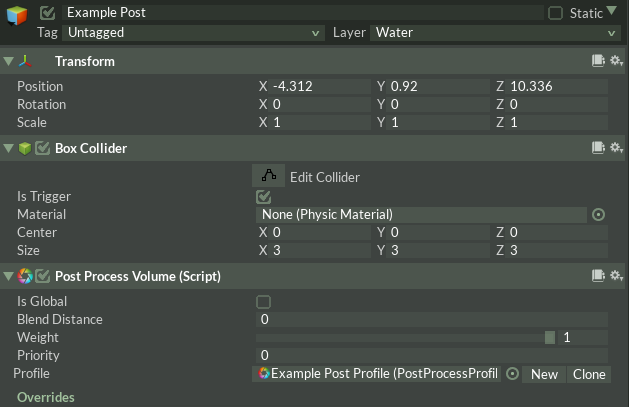
-
Click Add effect... and add some effects! To start, I recommend adding Color Grading.
You can use the On/Off button in the top right corner to toggle the individual effects. When activated, you'll also need to activate the specific overrides for each sections' options. For a base profile, you can click All at the top, which toggles all options to be effective.
-
At this point, everything will still look the same. Play around with the settings, and you might notice nothing happens. But if you move the Main Camera inside the collider, you'll see them take effect! You should be able to tweak the post processing effects as you desire, and add more. Volumes tied to collider shapes that will only affect the player inside their area. For example...

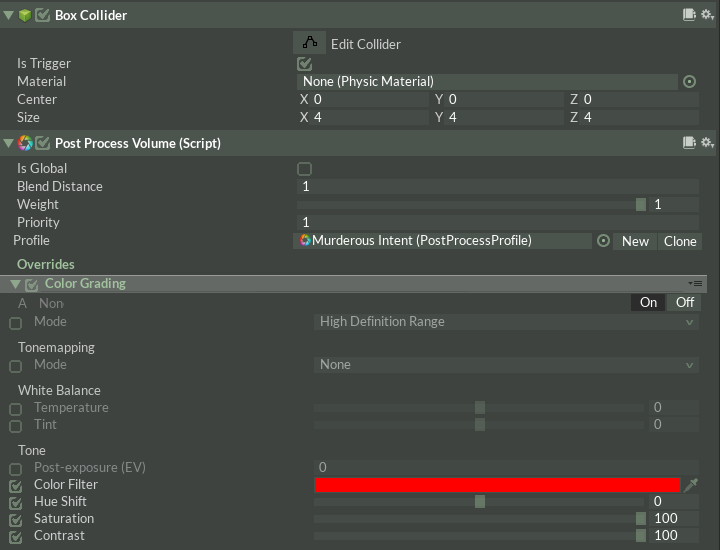
This depicts a volume that, while inside, everything will go a deep and crazy red. Not for the faint of heart, or sound of mind!
But what settings should you use? Keep reading...
No comments to display
No comments to display