Interactable World Space UI Canvas
This is still just the raw structure of the steps involved! Images and more details will be added soon.
- Create a UI canvas
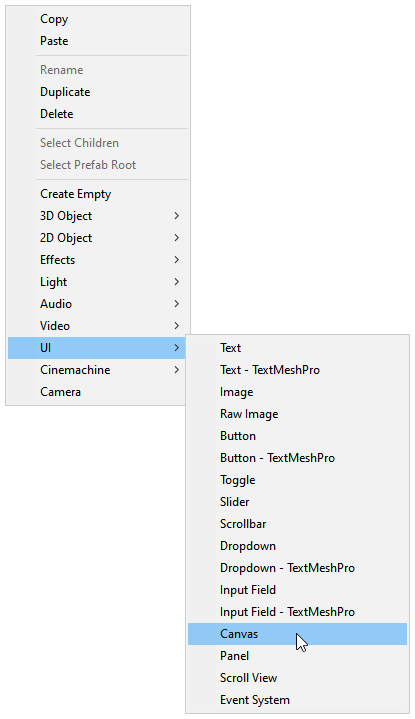
- Right-click on your hierarchy, click on "UI > Canvas"
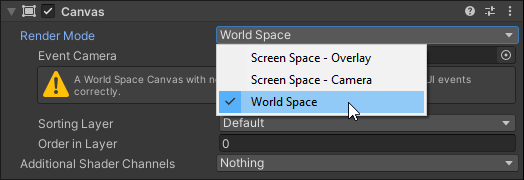
- Switch Render Mode on Canvas to World Space
- Reset the Canvas' Rect Transform
- Set the Width and Height of the Rect Transform to 1000
- Set the Scale of the Rect Transform to 0.001
- Add VRCUiShape to the same GameObject as Canvas
- Change the GameObject's layer to Default
- Add a Panel
- Right-click on the Canvas in your hierarchy, click on "UI > Panel"
- Disable Raycast Target and Maskable toggles on the Image component
1) Create a UI Canvas
Instructions
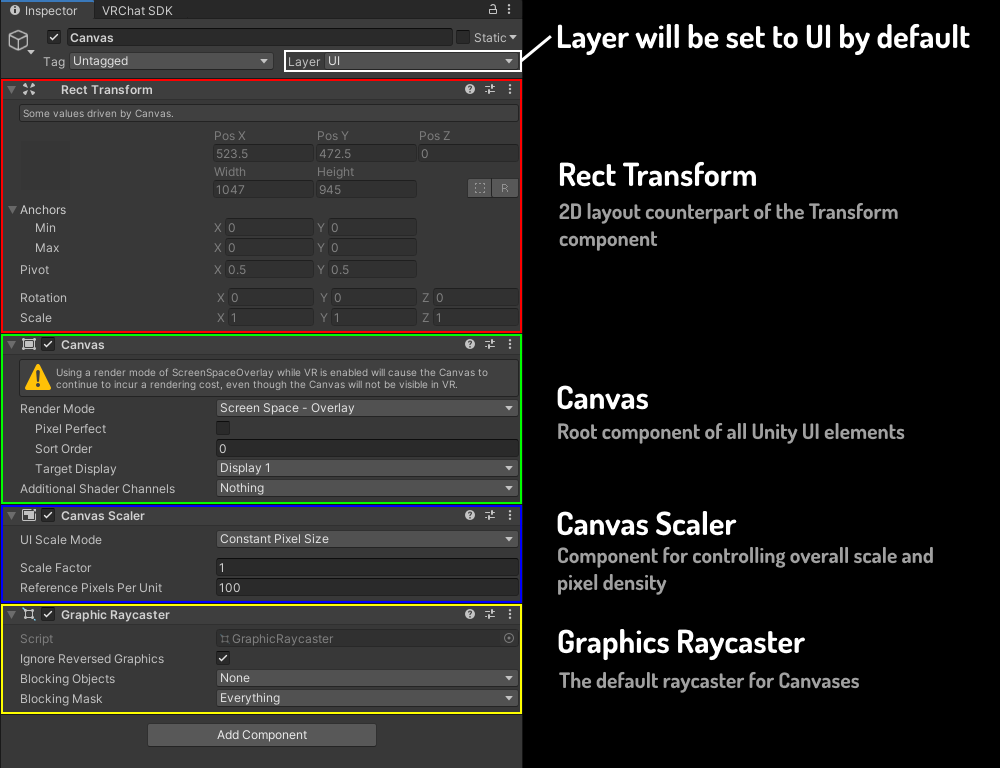
Canvas is the root component of every UI
Instructions
- Create a new Canvas in your scene by right-clicking your hierarchy and clicking on "UI > Canvas"
2) Make Canvas World Space
Instructions
By default the render mode of the canvas will be set to "Screen Space - Overlay", meaning that the canvas will always overlay the game view. For a world space canvas we want to switch the mode to "World Space".
"Screen Space - Overlay" and "Screen Space - Camera" are not compatible with VR as a render mode for a HUD