
Lighting
Types of lighting:
- Real-time- calculates lighting every frame
- Baked- pre-calculates lighting on the editor’s computer and generates light maps (textures that contain lighting and shading) which are overlaid on those objects
- Mixed- combination of baked for static objects and real-time for dynamic objects
Types of lights:
- Directional - Essentially the sun. There should be no more than 1 per scene. [Its rays are infinite, so its position does not matter but its rotation does.]
- Point - projects light outward in all directions from the center. Simulates lights like lightbulbs.
- Spot - projects light outward from the center in a cone. Simulates lights like spotlights.
- Area - projects light outward from a 2D rectangle or circle. Simulates lights like office ceiling lights. These lights in particular can cast much softer shadows, depending on its size. There is no real time version in Unity by default; these lights must be baked.
Real-time lights in VRChat will usually either look terrible, tank your framerate, or both.
So how do you light dynamic objects? Light probes. These probes pre-calculate how an object would be lit at that probes location. Many of these probes are placed in a group, and when dynamic objects move through this group they blend the probes and are lit accordingly.
Add a light probe group to your scene. Place probes around every point there is a lighting change. Spawn a new gameobject like a capsule and drag it around to see how it takes on the lighting from the probes.
Reflection probes
Used for reflections. They act as a camera, taking 6 pictures from where they are placed (the 6 directions) and combining that data into a cubemap (a spherical image). Overlapping reflection probes blend.
DO NOT use screen space reflections in VR. They are incredibly taxing on performance!
Reflection Probe Guide[gitlab.com]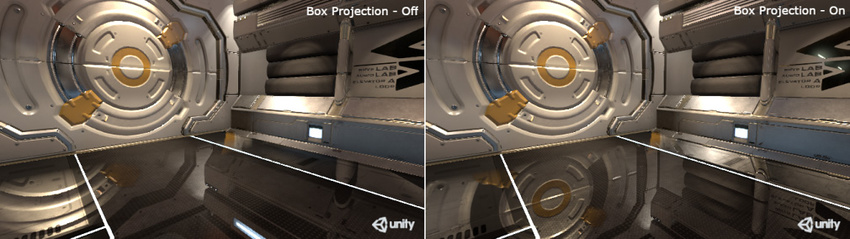
Lighting settings
Go to Window>Rendering>Lighting Settings to bring up the window.
- If your scene is completely indoors with no windows, turn off the skybox lighting.
- If it is an outdoor scene, turn skybox lighting on and set the directional light source in the lighting settings.
- If it is an overcast scene, make sure your sky is set to a cloudy skybox. You may want to adjust the intensity of the environmental lighting.
Texels per unit
Texels are like pixels placed onto an object, and used to calculate the baked lighting. For many PC worlds I find ~30 texels per unit to be a sufficient compromise between quality and size.
Have your lights set to cast soft shadows.
To actually see how the lightmap texels will be projected onto your geometry, you can click the dropdown at the top of the Scene window (the one that is usually set to "Shaded") and set it to "Baked Lightmap".
To change the lightmap UVs of your mesh, you can do so in the model settings (click on the model in the Project window and change the Generate Lightmap UVs settings at the bottom of the Model tab).
While some objects with short shadows may be more accurately lit with hard shadows, soft shadows are more accurate across longer distances and look better at lower texel resolutions. Unity doesn’t include adaptive shadows out of the box like PCSS (Percentage Closeness Soft Shadows).
Next time you go in the sunlight, look at your shadow. Look at how the edges are sharp close to the origin (your feet) and get blurrier as you go up! That’s what techniques like PCSS emulate.
Do not overuse texels! The more texels you have, the larger in file size your lightmap(s) will be!
https://unity3d.com/how-to/progressive-lightmapper-optimization-tips
There are some situations where you would want to have a higher texel count because of overlapping lightmapping UVs (common with probuilder objects). UV overlap[docs.unity3d.com]
In your level design, avoid putting detailed shadows on the floor or low on the walls if your lighting is baked; the non-static models walking on top of those shadows won’t have those detailed shadows projected onto them.
Lightmap resolution
Controls the maximum resolution of the lightmap(s). Set it so that you only have one lightmap for optimal performance.
Bounces
Controls how many bounces a light ray will perform. [These take a long time to bake]
How many light bounces your scene will "need" depends on what type of scene it is, how many lights there are, how bright (or dim) it is, and how many shaded crevices need to be filled in with global illumination.
- Outdoor scenes can get away with less (2).
- Indoor scenes may warrant more light bounces (3-5).
Bakery Lightmapper
Link to Bakery on the Unity Asset Store
A very powerful (paid) alternative to Unity's built-in progressive lightmapper. Very highly recommended after you've made a couple worlds and are serious about making more with even better lighting. Watch this video for details.
Read the manual to learn how to use it.
You need to put a Bakery light component on all the lights in your scene that you want baked.
The real time preview is also very highly recommended as it allows you to preview your changes in real time (rather than having to wait minutes to see each change). This time savings not only speeds up your creation, it allows you to be more creative and experimental, and try things you otherwise wouldn't have.
Note that this add-on will only work with NVidia graphics cards.
Light Volumes

This is a package by RED_SIM that essentially acts as 3D lightmaps. It is extra work to set up but is feasible for small to medium sized scenes (or small sections of larger worlds).
This is NOT a light probe replacement! Only objects with light volume compatible shaders will be lit by light volumes! Light probes are still needed in your scene (and light volumes includes a tool to make them easier to set up too)!
Bakery is NOT a requirement to use light volumes. They can be baked with Unity's built-in lightmapper.
Combining real-time and baked lighting
Real time lights do not calculate indirect lighting in Unity by default. Sometimes, environments can be so big that baking all of the direct shadows (like from a directional light) is not feasible. In this case, it can be acceptable to have a directional light which casts realtime shadows. In addition, the indirect lighting, aka global illumination or GI, can be baked. This will result in sharp shadows across the landscape and beautiful baked lighting in the places that need it.
To do this, set the directional light from Baked to Mixed. This combines realtime shadows with baked GI.
Make sure to do all the other steps like setting baked objects to static (at least "contribute GI").
Adjusting per-object texel density is very important! Especially for this use case in particular!