
World Thumbnail / World Image Guide including a Template
At the risk of losing my edge I would like to share this template that will help you line up yourThe World Thumbnail withis utmosta precision.picture representing Worlds ingame and on the website.
ItA allowscustom Thumbnail can be uploaded via the SDK during the world upload process. Its dimensions are 1200x900. Should none be selected, an image of the scene is taken from where the ShotCam is located during upload.
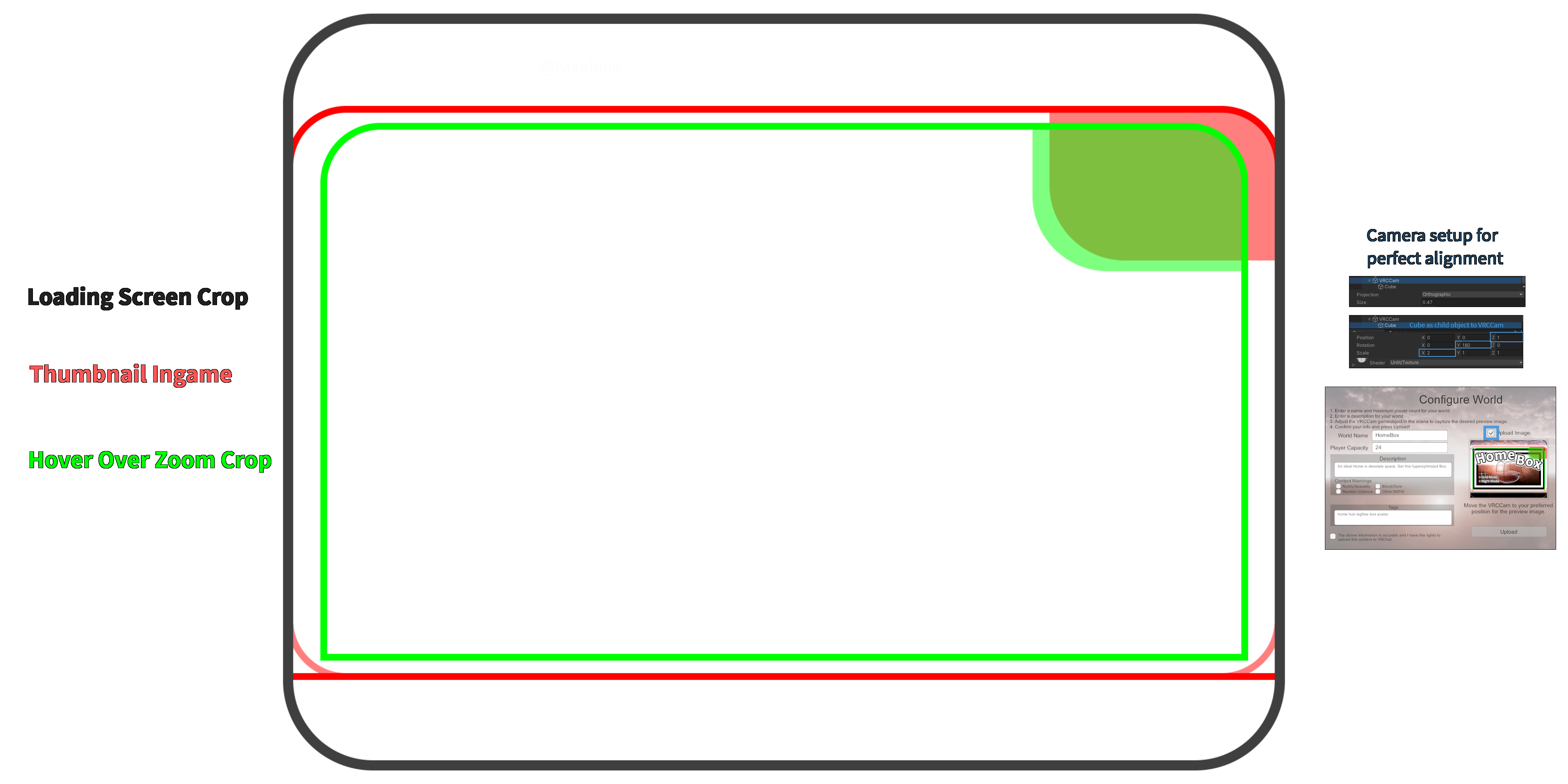
World Thumbnail template
To help create your own Thumbnail you may use the provided template to customhelp make or fit youralign existing thumbnail to VRChat's UI and level the playing field with your competition, to truly capture a users attention.visuals.
The image below covers a short guide oflines which you can key outrepresenting the crop4 linesdifferent withcrops ease.used. For your own purposes I recommend using the second one though, whichIt is transparent and ready to be used with youran existing thumbnail or as a base for making a new one.
AnythingSimply outsideset theit roundedas greya boxlayer willabove notyour bevisuals visibleand onremove theit finalbefore thumbnailuploading upload!your world thumbnail.

Grey box
The grey box is what the userusers will see while loading into youra world or on the website. As you see you can put something at the top and bottom, which is mostly seen loading in. MyAn idea would be to put some more detailed update notes there or a thanks to whoever joined!
Red box
The red box is how your image will look in the world menu. This is the most important crop to get right in order to get people to click on your world. You may also notice, that onOn the top right of this box youthere gotis thean overlay indicating on which platforms your world is available at, it is see through.


Green box
The green box is what youa seeuser sees when you hoverhovering over a world and it zooms in a little bit. Important here is, that the PC/Quest platform indicator is nearly opaque when hovered over. It may be wise to ensure nothing is hidden or cut off on the top right.

Blue and Lightblue circles
The blue and lightblue circles indicate what can be expected to be seen as a picture inside a dropped [[Portals|portal]]. The smaller of those 2 circles indicates what is always in view, when looking straight towards it. The bigger lightblue circle indicates where the actual cutoff happens, which is what is seen looking at the portal close up or at an angle.
Be aware the image is squished by about 33% horizontally before displayed in the portal.

Once you have everything lined up, you can delete this Templatetemplate layer. Please make sure to use a 4096x2048 resolution image or any other 2:1 aspect ratio one.
The lasttemplate stepabove isalready to Build and Upload your world infits the SDK,right thendimensions whileof in the Configure World window return to your scene.1200x900.
Locate "VRCCam" in your Hierarchy, set its Projection to "Orthographic" and its Size to "0.47"
add a Cube as a child object nested below VRCCam to it. and change its Z position to 1, Y Rotation to 180 and X Scale to 2.drag your image onto the Cube and I would recommend using an Unlit shader for the material created, as it ensures your image will not be affected by the lighting on your world.
With this you are ready to stand firm among your competition with a beautifully aligned Thumbnail to make people curious about your hard work!