# What's New in Unity 2022

Everything I think you should know about Unity 2022.3 when migrating your VRChat projects from 2019.4.

# Index

### <span style="color:rgb(53,152,219);">What's New in Unity 2022</span>

[All Arrays And Lists Are Now Reorderables by Default](https://vrclibrary.com/wiki/books/whats-new-in-unity-2022/page/all-arrays-and-lists-are-now-reorderables-by-default "https://vrclibrary.com/wiki/books/whats-new-in-unity-2022/page/all-arrays-and-lists-are-now-reorderables-by-default")

[Properties Window](https://vrclibrary.com/wiki/books/whats-new-in-unity-2022/page/properties-window "https://vrclibrary.com/wiki/books/whats-new-in-unity-2022/page/properties-window")

[Set Any GameObject as Default Parent](https://vrclibrary.com/wiki/books/whats-new-in-unity-2022/page/set-any-gameobject-as-default-parent "https://vrclibrary.com/wiki/books/whats-new-in-unity-2022/page/set-any-gameobject-as-default-parent")

[Undo History](https://vrclibrary.com/wiki/books/whats-new-in-unity-2022/page/undo-history "https://vrclibrary.com/wiki/books/whats-new-in-unity-2022/page/undo-history")

#### <span style="color:rgb(53,152,219);">Upcoming Pages</span>

- Hierarchy / Create Empty Parent
- Prefab Editing in Context vs. Isolation
- Search
- Transform Constrained Proportions
- Class Icon Attribute
- UI Image Raycast Padding
- Hierarchy / Copy, Cut &amp; Paste
- Property Copy / Paste
- Material Slot Pinging
- Ragdoll Creator
- Lighting Settings Asset
- Splines
- Collider Contacts
- Collider Layer Overrides

# All Arrays And Lists Are Now Reorderables by Default

### <span style="color:rgb(53,152,219);">What are reorderables?</span>

As soon as you open up Unity 2022.3, you may start to notice that all arrays and lists look a little different from how they used to in 2019.4.

[![image.png](https://vrclibrary.com/wiki/uploads/images/gallery/2023-11/scaled-1680-/image.png)](https://vrclibrary.com/wiki/uploads/images/gallery/2023-11/image.png)

This is because by default, all arrays and lists are now ***"reorderables"***, meaning that you can reorder items by dragging them. Many advanced creators have already been using reorderable lists before by accessing the Unity's internal APIs, but now they are available by default to everyone with zero code.

### <span style="color:rgb(53,152,219);">Can I revert the arrays to how they used to be?</span>

Absolutely! In order to disable reorderable arrays or lists, all you have to do is add the **[NonReorderableAttribute](https://docs.unity3d.com/ScriptReference/NonReorderableAttribute.html "https://docs.unity3d.com/ScriptReference/NonReorderableAttribute.html")** above your array:

```c#
[NonReorderable]
[SerializeField, FieldNullWarning(true)]
private Image[] panelColorExampleImages;

[NonReorderable]
[SerializeField, FieldNullWarning(true)]
private TextMeshProUGUI[] contentColorExampleTexts;

[NonReorderable]
[SerializeField, FieldNullWarning(true)]
internal GameObject[] examplesToDestroyOnBuild;
```

By using the attribute, all of your arrays should be back to how they used to be in 2019.4:

[![image.png](https://vrclibrary.com/wiki/uploads/images/gallery/2023-11/scaled-1680-/jA5image.png)](https://vrclibrary.com/wiki/uploads/images/gallery/2023-11/jA5image.png)

<p class="callout danger">PUBLIC ASSET AUTHORS - PLEASE NOTE!</p>

Migration to Unity 2022.3 may take even up to a year or more, so if you are a developer of publicly distributed assets, please note that ***[NonReorderableAttribute](https://docs.unity3d.com/ScriptReference/NonReorderableAttribute.html "https://docs.unity3d.com/ScriptReference/NonReorderableAttribute.html") is not available in Unity 2019.4!***

For publicly distributed scripts you can use the following define for ensuring that the end users are not running into compiler errors when attempting to import your scripts into their projects still using Unity 2019.4:

```c#
#if UNITY_2020_2_OR_NEWER
        [NonReorderable]
#endif
        [SerializeField]
        private GameObject[] myArray;
```

# Properties Window

Unity 2022.3 allows you to open an isolated window for any object's inspector.

[![image.png](https://vrclibrary.com/wiki/uploads/images/gallery/2023-11/scaled-1680-/2Vaimage.png)](https://vrclibrary.com/wiki/uploads/images/gallery/2023-11/2Vaimage.png)
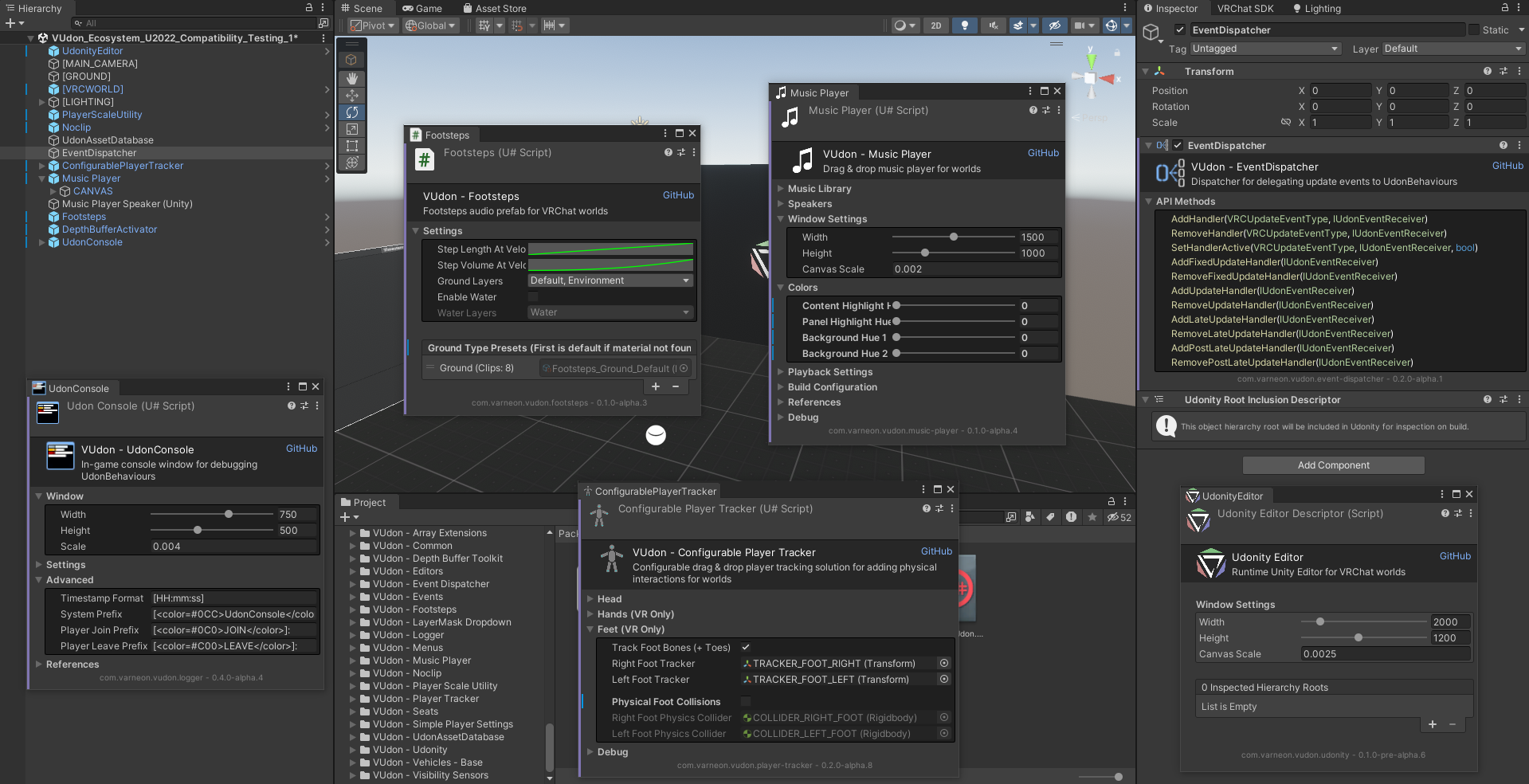
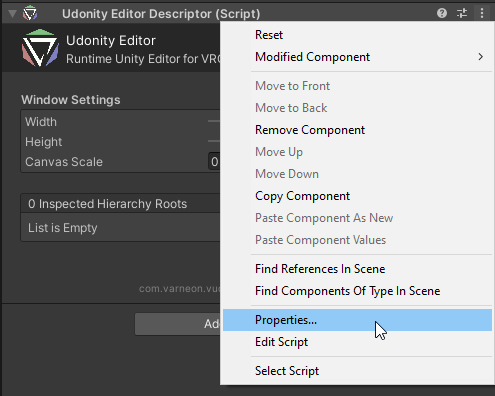
If you want to open an isolated inspector for a **Component**, navigate to the component's context menu *(three dots)*, and click ***Properties...***

[![image.png](https://vrclibrary.com/wiki/uploads/images/gallery/2023-11/scaled-1680-/zAaimage.png)](https://vrclibrary.com/wiki/uploads/images/gallery/2023-11/zAaimage.png)
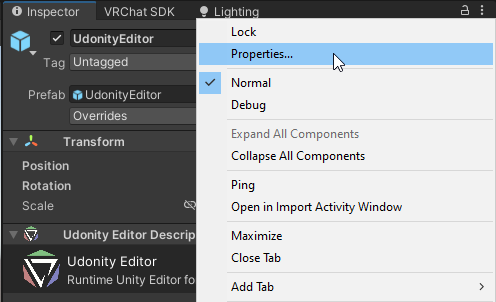
If you want to open an isolated inspector for a **GameObject**, navigate to the inspector's context menu *(three dots)*, and click ***Properties... - OR -*** right click the GameObject in hierarchy and click ***Properties...*** at the very bottom.

[![image.png](https://vrclibrary.com/wiki/uploads/images/gallery/2023-11/scaled-1680-/eQGimage.png)](https://vrclibrary.com/wiki/uploads/images/gallery/2023-11/eQGimage.png)
# Set Any GameObject as Default Parent

### <span style="color:rgb(53,152,219);">How to set a GameObject as default parent?</span>

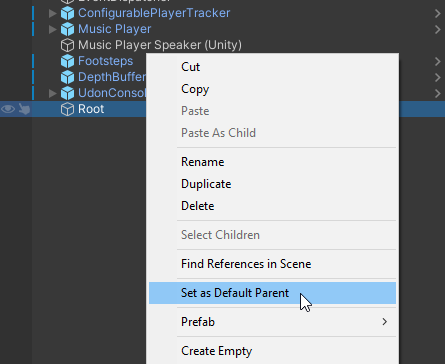
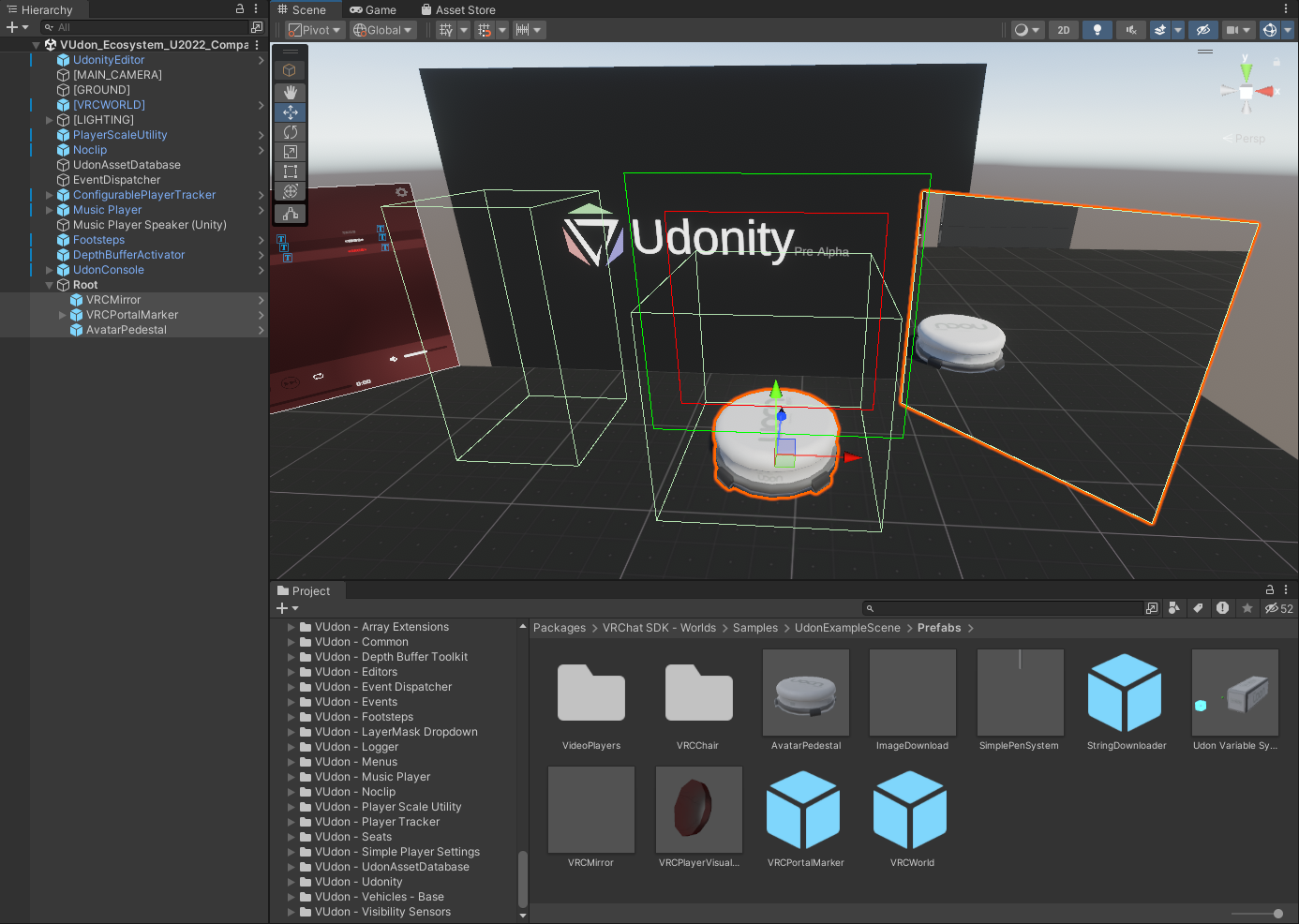
In 2022.3 we have a new option for setting any GameObject in the scene as the default parent, meaning that any new prefab we drag into the scene will be parented to that object by default.

[![image.png](https://vrclibrary.com/wiki/uploads/images/gallery/2023-11/scaled-1680-/DzBimage.png)](https://vrclibrary.com/wiki/uploads/images/gallery/2023-11/DzBimage.png)
[![image.png](https://vrclibrary.com/wiki/uploads/images/gallery/2023-11/scaled-1680-/FaRimage.png)](https://vrclibrary.com/wiki/uploads/images/gallery/2023-11/FaRimage.png)
### <span style="color:rgb(53,152,219);">How to clear the default parent for the scene?</span>

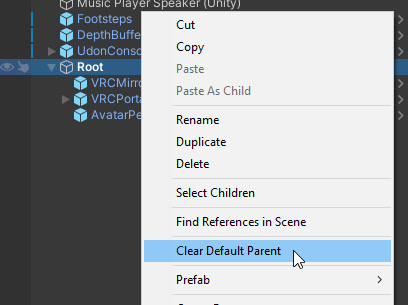
If you want to clear the default parent of your scene, all you have to do is navigate back to the same menu item as before, which now says ***"Clear Default Parent"***

[![image.png](https://vrclibrary.com/wiki/uploads/images/gallery/2023-11/scaled-1680-/YVrimage.png)](https://vrclibrary.com/wiki/uploads/images/gallery/2023-11/YVrimage.png)
# Undo History

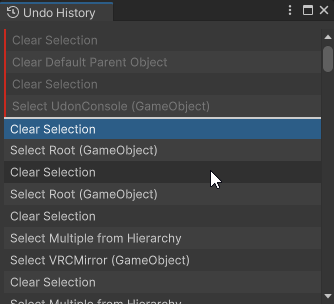
In 2022.3 we now have a dedicated Undo history window for quickly reverting changes without having to spam **CTRL + Z** repeatedly.

[![image.png](https://vrclibrary.com/wiki/uploads/images/gallery/2023-11/scaled-1680-/vOSimage.png)](https://vrclibrary.com/wiki/uploads/images/gallery/2023-11/vOSimage.png)
You can open the **Undo History** window by navigating to the **Top Right** **Corner** of your Unity Editor and pressing the little clock icon with an arrow around it:

[![image.png](https://vrclibrary.com/wiki/uploads/images/gallery/2023-11/scaled-1680-/KaGimage.png)](https://vrclibrary.com/wiki/uploads/images/gallery/2023-11/KaGimage.png)
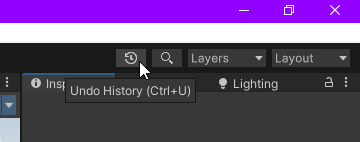
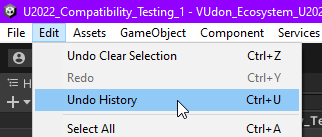
You may alternatively open it from your toolbar under **Edit &gt; Undo History:**

[![image.png](https://vrclibrary.com/wiki/uploads/images/gallery/2023-11/scaled-1680-/dksimage.png)](https://vrclibrary.com/wiki/uploads/images/gallery/2023-11/dksimage.png)

Or just press the keybind for it: **CTRL + U**.