Varneon's Unity Development Handbook
Due to overflowing amount of information about Unity development in my head I tend to forget things easily. This book is a place where I will put most of that information in so it's available more easily for everyone, including myself.
- Relative Project Paths
- Scriptable Objects
- Build Automation
- OnSceneGUI In Editor Window
- Custom Editor Menu Items
- Get Current Project Window Directory
- Rebuilding UI Layout from OnValidate
Relative Project Paths
When you want to save assets from scripts in your Unity project, you may often run into an error explaining that you must use relative paths.
This simple class (should) converts all paths into relative paths:
using System;
using System.IO;
using System.Linq;
using UnityEditor;
using UnityEditor.PackageManager;
using UnityEditor.PackageManager.Requests;
using UnityEngine;

namespace Varneon.Editor
{
    public static class PathUtility
    {
        /// <summary>
        /// Converts full path to one relative to the project
        /// </summary>
        /// <param name="path">Full path pointing inside the project</param>
        /// <returns>Path relative to the project</returns>
        /// <exception cref="ArgumentException"/>
        public static string ConvertToRelativePath(string path)
        {
            // If string is null or empty, throw an exception
            if (string.IsNullOrEmpty(path)) { throw new ArgumentException("Invalid path!", nameof(path)); }

            // If the directory is already valid, return original path
            if (AssetDatabase.IsValidFolder(Path.GetDirectoryName(path))) { return path; }

            // Get the 'Assets' directory
            string assetsDirectory = Application.dataPath;

            // Get the project's root directory (Trim 'Assets' from the end of the path)
            string projectDirectory = assetsDirectory[..^6];

            // Ensure that the path is the full path
            path = Path.GetFullPath(path);

            // Replace backslashes with forward slashes
            path = path.Replace('\\', '/');

            // If path doesn't point inside the project, scan all packages
            if (!path.StartsWith(projectDirectory))
            {
                // Request all packages in offline mode
                ListRequest request = Client.List(true, false);

                // Wait until the request is completed
                while (!request.IsCompleted) { }

                // If the request was successful, proceed with scanning the packages
                if(request.Status == StatusCode.Success)
                {
                    // Try to find a package with same path as the one we are validating
                    UnityEditor.PackageManager.PackageInfo info = request.Result.FirstOrDefault(p => p.source.Equals(PackageSource.Local) && path.StartsWith(p.resolvedPath.Replace('\\', '/')));

                    // If a package with same path exists, return resolved path
                    if (info != null)
                    {
                        string resolvedPackagePath = info.resolvedPath.Replace('\\', '/');

                        string packagePath = resolvedPackagePath[..resolvedPackagePath.LastIndexOf('/')];

                        return string.Concat("Packages/", info.name, path[resolvedPackagePath.Length..]);
                    }
                }

                throw new ArgumentException("Path is not located in this project!", nameof(path));
            }

            // Return a path relative to the project
            return path.Replace(projectDirectory, string.Empty);
        }
    }
}
Scriptable Objects
Find all ScriptableObjects of type
// Use AssetDatabase.FindAssets to first get all of the GUIDs of the ScriptableObjects
string[] guids = AssetDatabase.FindAssets(string.Concat("t:", typeof(FootstepGroundTypePreset).Name));

// Then you can use language-integrated query's 'Select' operation to project the GUIDs to the desired ScriptableObjects
IEnumerable<FootstepGroundTypePreset> allPresets =
  guids.Select(guid => AssetDatabase.LoadAssetAtPath<FootstepGroundTypePreset>(AssetDatabase.GUIDToAssetPath(guid)));

// In short, you can do the following
IEnumerable<FootstepGroundTypePreset> allPresets =
  AssetDatabase.FindAssets(string.Concat("t:", typeof(FootstepGroundTypePreset).Name))
  .Select(guid => AssetDatabase.LoadAssetAtPath<FootstepGroundTypePreset>(AssetDatabase.GUIDToAssetPath(guid)));
Build Automation
Receive Callback On Build
using UnityEditor.Callbacks;

namespace Varneon.Editor.BuildPostProcessors
{
    public static class BuildPostProcessor
    {
      	// Callback order defines the order in which the callback will be invoked
        [PostProcessScene(-1)] // UdonSharp: If you modify any data on UdonSharpBehaviours, do it on -1 or before! UdonSharp applies data from proxies to the backing behaviours on 0
        public static void PostProcessBuild()
        {
            // Do anything you want here
        }
    }
}
OnSceneGUI In Editor Window
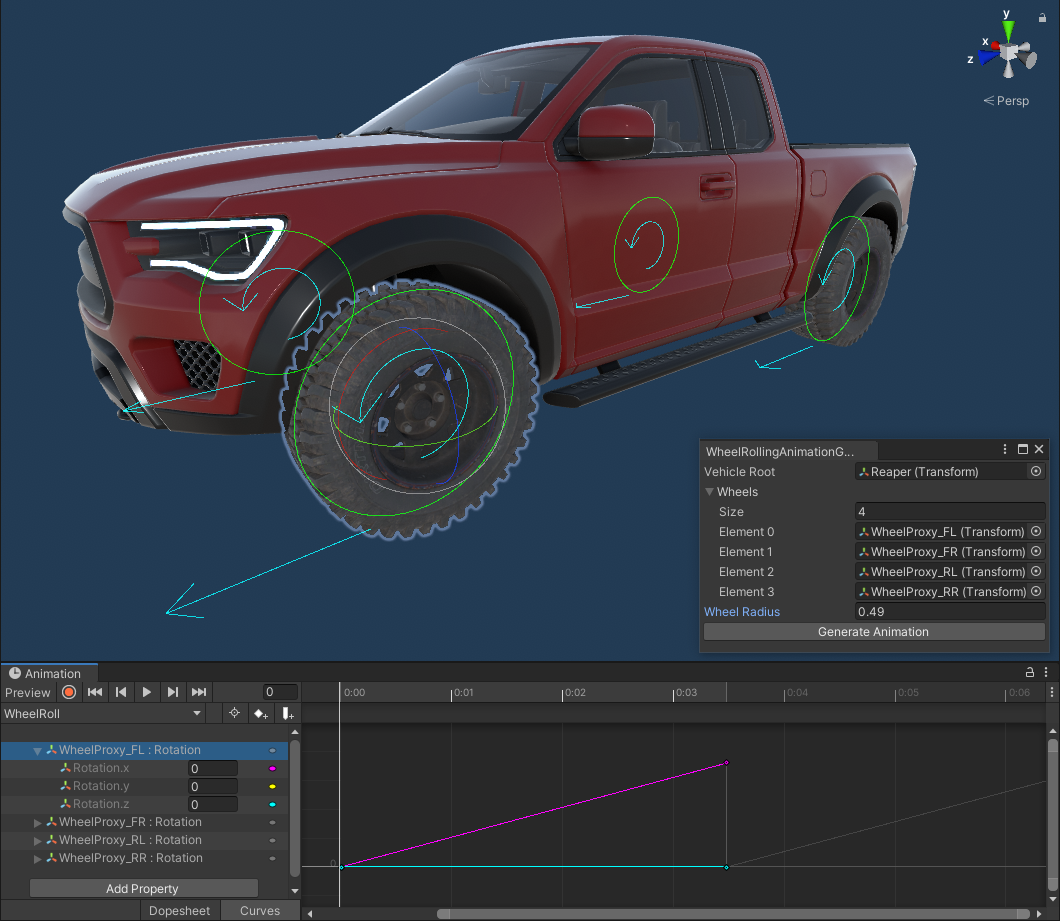
This is how you can get OnSceneGUI features like Handles to work on EditorWindows.
private void OnEnable()
{
  	// Ensure that there is no delegate callback
  	SceneView.duringSceneGui -= OnSceneGUI;

  	// Define the callback for the delegate
  	SceneView.duringSceneGui += OnSceneGUI;
}

private void OnDestroy()
{
  	// After the editor window is destroyed, remove the callback
  	SceneView.duringSceneGui -= OnSceneGUI;
}

private void OnSceneGUI(SceneView sceneView)
{
	// Here you can use OnSceneGUI features like Handles
}
Custom Editor Menu Items
How to create different types of menu items for the Unity Editor.
Custom Toolbar Menu
This is how you can make a custom toolbar menu for pointing into any static method.
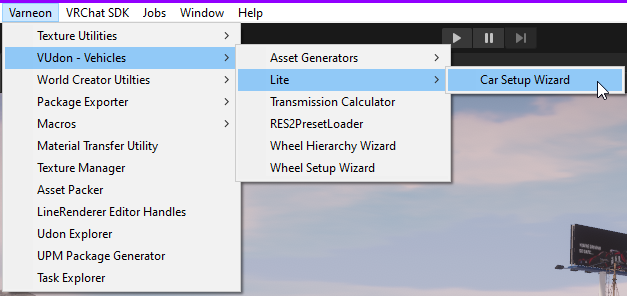
namespace Varneon.VUdon.VehiclesLite.Editor
{
    public class CarSetupWizard : EditorWindow
    {
    	// Every forward slash marks a new submenu
        [MenuItem("Varneon/VUdon - Vehicles/Lite/Car Setup Wizard")]
        private static void OpenWindow()
        {
            GetWindow<CarSetupWizard>("Car Setup Wizard");
        }
	}
}
Component Context Menu
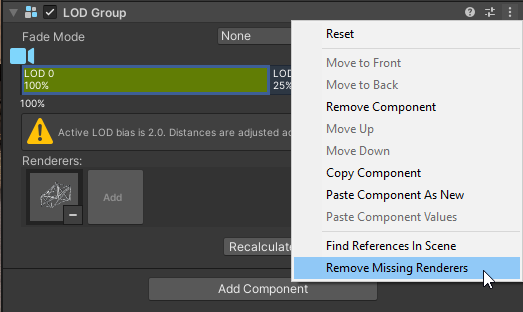
This is how you can make context menu items for different types of components in the inspector.
using System.Linq;
using UnityEditor;
using UnityEngine;

namespace Varneon.EditorUtilities.ComponentExtensions
{
    /// <summary>
    /// Collection of context menu actions for LODGroups
    /// </summary>
    public static class LODGroupContextMenuActions
    {
        /// <summary>
        /// Validate the method for removing missing renderer references from LODGroup
        /// </summary>
        /// <param name="command"></param>
        [MenuItem("CONTEXT/LODGroup/Remove Missing Renderers", validate = true)]
        private static bool ValidateRemoveMissingRenderers(MenuCommand command)
        {
            LODGroup lodGroup = (LODGroup)command.context;

            // Check if any of the renderer references is null
            return lodGroup.GetLODs().SelectMany(l => l.renderers).Any(r => r == null);
        }

        /// <summary>
        /// Remove missing renderer references from LODGroup
        /// </summary>
        /// <param name="command"></param>
        [MenuItem("CONTEXT/LODGroup/Remove Missing Renderers")]
        private static void RemoveMissingRenderers(MenuCommand command)
        {
            LODGroup lodGroup = (LODGroup)command.context;

            Undo.RecordObject(lodGroup, "Remove missing LODGroup renderers");

            lodGroup.SetLODs(lodGroup.GetLODs().Select(l => new LOD(l.screenRelativeTransitionHeight, l.renderers.Where(r => r != null).ToArray())).ToArray());
        }
    }
}
Hierarchy Menu
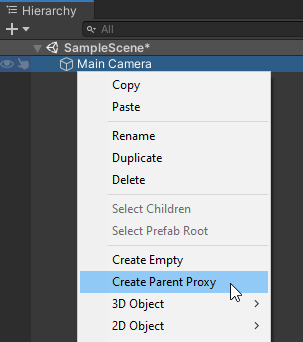
This is how you can make menu items for the hierarchy window.
using UnityEditor;
using UnityEngine;

namespace Varneon.EditorUtilities.HierarchyActions
{
    /// <summary>
    /// Collection of hierarchy context menu actions for creating proxy objects
    /// </summary>
    public static class ProxyObjectActions
    {
        /// <summary>
        /// Creates a new proxy parent object for the selected object(s)
        /// </summary>
        /// <param name="command"></param>
        [MenuItem("GameObject/Create Parent Proxy", false, 0)]
        private static void CreateProxyParent(MenuCommand command)
        {
            // Get the selected object's transform
            Transform contextTransform = ((GameObject)command.context).transform;

            // Create a new object
            Transform newProxyTransform = new GameObject(string.Format("{0}_Proxy", contextTransform.name)).transform;

            // Match the parent
            newProxyTransform.SetParent(contextTransform.parent, false);

            // Match the sibling index
            newProxyTransform.SetSiblingIndex(contextTransform.GetSiblingIndex());

            // Register undo for the new proxy
            Undo.RegisterCreatedObjectUndo(newProxyTransform.gameObject, "Create proxy parent");

            // Parent the original object to the new proxy with undo
            Undo.SetTransformParent(contextTransform, newProxyTransform, "Parent object to proxy");
        }
    }
}
Get Current Project Window Directory
This is how you can get the current directory of the Project window:
using System.Reflection;
using UnityEditor;
using UnityEngine;

public static string GetActiveProjectWindowDirectory()
{
  	// Use Reflection to get the hidden method for getting the folder path
    MethodInfo getActiveFolderPathMethod = typeof(ProjectWindowUtil).GetMethod("GetActiveFolderPath", BindingFlags.Static | BindingFlags.NonPublic);

  	// Invoke the method to return the string
    return (string)getActiveFolderPathMethod.Invoke(null, null);
}
Rebuilding UI Layout from OnValidate
Attempting to call LayoutRebuilder.ForceRebuildLayoutImmediate from OnValidate will result in following warning being thrown into your console: SendMessage cannot be called during Awake, CheckConsistency, or OnValidate UnityEngine.Object:Instantiate(GameObject).
We can work around this by utilizing UnityEditor.EditorApplication.delayCall (example script from Udonity):
using UdonSharp;
using UnityEngine;
using UnityEngine.UI;

namespace Varneon.VUdon.Udonity.UIElements
{
    [RequireComponent(typeof(LayoutGroup))]
    [RequireComponent(typeof(ContentSizeFitter))]
    [UdonBehaviourSyncMode(BehaviourSyncMode.None)]
    public class Foldout : UdonSharpBehaviour
    {
        public bool Expanded
        {
            get => expanded;
            set
            {
                expanded = value;

                toggle.SetExpandedStateWithoutNotify(expanded);

                SetContentExpandedState(expanded);
            }
        }

        [Header("Options")]
        [SerializeField]
        private bool expanded;

        [Header("References")]
        [SerializeField]
        private FoldoutToggle toggle;

        private void SetContentExpandedState(bool expanded)
        {
            gameObject.SetActive(expanded);

            LayoutGroup[] layoutGroups = GetComponentsInParent<LayoutGroup>(true);

            foreach (LayoutGroup layoutGroup in layoutGroups)
            {
                LayoutRebuilder.ForceRebuildLayoutImmediate(layoutGroup.GetComponent<RectTransform>());
            }
        }

#if UNITY_EDITOR && !COMPILER_UDONSHARP
        private void OnValidate()
        {
            UnityEditor.EditorApplication.delayCall += OnValidateDelayed;
        }

        private void OnValidateDelayed()
        {
            if (this == null) { return; }

            if (toggle)
            {
                toggle.Foldout = this;

                toggle.SetExpandedStateWithoutNotify(expanded);
            }

            SetContentExpandedState(expanded);
        }
#endif
    }
}