# Reading TMP_Dropdown Value in Udon
TMP_Dropdown isn't exposed in Udon, so we're unable to read its value by default. Here is a workaround to receive an event in Udon when a player selects an item on the dropdown, after which we can read the value from a proxy.
1) Create new TextMeshPro Dropdown
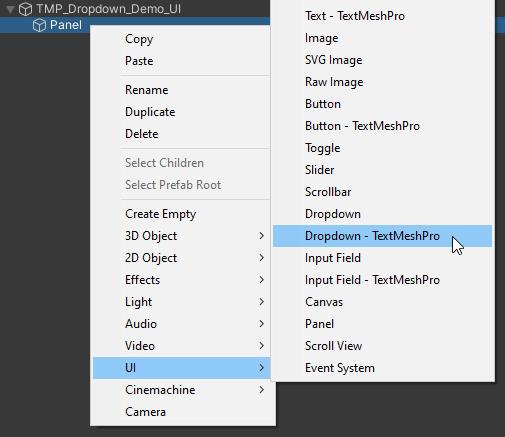
Right click on the element you wish to add the dropdown to, and navigate to `UI` > `Dropdown - TextMeshPro`
[](https://vrclibrary.com/wiki/uploads/images/gallery/2023-01/image.png)
2) Create proxy dropdown
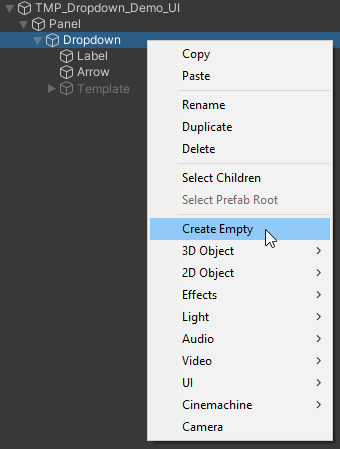
Right click on the TPM dropdown object and add new empty GameObject
[](https://vrclibrary.com/wiki/uploads/images/gallery/2023-01/image-1672826649272.png)
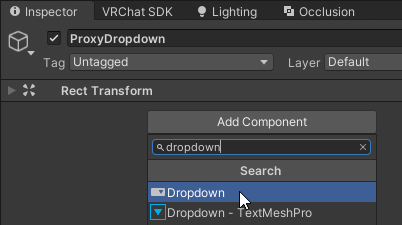
Add Dropdown component on the created proxy GameObject
[](https://vrclibrary.com/wiki/uploads/images/gallery/2023-01/image-1672826783230.png)
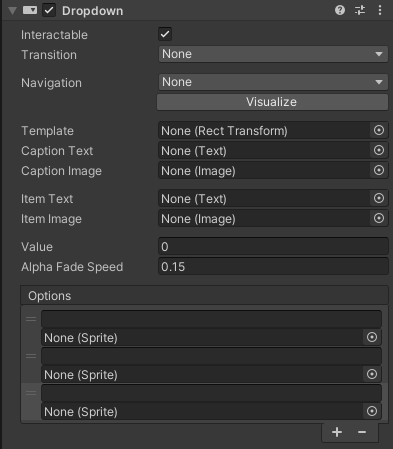
Set up the proxy dropdown
* Transition: `None`
* Navigation: `None`
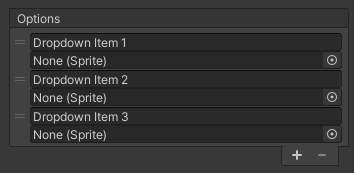
* Make sure proxy dropdown has the same number of options as the TMP dropdown
[](https://vrclibrary.com/wiki/uploads/images/gallery/2023-01/image-1672827148667.png)
[](https://vrclibrary.com/wiki/uploads/images/gallery/2023-01/image-1672827386201.png)
3) Add OnValueChanged event on TMP dropdown to set the value of the proxy dropdown
[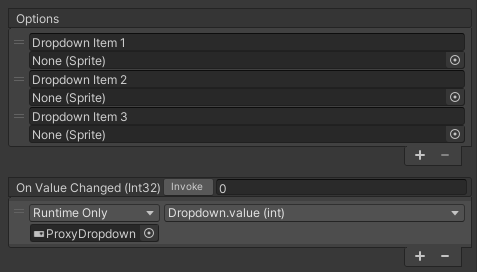](https://vrclibrary.com/wiki/uploads/images/gallery/2023-01/image-1672828344891.png)
4) Create a dropdown handler UdonBehaviour
```csharp
using UdonSharp;
using UnityEngine;
using UnityEngine.UI;
namespace Varneon.Examples
{
[UdonBehaviourSyncMode(BehaviourSyncMode.None)]
public class TMPDropdownTest : UdonSharpBehaviour
{
[SerializeField]
private Dropdown proxyDropdown;
public void OnDropdownValueChanged()
{
// value is the index of the item selected in the dropdown
int value = proxyDropdown.value;
}
}
}
```
Add the script above to the TPM dropdown object and assign the proxy dropdown to the field
[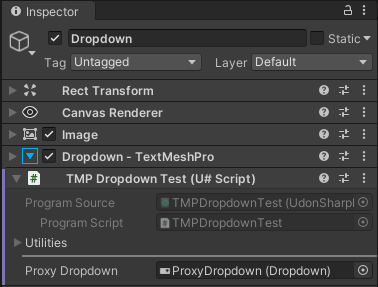](https://vrclibrary.com/wiki/uploads/images/gallery/2023-01/image-1672828159308.png)
Add OnValueChanged event on the proxy dropdown to invoke the public method on the UdonBehaviour
[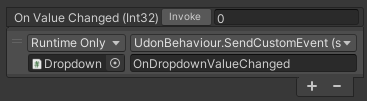](https://vrclibrary.com/wiki/uploads/images/gallery/2023-01/image-1672828255833.png)
Done! - You should now be able to execute any code you want based on the value from the proxy dropdown