# UI Basics and Beyond

Basic information about using Unity UI in VRChat, example use cases and advanced concepts

# Visual Components

Detailed information about all of the available visual components for UIs

# Interaction Components

Detailed information about all of the available interaction components for UIs

# Examples - Basic

Beginner level examples for getting started with UI in VRChat

# Interactable World Space UI Canvas

<p class="callout warning">This is still just the raw structure of the steps involved! Images and more details will be added soon.</p>

- Create a UI canvas 
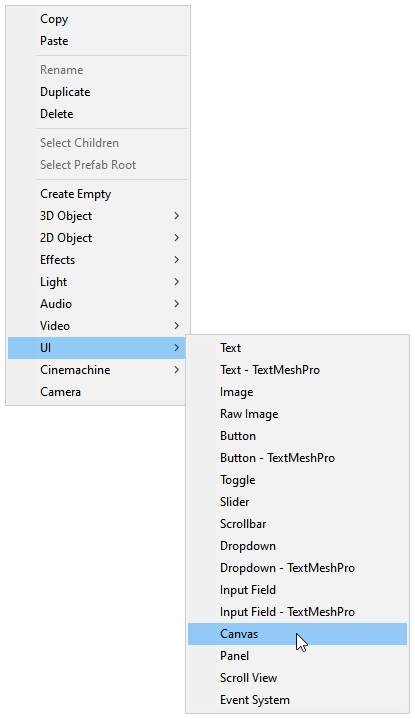
    - Right-click on your hierarchy, click on "UI &gt; Canvas"
- Switch **Render Mode** on **Canvas** to **World Space**
- Reset the Canvas' **Rect Transform**
- Set the **Width** and **Height** of the **Rect Transform** to 1000
- Set the **Scale** of the **Rect Transform** to 0.001
- Add **VRCUiShape** to the same GameObject as **Canvas**
- Change the GameObject's layer to **Default**
- Add a Panel 
    - Right-click on the Canvas in your hierarchy, click on "UI &gt; Panel"
- Disable **Raycast Target** and **Maskable** toggles on the **Image** component

### <span style="color: #3598db;">1) Create a UI Canvas</span>

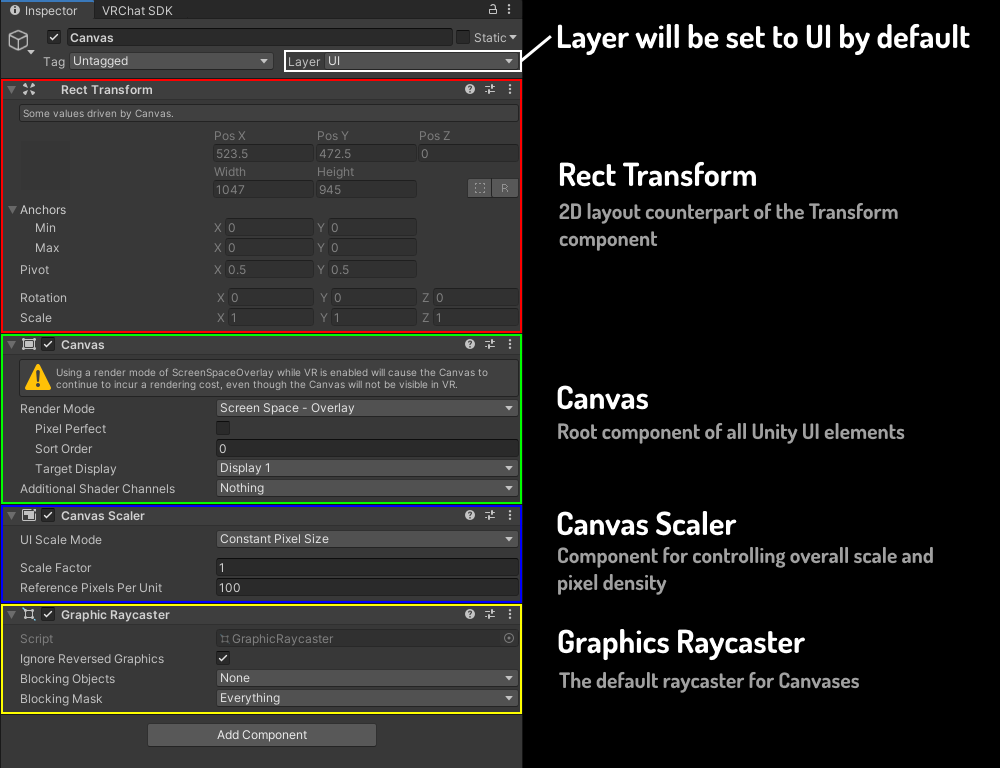
<p class="callout info"><span style="color: #3598db;">Canvas is the root component of every UI</span></p>

<details id="bkmrk-1%29-create-a-ui-canva"><summary>Instructions</summary>

- Create a new Canvas in your scene by right-clicking your hierarchy and clicking on "UI &gt; Canvas"

[![image-1657475509118.png](https://vrclibrary.com/wiki/uploads/images/gallery/2022-07/scaled-1680-/image-1657475509118.png)](https://vrclibrary.com/wiki/uploads/images/gallery/2022-07/image-1657475509118.png)

[![image-1657475383536.png](https://vrclibrary.com/wiki/uploads/images/gallery/2022-07/scaled-1680-/image-1657475383536.png)](https://vrclibrary.com/wiki/uploads/images/gallery/2022-07/image-1657475383536.png)
</details>### <span style="color: #3598db;">2) Make Canvas World Space</span>

<details id="bkmrk-instructions-%C2%A0"><summary>Instructions</summary>

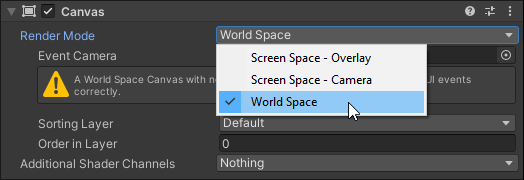
<p class="callout info">By default the render mode of the canvas will be set to ***"Screen Space - Overlay"***, meaning that the canvas will always overlay the game view. For a world space canvas we want to switch the mode to ***"World Space"***.</p>

<p class="callout warning">***"Screen Space - Overlay"*** and ***"Screen Space - Camera"*** are not compatible with VR as a render mode for a HUD</p>

- Change **Render Mode** of the **Canvas** to ***"World Space"***

[![image-1657476687430.png](https://vrclibrary.com/wiki/uploads/images/gallery/2022-07/scaled-1680-/image-1657476687430.png)](https://vrclibrary.com/wiki/uploads/images/gallery/2022-07/image-1657476687430.png)
</details>

# Technical Notes

Some highly specific technical details, problems and solutions

# Detecting a User About to Type on InputField

Due to VRChat not being the most consistent with sent UI events, especially between desktop and VR, it can be difficult to reliably detect when a user is about to start typing on a UI InputField.

During the development of [Udonity](https://github.com/Varneon/VUdon-Udonity "https://github.com/Varneon/VUdon-Udonity") I faced this specific issue with the fields on the inspectors and editor windows where values on the input fields are being updated per frame to display accurate information about the inspected objects.

In this scenario detecting the intentions of a user about to start typing on a field is necessary in order to pause the values being brute forced in while typing, which would result in user's input being rejected.

####  

#### InputFields with no [VRCInputFieldKeyboardOverride](https://docs.vrchat.com/docs/vrchat-202222p3#features-changes-fixes-and-improvements "https://docs.vrchat.com/docs/vrchat-202222p3#features-changes-fixes-and-improvements")

Since VRChat 2022.2.2p3, clicking any field will display VRChat's own in-game keyboard for typing, and *so far* I've found one reliable solution for detecting when a user is about to start typing on a field:

1. Add **Event Trigger** to the same object as the ****InputField:****
    
    [![image.png](https://vrclibrary.com/wiki/uploads/images/gallery/2022-12/scaled-1680-/WLAimage.png)](https://vrclibrary.com/wiki/uploads/images/gallery/2022-12/WLAimage.png)
2. Click **Add New Event Type** &gt; **InitializePotentialDrag**: 
    
    [![image.png](https://vrclibrary.com/wiki/uploads/images/gallery/2022-12/scaled-1680-/h3Kimage.png)](https://vrclibrary.com/wiki/uploads/images/gallery/2022-12/h3Kimage.png)
3. Set up any events that you want to be invoked when someone is about to start typing:[![image.png](https://vrclibrary.com/wiki/uploads/images/gallery/2022-12/scaled-1680-/I3Rimage.png)](https://vrclibrary.com/wiki/uploads/images/gallery/2022-12/I3Rimage.png)

# Rebuilding UI Layout

If you are using [Unity UI](https://docs.unity3d.com/Packages/com.unity.ugui@1.0/manual/index.html "https://docs.unity3d.com/Packages/com.unity.ugui@1.0/manual/index.html") [Auto Layout](https://docs.unity3d.com/Packages/com.unity.ugui@1.0/manual/comp-UIAutoLayout.html "https://docs.unity3d.com/Packages/com.unity.ugui@1.0/manual/comp-UIAutoLayout.html") components on your UI, you may face problematic situations where the elements are getting stuck in weird positions due to layout not being rebuilt when necessary.

In these cases you can simply call [**LayoutRebuilder.ForceRebuildLayoutImmediate**](https://docs.unity3d.com/Packages/com.unity.ugui@1.0/api/UnityEngine.UI.LayoutRebuilder.html?q=layout%20rebuilder#UnityEngine_UI_LayoutRebuilder_ForceRebuildLayoutImmediate_UnityEngine_RectTransform_ "https://docs.unity3d.com/Packages/com.unity.ugui@1.0/api/UnityEngine.UI.LayoutRebuilder.html?q=layout%20rebuilder#UnityEngine&#95;UI&#95;LayoutRebuilder&#95;ForceRebuildLayoutImmediate&#95;UnityEngine&#95;RectTransform&#95;"), which should be able to fix the problem in many scenarios:

```c#
// Call this static method with the root of the layout as a parameter. E.g:
UnityEngine.UI.LayoutRebuilder.ForceRebuildLayoutImmediate(GetComponent<RectTransform>());
```

If your UI consists of complex nested layout groups, sometimes calling the method above more than once have been able to solve the problem.

# Reading TMP_Dropdown Value in Udon

TMP_Dropdown isn't exposed in Udon, so we're unable to read its value by default. Here is a workaround to receive an event in Udon when a player selects an item on the dropdown, after which we can read the value from a proxy.

<details><summary>1) Create new TextMeshPro Dropdown</summary>

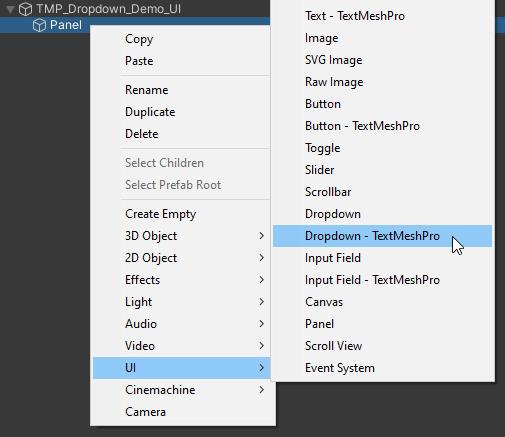
Right click on the element you wish to add the dropdown to, and navigate to `UI` &gt; `Dropdown - TextMeshPro`

[![image.png](https://vrclibrary.com/wiki/uploads/images/gallery/2023-01/scaled-1680-/image.png)](https://vrclibrary.com/wiki/uploads/images/gallery/2023-01/image.png)
  
</details>

<details><summary>2) Create proxy dropdown</summary>

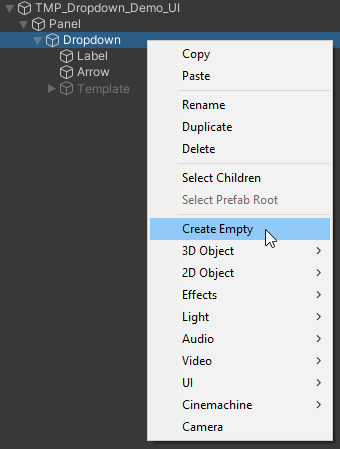
Right click on the TPM dropdown object and add new empty GameObject
  
[![](https://vrclibrary.com/wiki/uploads/images/gallery/2023-01/scaled-1680-/image-1672826649272.png)](https://vrclibrary.com/wiki/uploads/images/gallery/2023-01/image-1672826649272.png)
  
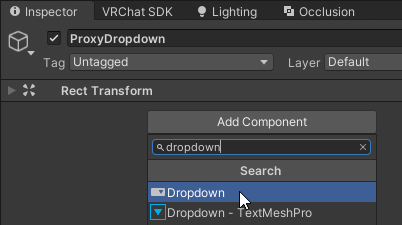
Add Dropdown component on the created proxy GameObject
  
[![](https://vrclibrary.com/wiki/uploads/images/gallery/2023-01/scaled-1680-/image-1672826783230.png)](https://vrclibrary.com/wiki/uploads/images/gallery/2023-01/image-1672826783230.png)

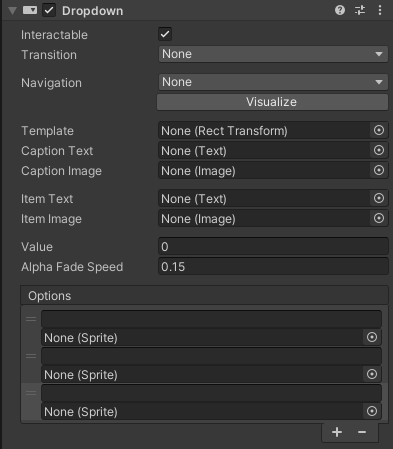
Set up the proxy dropdown
  
* Transition: `None`
* Navigation: `None`
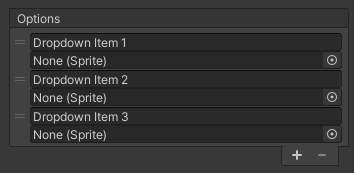
* Make sure proxy dropdown has the same number of options as the TMP dropdown

[![](https://vrclibrary.com/wiki/uploads/images/gallery/2023-01/scaled-1680-/image-1672827148667.png)](https://vrclibrary.com/wiki/uploads/images/gallery/2023-01/image-1672827148667.png)
  
[![](https://vrclibrary.com/wiki/uploads/images/gallery/2023-01/scaled-1680-/image-1672827386201.png)](https://vrclibrary.com/wiki/uploads/images/gallery/2023-01/image-1672827386201.png)
  
</details>

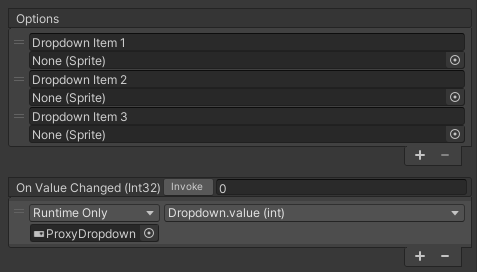
<details><summary>3) Add OnValueChanged event on TMP dropdown to set the value of the proxy dropdown</summary>

[![](https://vrclibrary.com/wiki/uploads/images/gallery/2023-01/scaled-1680-/image-1672828344891.png)](https://vrclibrary.com/wiki/uploads/images/gallery/2023-01/image-1672828344891.png)
  
</details>

<details><summary>4) Create a dropdown handler UdonBehaviour</summary>

```csharp
using UdonSharp;
using UnityEngine;
using UnityEngine.UI;

namespace Varneon.Examples
{
    [UdonBehaviourSyncMode(BehaviourSyncMode.None)]
    public class TMPDropdownTest : UdonSharpBehaviour
    {
        [SerializeField]
        private Dropdown proxyDropdown;

        public void OnDropdownValueChanged()
        {
            // value is the index of the item selected in the dropdown
            int value = proxyDropdown.value;
        }
    }
}
```
  
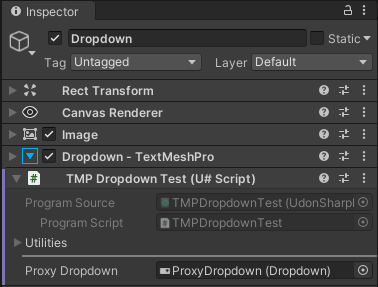
Add the script above to the TPM dropdown object and assign the proxy dropdown to the field
  
[![](https://vrclibrary.com/wiki/uploads/images/gallery/2023-01/scaled-1680-/image-1672828159308.png)](https://vrclibrary.com/wiki/uploads/images/gallery/2023-01/image-1672828159308.png)
  
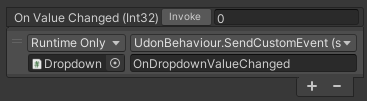
Add OnValueChanged event on the proxy dropdown to invoke the public method on the UdonBehaviour
  
[![](https://vrclibrary.com/wiki/uploads/images/gallery/2023-01/scaled-1680-/image-1672828255833.png)](https://vrclibrary.com/wiki/uploads/images/gallery/2023-01/image-1672828255833.png)

Done! - You should now be able to execute any code you want based on the value from the proxy dropdown
  
</details>