Examples - Basic
Beginner level examples for getting started with UI in VRChat
Interactable World Space UI Canvas
This is still just the raw structure of the steps involved! Images and more details will be added soon.
- Create a UI canvas
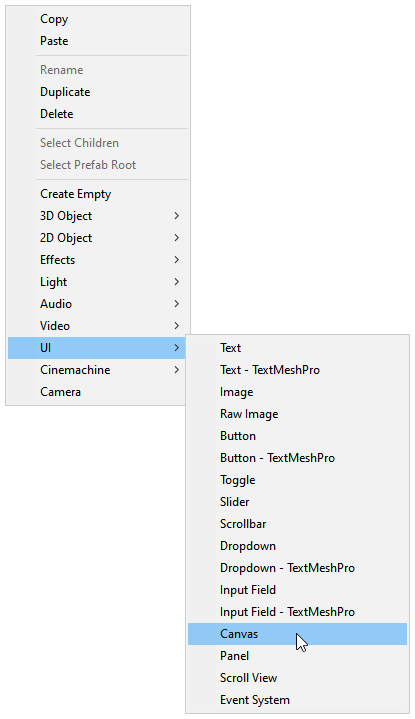
- Right-click on your hierarchy, click on "UI > Canvas"
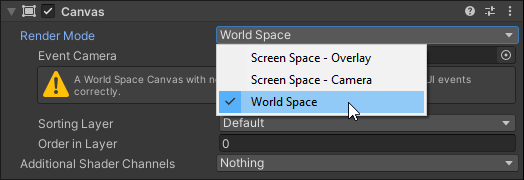
- Switch Render Mode on Canvas to World Space
- Reset the Canvas' Rect Transform
- Set the Width and Height of the Rect Transform to 1000
- Set the Scale of the Rect Transform to 0.001
- Add VRCUiShape to the same GameObject as Canvas
- Change the GameObject's layer to Default
- Add a Panel
- Right-click on the Canvas in your hierarchy, click on "UI > Panel"
- Disable Raycast Target and Maskable toggles on the Image component
1) Create a UI Canvas
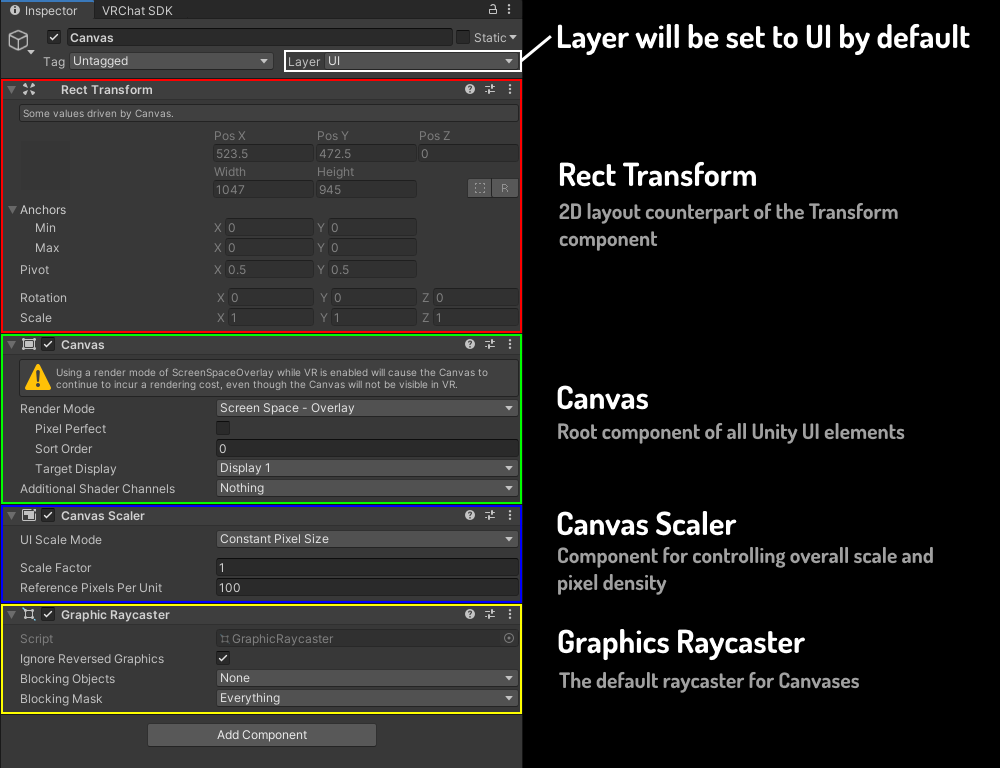
Canvas is the root component of every UI
Instructions
- Create a new Canvas in your scene by right-clicking your hierarchy and clicking on "UI > Canvas"
2) Make Canvas World Space
Instructions
By default the render mode of the canvas will be set to "Screen Space - Overlay", meaning that the canvas will always overlay the game view. For a world space canvas we want to switch the mode to "World Space".
"Screen Space - Overlay" and "Screen Space - Camera" are not compatible with VR as a render mode for a HUD
- Change Render Mode of the Canvas to "World Space"