**CATS currently does not work in Blender 3.1, temporarily downgrade to [Blender 3.0](https://www.blender.org/download/releases/3-0/) until the issue is fixed.**
**Blender 2.8+ (I am using 3.0 in this tutorial)** **[CATS Blender Plugin](https://github.com/absolute-quantum/cats-blender-plugin)** **[VRM Addon for Blender](https://github.com/saturday06/VRM_Addon_for_Blender)** To install the plugins, open Blender and click Edit>Preferences>Addons and click **"Install"** then install each addon respectively, make sure both are enabled in the list! [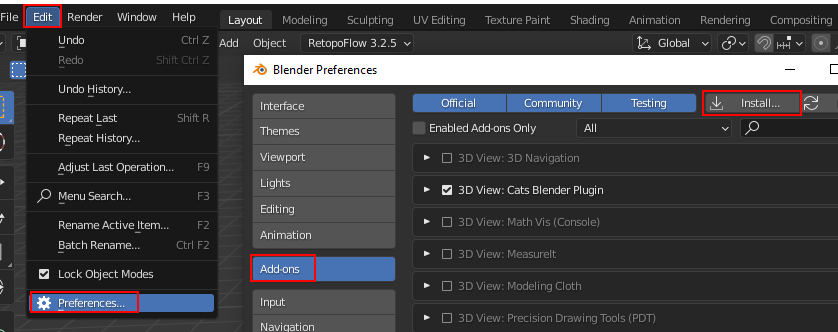](https://vrclibrary.com/wiki/uploads/images/gallery/2022-02/image-1645304752802.png) ### Importing Go to File>Import>VRM (.vrm) [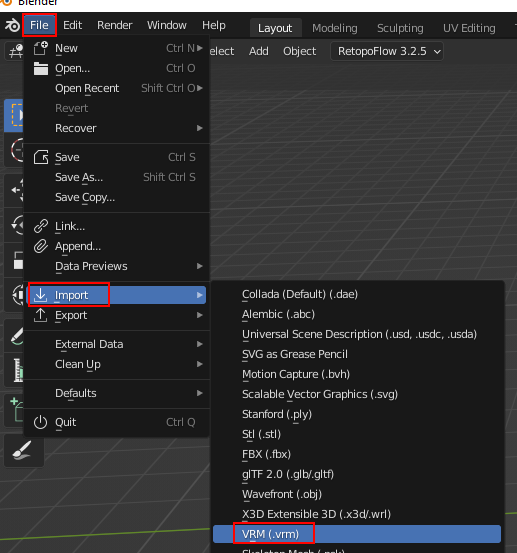](https://vrclibrary.com/wiki/uploads/images/gallery/2022-02/image-1645304868414.png) Check **"Extract texture images into the folder",** this will create a new folder with all your textures in it. Select your .vrm model, and click **"Import VRM"** it may take a second to import. [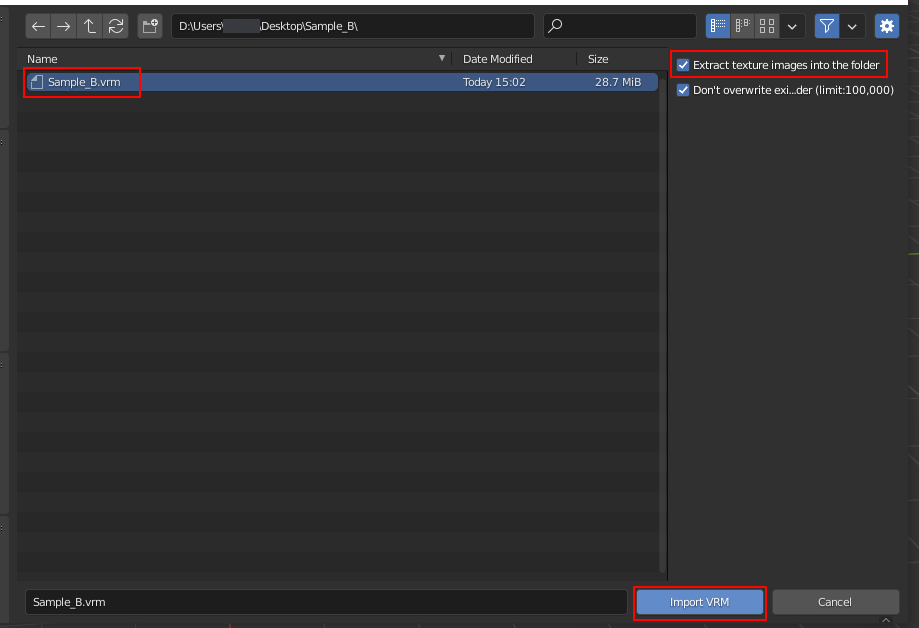](https://vrclibrary.com/wiki/uploads/images/gallery/2022-02/image-1645304989095.png) Once imported, go to the CATS menu and click **"Fix Model",** if you do not see this side menu in your viewport, press **N** on your keyboard. [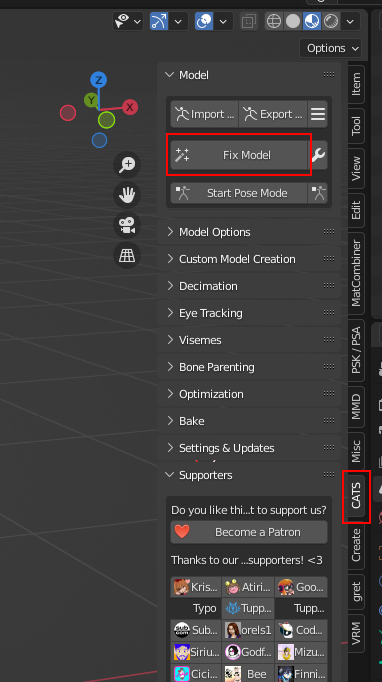](https://vrclibrary.com/wiki/uploads/images/gallery/2022-02/image-1645305184911.png) Now go to File>Export>FBX (.fbx) [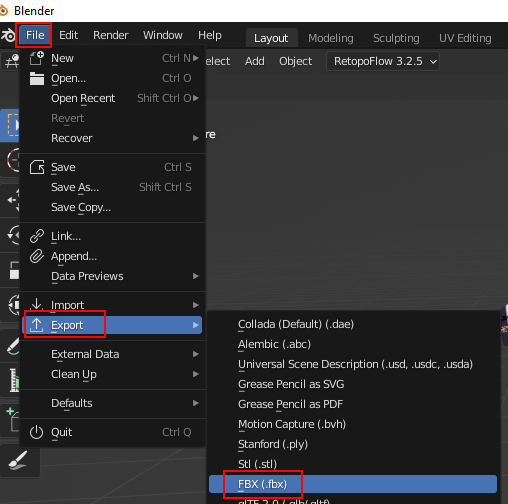](https://vrclibrary.com/wiki/uploads/images/gallery/2022-02/image-1645305264069.png) Under "Armature" disable **"Add Leaf Bones"**, choose where you want to save your file, preferably, wherever your .vrm is, then click **"Export FBX".** ### [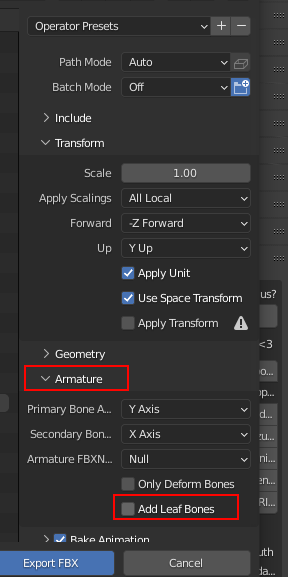](https://vrclibrary.com/wiki/uploads/images/gallery/2022-02/image-1645305354378.png) ## Finished You're now finished and are free to set up the rest of your model in Unity! ### Extra Note Each texture is for something specific, Diffuse is the base textures, shademaps are used for shadow colors, etc. [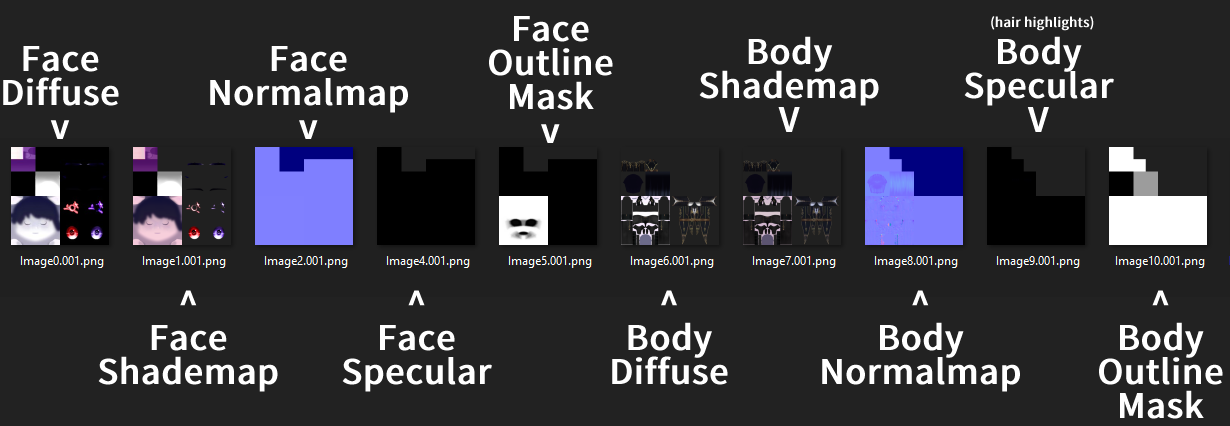](https://vrclibrary.com/wiki/uploads/images/gallery/2022-02/image-1645307579386.png) # Adding Visemes ### Separate Face from Body Select your body mesh and press **"P"**, then select **"By Material,"** this will separate your face and body into two different meshes (if set up properly) [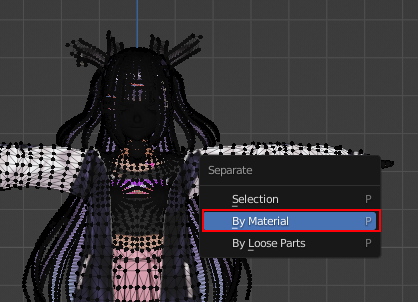](https://vrclibrary.com/wiki/uploads/images/gallery/2022-02/image-1645339197080.png) Name your meshes "Body" and "Face" respectively, you can select each mesh and rename it by pressing **"F2"****Doing this is more optimized than having your entire model one mesh!** This is because when you have a shapekey activated it calculates ***every*** ***vertex on the model,*** *meaning if you have too many it can cause lag.*
### Create Visemes In the CATS menu (Press **N** to open the side menu) and add each object like the following, and click **'Create Visemes'** [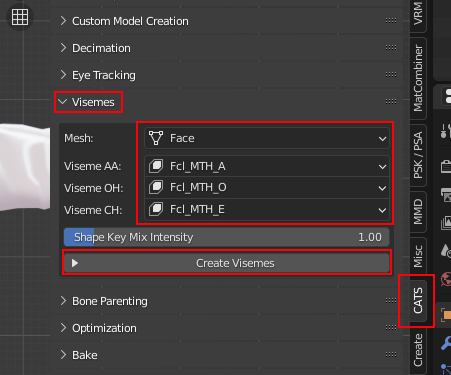](https://vrclibrary.com/wiki/uploads/images/gallery/2022-02/image-1645342665870.png) It'll automatically create all the visemes you need! Done! Kapow! [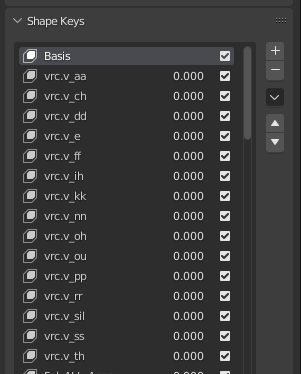](https://vrclibrary.com/wiki/uploads/images/gallery/2022-02/image-1645344754380.png) # Eye-tracking Fix As you may notice, sometimes, some VRoid avatars have an issue with the irises clipping through the eyelids when blinking, fortunately, this is a fairly easy fix! ## Step 1. Open Model in Blender To get it how I have it here, make sure you have your face mesh separated from the rest of your avatar's body, this is easier to work with and also is more optimized. If you don't know how to do this, please read the previous chapter **[Adding Visemes](https://vrclibrary.com/wiki/books/trixxeds-vroid-workflow-wip/page/adding-visemes "Adding Visemes").** [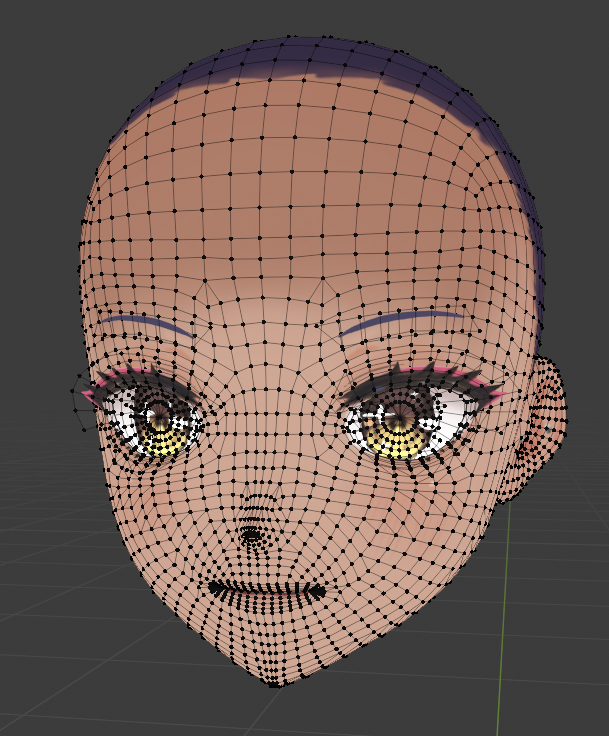](https://vrclibrary.com/wiki/uploads/images/gallery/2022-02/image-1645506775208.png)*(Tip: if you press **'A'** to select all the verts in edit mode, and press **'ALT+J'** it will turn (most) of the tris to quads, it isn't perfect but its still nice.)*
## Step 2. Open the UV editor You can create or close windows window by dragging the corners of any existing window as such. Do this and switch the new window to the UV Editor window, this will make it easier to select what we want. *[](https://vrclibrary.com/wiki/uploads/images/gallery/2022-02/image-1645507337593.gif)* Click the icon with the two arrows parallel to each other in the UV Editor [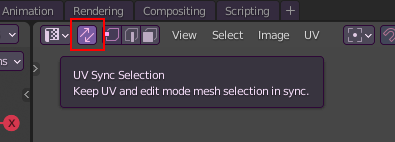](https://vrclibrary.com/wiki/uploads/images/gallery/2022-02/image-1645507511274.png) ## Step 3. Select the Irises and The Highlights Select the irises and highlights in the uv editor by hovering your cursor over each UV island and pressing **'L'** [](https://vrclibrary.com/wiki/uploads/images/gallery/2022-02/image-1645507805334.gif) (As of VRoid Studio ver. 1.4.x, the irises and highlights will always be at the bottom right of the face texture) You can now close the UV editor by dragging the Viewport window over the UV Editor window. [](https://vrclibrary.com/wiki/uploads/images/gallery/2022-02/image-1645507914940.gif) ## Step 3. move those suckers back Press **'Numpad 3'** to switch to the right side of your model, this will make it easier to move them back more precisely.*If you do not have a numpad, go to 'Edit>Preferences>Input' and enable **'Emulate Numpad'** and press **'3'** on your keyboard.*
Select the **"Move"** tool and move your eye back on the Y-axis (the green one), you can hold **'Shift'** to move it more precisely. Don't move it back too far, otherwise it'll look weird. [](https://vrclibrary.com/wiki/uploads/images/gallery/2022-02/image-1645508888335.gif) ## Step 4. Finished! All is done, hopefully it will no longer clip out of the eye! # Normal Edits (WIP) I reccommend [Applying Custom Normals to Avatars](https://vrclibrary.com/wiki/books/applying-custom-normals-to-avatars "Applying Custom Normals to Avatars") until I actually finish this.