Transform Manipulations for Dummies
Do you like math? Do you like vectors? Do you want to know how to do vector math with transforms?
"But why would you even want to know this?"
On avatars, we dont have the luxuries of using scripting to make cool things.
So we can have to use the tools that are given to us to do fun things :)
And because a large portion of what makes games work is vector math, you can do a lot of fun things with this on avatars, like tracking other players' hands!
- Chapter 0: What?
- Prerequisites & Disclaimers
- What is a Transform?
- How do you do maths with a Transform?
- Position Constraints
- World Space vs Local Space
- Chapter 1: Basic Operations
Chapter 0: What?
Prerequisites & Disclaimers
I expect you to know how to use the Unity Editor and to know a little bit about vector math and geometry in general.
I wont go into too much detail for things that can be found in the Unity manual, but I will link to them when appropiate.
What is a Transform?
A transform is a component that is attached to a GameObject. In fact transforms are the only type of components that are always found on a GameObject, as every GameObject must have a transform and automatically comes with one when created.
This may make you wonder why transforms arent built into the GameObject itself. The reason is that there is two types of Transforms. The standard "Transform" and the "RectTransform" which is meant for use in UI.
In this guide I will exclusively talk about the standard "Transform", however "RectTransforms" have unique properties and abilities.
How do you do maths with a Transform?
For doing maths with transforms there are three primarily interesting things stored in a transform that we can manipulate: Position, Rotation and Scale.
The position is basically just a 3-dimensional vector we can manipulate. Therefore we can use it to do vector maths!
In the inspector, the position is always displayed in "local-space", so be aware of that when looking at your transforms in the inspector.
Rotations are less interesting for doing vector maths specifically, but generally the same principles used for the vector manipulations can be applied to rotations.
Scale seems to be interesting at first as it can be used to scale i.e. multiply the position of a child. However there is a much better way to achieve the same thing.
Position Constraints
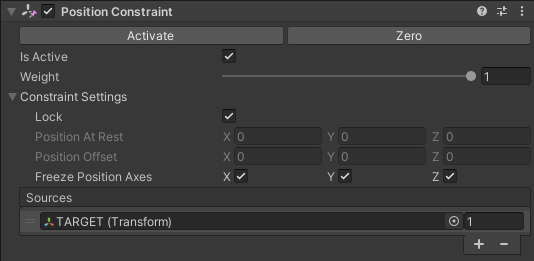
Position Constraints are Unity built-in Components that will copy the world-space position of a single target, or blend between multiple positions when given multiple targets. They are a primary tool to manipulate Transforms, hence why I will briefly explain them here. Constraints generally have the following properties:
Is Active - This will simply activate/deactivate the constraint.
Weight - This is the overall weight of the constraint. This is a normalized value between 0 and 1 and will blend linearly between the "Position at Rest" and the final result of the constraint position.
Constraint Settings:
Lock - When locked, neither the "Position at Rest" nor the "Position Offset" will change. You generally want this to be locked, and Unity will automatically lock it in playmode.
Position at Rest - This is the position where the object rests aka when its not effected by the contraint. Generally this should be at (0,0,0)
Position Offset - Is generally calculated from the "Position at Rest" and the constraint position. You generally dont need to adjust this. Generally this should also be at (0,0,0)
Freeze Position Axes - Terribly named, simply determines which axes are effected by the constraint.
Sources - This is the list that will contain all of the target transforms and their associated weight. Important to note here is that the weights will be normalized, when there is more than one target.
Be aware that Constraints are active even when the Editor is in "Edit Mode". More importantly, changes made to a transform by a constraint, wont be recorded by the Undo system. This means that you can permanently break things, when messing with constraints rather easily.
This is how a standard PositionConstraint configuration looks like:
For more information on (Position) Constraints look in the Unity Manual:
https://docs.unity3d.com/Manual/class-PositionConstraint.html
World Space vs Local Space
As a lot of people have already explained this concept I will just refer to this post for brevity:
https://medium.com/nerd-for-tech/local-space-vs-world-space-in-unity-6a9944470478
Chapter 1: Basic Operations
Multiplying a Vector by a Scalar
To multiply a vector by a scalar we can use the fact that when a position constraint is given a single target, the source weight wont be normalized.
This means we can simply use a position constraint, with a single target (which contains the vector as its position) and give it a source weight of the scalar. For example this could look like this:


Here we multiply the vector (1,2,3) by 5 to get (5,10,15).
Inverting a Vector
This can be done with the same method as Multiplying a Vector by a Scalar by simply using -1 as the scalar.
Adding two Vectors
To add two vectors we have to get a little creative. I wont explain why this trick works mathematically, but to add two numbers, we can average them and then multiply that by two.
Since PositionConstraints can blend i.e. average between two transforms i.e. vectors and we already know how to multiply a vector by a scalar we can do this in two steps:
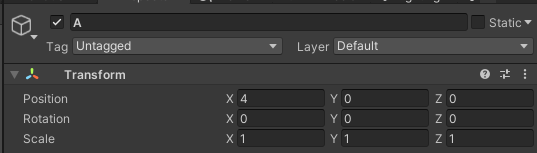
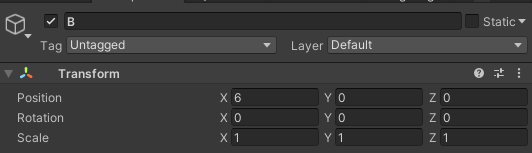
Step 1: Average
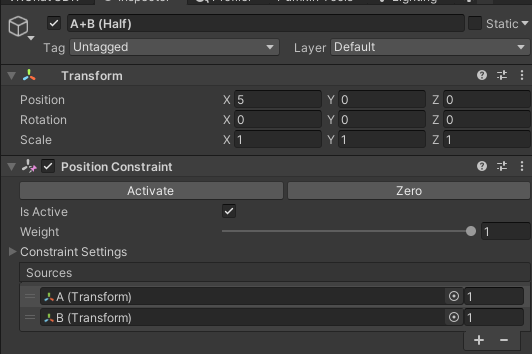
Step 2: Multiply by 2
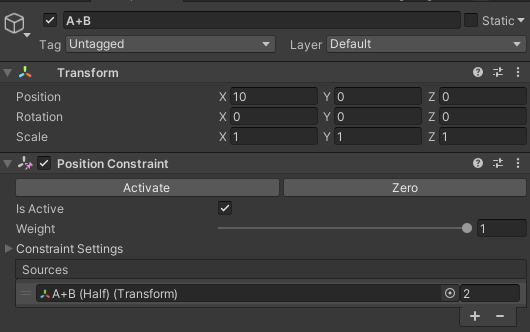
You might wonder why we cant do this in one step, by simply using 2 as the weight for both A and B in Step 1, however remember that the source weights get normalized when you have more than one weight. So unfortunately we have to do this in two steps.
Subtracting two Vectors
To subtract two vectors you can use the same method as Adding two Vectors but inverting either vector first by inverting it first.
Which one you have to invert, depends on whether you want to:
Subtract B from A (A - B) => Invert B
or
Subtract A from B (B - A) => Invert A
Normalizing a Vector
To normalize a vector we can use the LookAtConstraint. Make it look at the vector i.e. transform that you want to normalize. Give it a child with an offset of +1 on the Z-Axis. You have now normalized a vector.

Hierarchy:


As previously mentioned "A_Normalized" shows its position in local-space. However whe can show its world-space position by using another position constraint. This is not nessecary for the math to work, but can be nice for debugging and visualization.

What about dividing a vector by a scalar?
Unfortunately I currently do not know of any method to find the multiplicative inverse of an arbitrary number.
If you want to divide a vector by a constant scalar however, you can simply just use the same method as Multiplying a Vector by a Scalar and use the multiplicative inverse ( 1/x ).
Projecting a Vector (in World-Space)
To project a vector in world-space, you can simply use a position constraint, and only have one (to project the vector onto an basis axis) or two (to project the vector onto a basis plane) of the "Freeze Position Axes" toggles turned on.