Use D4rksAvatarOptimizer! [Read the limits](https://docs.vrchat.com/docs/avatar-performance-ranking-system) [Read the documentation](https://docs.vrchat.com/docs/avatar-optimizing-tips) Remove unused objects by setting them to the EditorOnly tag! Decimate meshes using lilNDMFMeshSimplifier! Use the [Blender CATS Plugin](https://github.com/absolute-quantum/cats-blender-plugin) (or it's [unofficial updated version](https://github.com/teamneoneko/Cats-Blender-Plugin-Unofficial-) that works with newer versions of Blender)! [Pumkin’s Avatar Tools](https://github.com/rurre/PumkinsAvatarTools) can make it super easy to remove unnecessary stuff from your avatar!
#### Avatar download size 1. On each texture file (image, typically .jpg or .png), in the inspector window, under compression, select normal quality (if it isn’t already) 2. Enable crunch compression 3. Click apply (You can do this with multiple textures selected to expedite the process) #### Polygon count The total number of triangles on your model. In Unity, the simplest way to reduce this is to set toggleable objects that you aren't going to use to the EditorOnly tag at the top of the inspector tab. This means that said object and all its components will not be uploaded. Another way to reduce polygon count is via decimation. In Unity, install the liltoon packages to the VCC, and then add the lilNDMFMeshSimplifier to your project. Then add the NDMF Mesh Simplifier component to each mesh that you want to reduce the polygon count of. Place your camera at a distance, then adjust the slider and toggle between the first 4 checkboxes to find the best result. Remember that most people will not be viewing your model up close! [](https://vrclibrary.com/wiki/uploads/images/gallery/2025-07/CYqimage.png) In Blender, you can either use quick decimation via [CATS](https://github.com/absolute-quantum/cats-blender-plugin) (or it's [unofficial updated version](https://github.com/teamneoneko/Cats-Blender-Plugin-Unofficial-) that works with newer versions of Blender). Or (for better results) you can use CATS to separate the model (like by loose parts) and apply decimate modifiers to those parts individually. Here is a [guide of how to use lilNDMFMeshSimplifier](https://note.com/azukimochi25/n/n13837d7f015e) (in Japanese but can be auto-translated). It includes pictures. 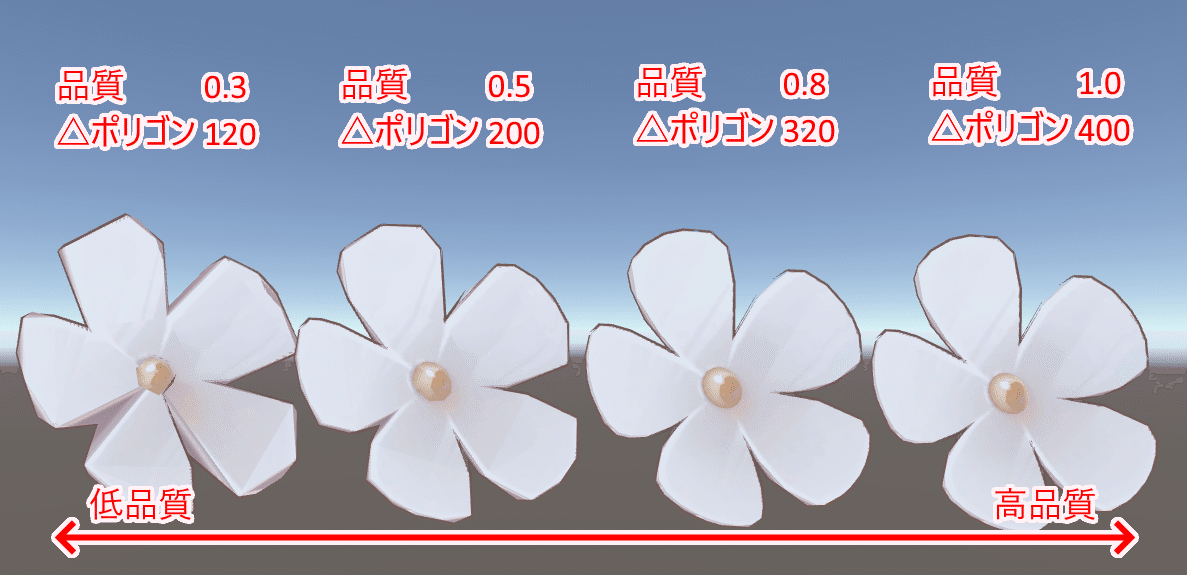 An image from the guide linked above that shows different quality settings and the corresponding triangle counts. #### Material Count The easiest way to reduce this is by having [d4rkAvatarOptimizer](https://github.com/d4rkc0d3r/d4rkAvatarOptimizer) do it for you in Unity. Just add the d4rk avatar component to the root of your avatar and adjust the settings, and it will tell you how many materials it will reduce. The following instructions using CATS are if you are working with your model in Blender. Combine identical materials via CATS Optimization dropdown, Material tab. Create atlases of different materials. This will merge multiple textures/materials into one (reducing draw calls & increasing performance). #### Bone count The fewer the better. You can reduce the number of bones by merging their weights into their parents. Many MMD models come with far too many bones on parts like clothing than is optimal for VRChat. CATS has a bone merging section. #### PhysBone component This is put on the parent bone of the to-be-affected child bones. The fewer the better. For example, if you want PhysBones on your hair, you can put a single dynamic bone component on the head bone (and exclude all the non hair bones) instead of putting a separate dynamic bone component on each chain of hair bones. #### PhysBones collider The colliders can be easily removed though [Pumkin’s Avatar Tools](https://github.com/rurre/PumkinsAvatarTools). #### Avatar Audio Put multiple sound effects on avatars in an optimized way by using [Animator Play Audio](https://creators.vrchat.com/avatars/state-behaviors/#animator-play-audio). #### Quest Optimization You can view all of the restrictions [here](https://docs.vrchat.com/docs/quest-content-limitations). [Quest Content Optimization](https://docs.vrchat.com/docs/quest-content-optimization) #### The Sins of Avatar Stats (review) -**Absurd material counts** (USE [d4rkAvatarOptimizer](https://github.com/d4rkc0d3r/d4rkAvatarOptimizer), or MERGE SAME MATERIALS IN CATS, COMBINE DIFFERENT MATERIALS USING THE MATCOMBINER IN CATS)
-**Unassigned PhysBones collision checks**
-**Gratuitous PhysBones colliders / collision checks**
-**Gratuitous PhysBones components**
-**Gratuitous** PhysBone count (MERGE CHAINS VIA CATS!!!)
-**Seizure-inducing (or other obnoxious and unsolicited) effects**
-**Absurd polygon count**
-**Absurd particle count**
-**Realtime lights** (especially per pixel and shadow casting lights)