# Avatars

Covers basic to advanced topics on avatar uploading and creation.

# Basic Upload

### Finding avatars

<span style="color: #969696; font-family: 'Motiva Sans', Arial, Helvetica, sans-serif; font-size: 14px; font-style: normal; font-variant-ligatures: normal; font-variant-caps: normal; font-weight: 400; letter-spacing: normal; text-align: left; text-indent: 0px; text-transform: none; white-space: normal; word-spacing: 0px; -webkit-text-stroke-width: 0px; text-decoration-style: initial; text-decoration-color: initial; display: inline !important; float: none;">Avatars are commonly found on **digital asset marketplace sites** like booth.pm and Gumroad. Jinxxy is another alternative, more similar to the content on Gumroad. Avatown is an alternative that kind of sells everything.</span>

[Booth](https://booth.pm/en/items?tags%5B%5D=VRChat): Anime girl aesthetics similar to those found in actual anime. Heavy Japanese creator presence and you have to pay in Japanese Yen (or through Paypal).  
Since the site can be hard to navigate, [Boothplorer ](https://boothplorer.com/)helps a ton with finding avatars and compatible clothing.

[Gumroad](https://gumroad.com/discover?query=vrchat&sort=curated): Heavier on western creators. Mainly furry and western anime-inspired humanoids with e-girl/e-boy aesthetics (and usually very unoptimized - sorry, just had to mention that).

[Jinxxy](https://jinxxy.com/): Basically Gumroad but focused on VRChat exclusively.

[Avatown](https://goavatown.com): Sells all genres. Also focused on VRChat exclusively.

[Guide to free avatar models](https://gitlab.com/s-ilent/SCSS/-/wikis/Other/Avatar-Models)<span class="bb_link_host" style="font-size: 10px; color: #7e8391; padding: 4px; top: -1px; font-family: 'Motiva Sans', Arial, Helvetica, sans-serif; font-style: normal; font-variant-ligatures: normal; font-variant-caps: normal; font-weight: 400; letter-spacing: normal; text-align: left; text-indent: 0px; text-transform: none; white-space: normal; word-spacing: 0px; -webkit-text-stroke-width: 0px; text-decoration-style: initial; text-decoration-color: initial;">\[gitlab.com\]</span>  
  
[Avatar base and accessory hunting](https://vrchat.fandom.com/wiki/List_of_model_resource_websites)<span class="bb_link_host" style="font-size: 10px; color: #7e8391; padding: 4px; top: -1px; font-family: 'Motiva Sans', Arial, Helvetica, sans-serif; font-style: normal; font-variant-ligatures: normal; font-variant-caps: normal; font-weight: 400; letter-spacing: normal; text-align: left; text-indent: 0px; text-transform: none; white-space: normal; word-spacing: 0px; -webkit-text-stroke-width: 0px; text-decoration-style: initial; text-decoration-color: initial;">\[vrchat.fandom.com\]</span>

### Uploading Avatars

<iframe allowfullscreen="allowfullscreen" height="314" src="https://www.youtube.com/embed/bSwMz4WcajQ" width="560"></iframe>

[Creating Your First Avatar ](https://creators.vrchat.com/avatars/creating-your-first-avatar/)(Official Guide)

Below is a (DATED) alternative guide for importing FBX models (non-full packages) utilizing [Pumkin’s Avatar Tools](https://github.com/rurre/PumkinsAvatarTools).

1. Create a new Avatar project in the VCC, and add Pumkin’s Avatar Tools. New options will appear on the top row of Unity: VRCSDK&gt;Show Control panel &amp; Tools&gt;Pumkin’s Avatar Tools.
2. Don't forget to add shaders such as liltoon or poiyomi if your avatar needs toon shading.
3. Import your avatar’s FBX file and all of its textures.
4. Right click in the Project window. Select Create&gt;Material. In the Inspector window, change the shader to one like poiyomi (or VRChat&gt;Mobile&gt;Toon Lit or VRChat&gt;Mobile&gt;Standard Lite for Quest). Duplicate (Ctrl+D) this material enough times until you have a material for every texture.  
      
    OR  
      
    Click on your FBX. In the inspector, click the materials tab, and then click extract materials. Change the shader (if needed) and fill in the textures.
5. Click on an empty material, and drag a texture to it in the Inspector window. Do this for all your textures.
6. Click on the FBX file in the Project window. In the Inspector, click rig, and under the dropdown select humanoid (if the avatar is a humanoid) and click apply.
7. Under the Materials tab of your FBX, click and drag the materials into their material slots, then click apply.
8. Drag the FBX into the Scene window. Reset the transform by clicking [![](https://steamuserimages-a.akamaihd.net/ugc/1482200421112983562/4096FC7C5053328D106C450A3ECDCAE29DB801D3/)](https://steamuserimages-a.akamaihd.net/ugc/1482200421112983562/4096FC7C5053328D106C450A3ECDCAE29DB801D3/)(the gear icon) and clicking Reset Transform. \[This will center the avatar and set its scale to 1\].
9. At the top bar, go to Pumkin&gt;Tools&gt;Avatar Tools. Click “Select from Scene” and then “Quick Setup Avatar”. Also click “Fill Visiemes” and “Fill Eye Bones”.[![](https://steamuserimages-a.akamaihd.net/ugc/1495711717168257813/F544E1C05A816A67BCC90E5FA2652B54BC60DE55/)](https://steamuserimages-a.akamaihd.net/ugc/1495711717168257813/F544E1C05A816A67BCC90E5FA2652B54BC60DE55/)
10. At the top bar, open VRCSDK&gt;Show Control Panel. Login, go to the builder tab, auto-fix all the red errors.
11. Fill in the info.
12. Click “Build and Publish for Windows”.

You can change your avatar's size/scale through Pumkin's tools!  
If you scale without the tools don't forget to re-position the viewpoint!  
  
Setting a solid color background is easy! Under the camera component, change Clear Flags to “Solid Color” and click the color box to pick a custom color!  
You can also make interesting custom avatar PFPs through Pumkin’s Avatar Tools!  
  
Upload an image as an avatar’s profile pic by importing an image, and in the Inspector change Texture Type from "Default" to "Sprite" and the camera from "Perspective" to "Orthographic".  
  
(Uploading an avatar can be confusing for a beginner. I hope to make a concise video tutorial in the future. I will also explain common errors some users may encounter and how to overcome them.  
It will likely be aimed toward complete beginners, teaching only what you need to know for first uploading pre-made avatars in Unity.)

### Troubleshooting

If your avatar has unshaded purple-pink sections:

1. Find the material (the file with the sphere thumbnail)
2. Change the shader (the dropdown near the top) to a different one( like Poiyomi, VRChat&gt;Mobile&gt;Standard Lite or VRChat&gt;Mobile&gt;Toon Lit

<p class="callout info">It is caused by Unity looking for a custom shader that isn’t there.   
You could change it to your own custom shader or Unity’s standard, but VRChat’s shaders are simple, optimized, and look identical even when people have shaders blocked in their safety settings, so it’s best to use them first.  
  
Later you can decide whether a more fully fully featured shader (Silent’s, Xiexie’s or Poiyomi) is worth using instead; of course, these shaders are more complex and require learning and toying with their features to maximize their potential.  
BTW Silent’s Cel Shader is a rewrite of Cubed’s Cel Shader (which is depreciated).</p>

You will probably want to unmap your jaw in your avatar’s rig. Click on the FBX, go to the rig tab, configure, head, select the bone assigned to the jaw and press delete, then click apply.  
  
Ensure that the ARMATURE of your model (not your model) is set to an XYZ scale of 1,1,1.

### Converting and uploading to Quest

[VRChat Cross Platform Setup](https://docs.vrchat.com/docs/cross-platform-setup)

My easy Quest conversion method:

1. Duplicate your avatar.
2. Press F2 and append "Quest" to the name in the hierarchy.
3. Import [EasyQuestSwitch](https://github.com/JordoVR/EasyQuestSwitch), [VRCQuestTools](https://github.com/kurotu/VRCQuestTools) and [lilNDMFMeshSimplifier](https://github.com/lilxyzw/lilNDMFMeshSimplifier)
4. Use VRC Quest Tools to make a Quest-ready version of the avatar.
5. Under the Upload tab of the VRCSDK window, "Switch Build Target to Android" (this will take a while).
6. Use Pumkin's Avatar Tools to remove incompatible components from the avatar (like Dynamic Bones and constraints). VRCQuestTools should already do this so this step usually isn't required.
7. Use the lilNDMFMeshSimplifier component on meshes to reduce their poly count. Remember that this is Quest where people don't care as much about graphics so please be aggressive in the poly count reduction.
8. Open the VRCSDK window, fix any other errors and upload!
9. Switch back to Windows build in the VRCSDK window when done.

Video guide of how to make Quest *optimized* avatar:

<div id="bkmrk--1"><iframe allowfullscreen="allowfullscreen" height="314" src="//www.youtube.com/embed/8MkgXcidxg4" width="560"></iframe>

</div>  
Alternatively you can use the "Bake" settings in the Blender CATS plugin to get a quicker but inferior Quest Optimized avatar. Quest optimized avatars can be used as fallback avatars for non-Quest compatible avatars.

# Materials and Shaders for Avatars

##### Default Shader

The standard shader is tailored to work on realistic hard surfaces, not features that are found on many character models such as [skin](https://s-ilent.booth.pm/items/2606348), [hair](https://s-ilent.booth.pm/items/2558858), eyes or cloth. If you are going for a photorealistic style, it might be best to seek out more specialized PBR shaders to suit your needs.

##### Quest Shaders

VRChat’s shaders, like Standard Lite and Toon lit, are required for use on Quest Avatars. Outside of this use case they should generally be avoided since their feature set is vastly reduced for often minimal performance gain on PC (if not using lots of special effects on other shaders).

#### Toon Shaders

Two of the most popular and versatile toon shaders for avatars are [Poiyomi's](https://github.com/poiyomi/PoiyomiToonShader/releases/) and [lilToon](https://github.com/lilxyzw/lilToon?tab=readme-ov-file).

Poiyomi has many features and has an extensive [written](https://www.poiyomi.com/) and [video documentation](https://www.youtube.com/c/poiyomi).

lilToon also has many features. It has documentation both in [English](https://lilxyzw.github.io/lilToon/index.html#/en-us/) and in [Japanese](https://lilxyzw.github.io/lilToon/ja_JP/).

[Silent's](https://booth.pm/en/items/1894974) is another option. It also has many features and a [written documentation](https://gitlab.com/s-ilent/SCSS/-/wikis/Manual/Setting-Overview).

You can try them out for yourself and see which one you prefer.

##### Heightmaps

<p class="callout info">Heightmaps should generally be avoided on avatars. (They break at intense angles plus are more performance intensive. They are more ideal for certain use cases in environments, not typically on characters.) For more info on heightmaps, look at the Materials for Worlds page.</p>

#####   
Thickness map

Used for subsurface scattering (SSS), to simulate when light passes through a material. A great example of when to use it is for skin, leaves or cloth.

You can generate this map by [inverting the normals and baking ambient occlusion](https://youtu.be/Sw3twWmnAnU) in Blender.

You will need a custom shader to apply it, like Poiyomi, or both Silent's [photorealistic SSS](https://s-ilent.booth.pm/items/2606348) and toon shaders.

# Custom Avatar Workflow

#### VRoid

<span style="color: #969696; font-family: 'Motiva Sans', Arial, Helvetica, sans-serif; font-size: 14px; font-style: normal; font-variant-ligatures: normal; font-variant-caps: normal; font-weight: 400; letter-spacing: normal; text-align: left; text-indent: 0px; text-transform: none; white-space: normal; word-spacing: 0px; -webkit-text-stroke-width: 0px; text-decoration-style: initial; text-decoration-color: initial; display: inline !important; float: none;">For those who don’t want to deal with much of the nitty-gritty involved with most workflows of avatar creation, and instead would prefer a more cohesive, traditionally artistic approach, there is an option called VRoid.</span>

<span style="color: #969696; font-family: 'Motiva Sans', Arial, Helvetica, sans-serif; font-size: 14px; font-style: normal; font-variant-ligatures: normal; font-variant-caps: normal; font-weight: 400; letter-spacing: normal; text-align: left; text-indent: 0px; text-transform: none; white-space: normal; word-spacing: 0px; -webkit-text-stroke-width: 0px; text-decoration-style: initial; text-decoration-color: initial; display: inline !important; float: none;">What you do is create a model using </span>[VRoid Studio](https://vroid.com/en/studio)<span class="bb_link_host" style="font-size: 10px; color: #7e8391; padding: 4px; top: -1px; font-family: 'Motiva Sans', Arial, Helvetica, sans-serif; font-style: normal; font-variant-ligatures: normal; font-variant-caps: normal; font-weight: 400; letter-spacing: normal; text-align: left; text-indent: 0px; text-transform: none; white-space: normal; word-spacing: 0px; -webkit-text-stroke-width: 0px; text-decoration-style: initial; text-decoration-color: initial;">\[vroid.com\]</span><span style="color: #969696; font-family: 'Motiva Sans', Arial, Helvetica, sans-serif; font-size: 14px; font-style: normal; font-variant-ligatures: normal; font-variant-caps: normal; font-weight: 400; letter-spacing: normal; text-align: left; text-indent: 0px; text-transform: none; white-space: normal; word-spacing: 0px; -webkit-text-stroke-width: 0px; text-decoration-style: initial; text-decoration-color: initial; display: inline !important; float: none;"> and upload it via the </span>[VRM Converter for VRChat](https://booth.pm/ja/items/1025226)<span class="bb_link_host" style="font-size: 10px; color: #7e8391; padding: 4px; top: -1px; font-family: 'Motiva Sans', Arial, Helvetica, sans-serif; font-style: normal; font-variant-ligatures: normal; font-variant-caps: normal; font-weight: 400; letter-spacing: normal; text-align: left; text-indent: 0px; text-transform: none; white-space: normal; word-spacing: 0px; -webkit-text-stroke-width: 0px; text-decoration-style: initial; text-decoration-color: initial;">\[booth.pm\]</span><span style="color: #969696; font-family: 'Motiva Sans', Arial, Helvetica, sans-serif; font-size: 14px; font-style: normal; font-variant-ligatures: normal; font-variant-caps: normal; font-weight: 400; letter-spacing: normal; text-align: left; text-indent: 0px; text-transform: none; white-space: normal; word-spacing: 0px; -webkit-text-stroke-width: 0px; text-decoration-style: initial; text-decoration-color: initial; display: inline !important; float: none;">, a Unity tool.</span>

#### Simple editing

The simplest editing of avatars is often recoloring textures as you can simply use a 2D image manipulation program, like Photoshop, [GIMP](https://www.gimp.org/), Krita or a web based one like [Pinetools](https://pinetools.com/adjust-hue-image). Just drag in the texture, edit it, and export it back to Unity. If you overrite the previous texture then it will update automatically. Please create a texture with a new name first so that it is seperate from the original and isn't ever overwritten if you re-import the package.

#### Frankensteining an avatar

<span style="color: #969696; font-family: 'Motiva Sans', Arial, Helvetica, sans-serif; font-size: 14px; font-style: normal; font-variant-ligatures: normal; font-variant-caps: normal; font-weight: 400; letter-spacing: normal; text-align: left; text-indent: 0px; text-transform: none; white-space: normal; word-spacing: 0px; -webkit-text-stroke-width: 0px; text-decoration-style: initial; text-decoration-color: initial; display: inline !important; float: none;">It means combining various different parts, such as body bases, faces, hair, clothes, etc. into a single model with a single humanoid rig.</span>

<span style="color: #969696; font-family: 'Motiva Sans', Arial, Helvetica, sans-serif; font-size: 14px; font-style: normal; font-variant-ligatures: normal; font-variant-caps: normal; font-weight: 400; letter-spacing: normal; text-align: left; text-indent: 0px; text-transform: none; white-space: normal; word-spacing: 0px; -webkit-text-stroke-width: 0px; text-decoration-style: initial; text-decoration-color: initial; display: inline !important; float: none;">Typically these parts *USED TO BE* taken from MMD models (see the bottom of this page). </span>

<span style="color: #969696; font-family: 'Motiva Sans', Arial, Helvetica, sans-serif; font-size: 14px; font-style: normal; font-variant-ligatures: normal; font-variant-caps: normal; font-weight: 400; letter-spacing: normal; text-align: left; text-indent: 0px; text-transform: none; white-space: normal; word-spacing: 0px; -webkit-text-stroke-width: 0px; text-decoration-style: initial; text-decoration-color: initial; display: inline !important; float: none;">Now they are more commonly found on **digital asset marketplace sites** like booth.pm and Gumroad. Jinxxy is another alternative, more similar to the content on Gumroad. Avatown is an alternative that kind of sells everything.</span>

[Booth](https://booth.pm/en/items?tags%5B%5D=VRChat): Anime girl aesthetics similar to those found in actual anime. Heavy Japanese creator presence and you have to pay in Japanese Yen (or through Paypal).  
Since the site can be hard to navigate, [Boothplorer ](https://boothplorer.com/)helps a ton with finding avatars and compatible clothing.

[Gumroad](https://gumroad.com/discover?query=vrchat&sort=curated): Heavier on western creators. Mainly furry and western anime-inspired humanoids with e-girl/e-boy aesthetics (and usually very unoptimized - sorry, just had to mention that).

[Jinxxy](https://jinxxy.com/): Basically Gumroad but focused on VRChat exclusively.

[Avatown](https://goavatown.com): Sells all genres. Also focused on VRChat exclusively.

[Guide to free avatar models](https://gitlab.com/s-ilent/SCSS/-/wikis/Other/Avatar-Models)<span class="bb_link_host" style="font-size: 10px; color: #7e8391; padding: 4px; top: -1px; font-family: 'Motiva Sans', Arial, Helvetica, sans-serif; font-style: normal; font-variant-ligatures: normal; font-variant-caps: normal; font-weight: 400; letter-spacing: normal; text-align: left; text-indent: 0px; text-transform: none; white-space: normal; word-spacing: 0px; -webkit-text-stroke-width: 0px; text-decoration-style: initial; text-decoration-color: initial;">\[gitlab.com\]</span>  
  
[Avatar base and accessory hunting](https://vrchat.fandom.com/wiki/List_of_model_resource_websites)<span class="bb_link_host" style="font-size: 10px; color: #7e8391; padding: 4px; top: -1px; font-family: 'Motiva Sans', Arial, Helvetica, sans-serif; font-style: normal; font-variant-ligatures: normal; font-variant-caps: normal; font-weight: 400; letter-spacing: normal; text-align: left; text-indent: 0px; text-transform: none; white-space: normal; word-spacing: 0px; -webkit-text-stroke-width: 0px; text-decoration-style: initial; text-decoration-color: initial;">\[vrchat.fandom.com\]  
  
</span>

<span style="color: #969696; font-family: 'Motiva Sans', Arial, Helvetica, sans-serif; font-size: 14px; font-style: normal; font-variant-ligatures: normal; font-variant-caps: normal; font-weight: 400; letter-spacing: normal; text-align: left; text-indent: 0px; text-transform: none; white-space: normal; word-spacing: 0px; -webkit-text-stroke-width: 0px; text-decoration-style: initial; text-decoration-color: initial; display: inline !important; float: none;">The process of frankensteining an avatar involves gathering all the parts you want and then using tools (either in Unity or Blender) to put all the parts together.</span>

<span style="color: #969696; font-family: 'Motiva Sans', Arial, Helvetica, sans-serif; font-size: 14px; font-style: normal; font-variant-ligatures: normal; font-variant-caps: normal; font-weight: 400; letter-spacing: normal; text-align: left; text-indent: 0px; text-transform: none; white-space: normal; word-spacing: 0px; -webkit-text-stroke-width: 0px; text-decoration-style: initial; text-decoration-color: initial; display: inline !important; float: none;">Some of the Unity tools include [VRCFury ](https://vrcfury.com/)and [Modular Avatar](https://modular-avatar.nadena.dev/)</span>. Both have documentation and unofficial tutorials on YouTube.

#### <span style="color: #969696; font-family: 'Motiva Sans', Arial, Helvetica, sans-serif; font-size: 14px; font-style: normal; font-variant-ligatures: normal; font-variant-caps: normal; font-weight: 400; letter-spacing: normal; text-align: left; text-indent: 0px; text-transform: none; white-space: normal; word-spacing: 0px; -webkit-text-stroke-width: 0px; text-decoration-style: initial; text-decoration-color: initial; display: inline !important; float: none;">Making Avatars in Blender</span>

<span style="color: #969696; font-family: 'Motiva Sans', Arial, Helvetica, sans-serif; font-size: 14px; font-style: normal; font-variant-ligatures: normal; font-variant-caps: normal; font-weight: 400; letter-spacing: normal; text-align: left; text-indent: 0px; text-transform: none; white-space: normal; word-spacing: 0px; -webkit-text-stroke-width: 0px; text-decoration-style: initial; text-decoration-color: initial; display: inline !important; float: none;">For making avatars through Blender, first install the [CATS plugin](https://github.com/teamneoneko/Cats-Blender-Plugin-Unofficial-). Import the assets into the same .blend file via CATS (don’t forget to click Fix Model!). Pose them to where they overlap the base model, and merge them via CATS through the Custom Model Creation tab.</span>  
  
<span style="color: #969696; font-family: 'Motiva Sans', Arial, Helvetica, sans-serif; font-size: 14px; font-style: normal; font-variant-ligatures: normal; font-variant-caps: normal; font-weight: 400; letter-spacing: normal; text-align: left; text-indent: 0px; text-transform: none; white-space: normal; word-spacing: 0px; -webkit-text-stroke-width: 0px; text-decoration-style: initial; text-decoration-color: initial; display: inline !important; float: none;">Apply decimate modifiers to objects with a high poly count. Before atlasing your textures, save a new file (increment easily in Blender Save As menu by clicking the +).</span>  
  
<span style="color: #969696; font-family: 'Motiva Sans', Arial, Helvetica, sans-serif; font-size: 14px; font-style: normal; font-variant-ligatures: normal; font-variant-caps: normal; font-weight: 400; letter-spacing: normal; text-align: left; text-indent: 0px; text-transform: none; white-space: normal; word-spacing: 0px; -webkit-text-stroke-width: 0px; text-decoration-style: initial; text-decoration-color: initial; display: inline !important; float: none;">When making avatars in Blender, DON’T APPLY DESTRUCTIVE CHANGES UNTIL YOU ABSOLUTELY HAVE TO!</span>  
  
<span style="color: #969696; font-family: 'Motiva Sans', Arial, Helvetica, sans-serif; font-size: 14px; font-style: normal; font-variant-ligatures: normal; font-variant-caps: normal; font-weight: 400; letter-spacing: normal; text-align: left; text-indent: 0px; text-transform: none; white-space: normal; word-spacing: 0px; -webkit-text-stroke-width: 0px; text-decoration-style: initial; text-decoration-color: initial; display: inline !important; float: none;">A destructive change is one that cannot be easily reverted without Ctrl+Z, like clicking apply on a modifier, or atlasing your textures.</span>  
  
<span style="color: #969696; font-family: 'Motiva Sans', Arial, Helvetica, sans-serif; font-size: 14px; font-style: normal; font-variant-ligatures: normal; font-variant-caps: normal; font-weight: 400; letter-spacing: normal; text-align: left; text-indent: 0px; text-transform: none; white-space: normal; word-spacing: 0px; -webkit-text-stroke-width: 0px; text-decoration-style: initial; text-decoration-color: initial; display: inline !important; float: none;">Before you make destructive changes, SAVE AS A NEW FILE!!!</span>  
  
<span style="color: #969696; font-family: 'Motiva Sans', Arial, Helvetica, sans-serif; font-size: 14px; font-style: normal; font-variant-ligatures: normal; font-variant-caps: normal; font-weight: 400; letter-spacing: normal; text-align: left; text-indent: 0px; text-transform: none; white-space: normal; word-spacing: 0px; -webkit-text-stroke-width: 0px; text-decoration-style: initial; text-decoration-color: initial; display: inline !important; float: none;">You can easily increment files in Blender's Save As menu by clicking the +.</span>  
  
<span style="color: #969696; font-family: 'Motiva Sans', Arial, Helvetica, sans-serif; font-size: 14px; font-style: normal; font-variant-ligatures: normal; font-variant-caps: normal; font-weight: 400; letter-spacing: normal; text-align: left; text-indent: 0px; text-transform: none; white-space: normal; word-spacing: 0px; -webkit-text-stroke-width: 0px; text-decoration-style: initial; text-decoration-color: initial; display: inline !important; float: none;">This workflow allows for your avatar to be easily customized later while also being able to keep it optimized when you export to Unity.</span>  
<span style="color: #969696; font-family: 'Motiva Sans', Arial, Helvetica, sans-serif; font-size: 14px; font-style: normal; font-variant-ligatures: normal; font-variant-caps: normal; font-weight: 400; letter-spacing: normal; text-align: left; text-indent: 0px; text-transform: none; white-space: normal; word-spacing: 0px; -webkit-text-stroke-width: 0px; text-decoration-style: initial; text-decoration-color: initial; display: inline !important; float: none;">Additionally, you also have multiple save points you can return to in case you made an accident along the way, rather than having to start over.</span>  
  
<span style="color: #969696; font-family: 'Motiva Sans', Arial, Helvetica, sans-serif; font-size: 14px; font-style: normal; font-variant-ligatures: normal; font-variant-caps: normal; font-weight: 400; letter-spacing: normal; text-align: left; text-indent: 0px; text-transform: none; white-space: normal; word-spacing: 0px; -webkit-text-stroke-width: 0px; text-decoration-style: initial; text-decoration-color: initial; display: inline !important; float: none;">If that fails, Blender also saves auto-backups (File&gt;Recover&gt;Auto Save...).</span>

<p class="callout info"><span style="color: #969696; font-family: 'Motiva Sans', Arial, Helvetica, sans-serif; font-size: 14px; font-style: normal; font-variant-ligatures: normal; font-variant-caps: normal; font-weight: 400; letter-spacing: normal; text-align: left; text-indent: 0px; text-transform: none; white-space: normal; word-spacing: 0px; -webkit-text-stroke-width: 0px; text-decoration-style: initial; text-decoration-color: initial; display: inline !important; float: none;">Version control (like Git) can be a lifesaver here if spending significant time on a single avatar.</span>  
<span style="color: #969696; font-family: 'Motiva Sans', Arial, Helvetica, sans-serif; font-size: 14px; font-style: normal; font-variant-ligatures: normal; font-variant-caps: normal; font-weight: 400; letter-spacing: normal; text-align: left; text-indent: 0px; text-transform: none; white-space: normal; word-spacing: 0px; -webkit-text-stroke-width: 0px; text-decoration-style: initial; text-decoration-color: initial; display: inline !important; float: none;">For more information, see the Version Control subsection under Worlds</span></p>

> Originally posted by Tupper:  
> What's an MMD model, and where do I get one?  
> “What is "MMD"?  
> MMDs are model files used by the program MikuMikuDance. This program is typically used to create music videos, animations, and etc. If you search for "MMD dance" on YouTube, you'll find tons of examples of these models.
> 
> They're a great way to import models because they come with a full rigging, full textures, and full UVMaps. All you have to do is set it up for VRChat, which is what I cover in my guide.
> 
> Unfortunately, if you don't want to be an anime character, MMDs typically are anime-styled. You might want to look into importing a Source Filmmaker/GMOD model, or look at Models Resource\[www.models-resource.com\] for a huge repository of models ripped from games.
> 
> Where do I get MMDs?  
> A lot of people say to look on DeviantArt for models, but most of those are "kitbashes"-- in other words, someone put together a bunch of parts to make an original character. These might look good and unique, but they're often extremely high polycount. That's why I recommend the following two sites for finding MMDs:
> 
> Nicovideo\[3d.nicovideo.jp\] - A great resource for extremely high-quality models. Lots of Kancolle.
> 
> Bowlroll\[bowlroll.net\] - Also a great resource, but a bit harder to navigate.
> 
> Both of these sites are in Japanese, so I'd suggest using Google Chrome for automatic translation of the pages. Also, both sites require a login-- I just use my Twitter login for Bowlroll, and I made an account for Nicovideo.
> 
> VERY IMPORTANT - Respect the rules  
> Artists put a ton of blood, sweat, and tears into making their models. Oftentimes, they have a license for use with the models. Ensure that you read the license, and obey it to the greatest extent that you possibly can.
> 
> Although you will not get banned from VRChat for using a model outside of the licensing terms, it is possible that the artist will issue a DMCA takedown request to VRChat to remove the model. In this case, the model will be removed from the servers, and VRChat will likely notify you.
> 
> Oftentimes, if you message the creator on social networking tools and explain what you plan on using the model for, they will be okay with it. You aren't making money off the model, so sometimes artists are happy to let you "cosplay" as their character.
> 
> As an example, the model I use in VRChat is electrica2014's rendition of the Touhou character, Cirno. I messaged electrica2014 on Twitter using Google Translate (they do not know English), and explained the use. They were happy to let me use the model, since I asked.
> 
> As far as the Touhou licensing goes, ZUN's licensing on Touhou is very open-- it allows for the use (and sale of) fanworks. The closest thing that VRChat comes to in licensing is "cosplay" (in my opinion), so if the license mentions that cosplay is okay, you're probably fine.
> 
> Finally, violating the licensing rules of MMDs has a secondary effect-- if it becomes prevalent, MMD artists will be less prone to releasing their models publicly in the future. Obviously, we don't want that-- so just ask!
> 
> Tupper's Tutorials - Creating Custom Avatars from MMDs   
> A Guide for VRChat  
> By: Tupper  
> This guide consists of a growing set of videos I've made on importing, optimizing, and setting up custom avatars from an MMD source.

<p class="callout info"><span style="color: #969696; font-family: 'Motiva Sans', Arial, Helvetica, sans-serif; font-size: 14px; font-style: normal; font-variant-ligatures: normal; font-variant-caps: normal; font-weight: 400; letter-spacing: normal; text-align: left; text-indent: 0px; text-transform: none; white-space: normal; word-spacing: 0px; -webkit-text-stroke-width: 0px; text-decoration-style: initial; text-decoration-color: initial; display: inline !important; float: none;">(I copy-pasted this part rather than just linking to it because the rest of the guide is outdated)</span></p>

# Custom Avatar Creation (Unity)

#### Putting Things Together

1. Create a new avatar project in the VCC.
2. Typically you will start with a base from one of the sites mentioned in the previous page (like booth.pm or [Boothplorer](https://boothplorer.com/)).
3. You can recolor an avatar by editing the textures in an image manipulation program like Photoshop, GIMP, Krita or online.
4. You may also get clothing and props. These can be added non-destructively with tools like VRCFury or Modular Avatar. Static meshes, like hand props, are typically easier to add than ones with armatures that need to be fitted to the base, like clothes.

#### Editing Textures

Find the image texture of what you would like to edit (e.g. the hair texture) and bring it into an image editor (like GIMP or Photoshop). If you want to edit the color, select what you want to edit and mess around with the color settings. If you completely want to change the color set it to grayscale first and then change the hue.

#### [Physbones](https://creators.vrchat.com/avatars/avatar-dynamics/physbones)

Physbone components are used to add reactive bone chains to avatars; they can be used to make many types of things move, such as hair and clothing. They can also be interacted with, both by the wearer and by other users (if those settings are enabled).

<iframe allowfullscreen="allowfullscreen" height="314" src="https://www.youtube.com/embed/PTTnWUkswkU" width="560"></iframe>

#### [PhysBone colliders](https://creators.vrchat.com/avatars/avatar-dynamics/physbones#collision)

Allows for collision of PhysBones on your own avatar.

<iframe allowfullscreen="allowfullscreen" height="314" src="https://www.youtube.com/embed/pT6wO01dwTU" width="560"></iframe>

#### [Contacts](https://creators.vrchat.com/avatars/avatar-dynamics/contacts)

<iframe allowfullscreen="allowfullscreen" height="314" src="https://www.youtube.com/embed/LOZu6e8ozns" width="560"></iframe>

<iframe allowfullscreen="allowfullscreen" height="314" src="https://www.youtube.com/embed/Cp0ysawmizM" width="560"></iframe>

#### Toggles 

Toggles are objects that can be toggled on or off on your avatar in-game. Examples include articles of clothing or props.

The easy way to make toggles is to use either [VRCFury](https://vrcfury.com/components/toggle) or [Modular Avatar](https://modular-avatar.nadena.dev/docs/tutorials/object_toggle).

The hard, tedious, old-fashioned way to make toggles is covered in the video tutorial below:  
<iframe allowfullscreen="allowfullscreen" height="314" src="//www.youtube.com/embed/XqtSg6_W07Y" width="560"></iframe>

#### Puppet Menus

<iframe allowfullscreen="allowfullscreen" height="314" src="//www.youtube.com/embed/kNUNOrHmOrQ" width="560"></iframe>

#### Custom Gestures/Expressions

The easy way is to do this through tools like [VRCFury](https://vrcfury.com/components/gestures).

The hard way is as follows:

Locate the Examples3 folder in the SDK in Unity. Click on vrc\_AvatarV3HandsLayer.controller, duplicate it (Ctrl+D), then rename it descriptively. Create a new subfolder in your avatar’s folder for animations, and place the new controller there.   
  
In your avatar descriptor, under Playable Layers, click Customize then under FX Default Non-Transform. Drag the controller into the slot.  
  
Duplicate your avatar in the scene. Open the Animation window (Ctrl+6). Create a new animation (e.g. Smile). Click record. Then click on the body in the hierarchy, and in the Skinned Mesh Renderer open Blendshapes. Drag them to make the expression you want (in this case Blendshapes like Blink Happy, a slight smile, and slightly raised eyebrows.)  
  
When done, click the top diamond at frame 0 in the animator, Ctrl+C, then Ctrl+V at exactly frame 1.  
  
In the Animator window, navigate to the hand movement (in this case Open), and set the animation file in the Motion slot in the Inspector window.  
  
[AV3 Walkthrough - Part 3 - Weights, Blending, and Tracking - Avatars 3.0](https://web.archive.org/web/20220921104210/https://ask.vrchat.com/t/av3-walkthrough-part-3-weights-blending-and-tracking/2139)<span class="bb_link_host">\[ask.vrchat.com\] (Internet Archive)</span>

<div id="bkmrk--3"><iframe allowfullscreen="allowfullscreen" height="314" src="//www.youtube.com/embed/FtEpxOozwOI" width="560"></iframe>

</div><div id="bkmrk--4"><iframe allowfullscreen="allowfullscreen" height="314" src="//www.youtube.com/embed/PXyXF9nH--Q" width="560"></iframe>

  
</div><div id="bkmrk--5"></div><div id="bkmrk-for-controllers-that">For controllers that have individual finger tracking (like Valve Index controllers):</div><iframe allowfullscreen="allowfullscreen" height="314" src="//www.youtube.com/embed/2DFT0LsOaIw" width="560"></iframe>

#### Avatar Audio

Put multiple sound effects on avatars in an optimized way by using [Animator Play Audio](https://creators.vrchat.com/avatars/state-behaviors/#animator-play-audio).

<iframe allowfullscreen="allowfullscreen" height="314" src="https://www.youtube.com/embed/BmXCXP6UsQ8" width="560"></iframe>

#### Audiolink on Avatars

<iframe allowfullscreen="allowfullscreen" height="314" src="https://www.youtube.com/embed/Gp1woO9RzGY" width="560"></iframe>

#### Voice Activated Effects

<iframe allowfullscreen="allowfullscreen" height="314" src="https://www.youtube.com/embed/kgs5gz8BPtY" width="560"></iframe>


#### Twist Bones

Twist bones come with some avatars; they are extra bones that help prevent certain bone rotations from looking weird or collapsing in on themselves. They have to be set up.

The tutorial is somewhat outdated; now instead of using Unity rotation constrains, use [VRChat rotation constraints](https://creators.vrchat.com/avatars/avatar-dynamics/constraints/vrc-rotation-constraint) instead.

<iframe allowfullscreen="allowfullscreen" height="314" src="//www.youtube.com/embed/_GmAupH5Co0" width="560"></iframe>

#### OSC

OSC stands for Open Sound Control, but that doesn't matter. What OSC does is allows parameters on your avatar to be connected to external applications or devices. OSC is used for impressive things like heart rate monitors and face tracking.

[OSC Official Overview](https://docs.vrchat.com/docs/osc-overview)

OSC Unofficial Overview video:  
<iframe allowfullscreen="allowfullscreen" height="314" src="https://www.youtube.com/embed/OHjN_q6RqGY" width="560"></iframe>

#### Upgrade Old Projects

<iframe allowfullscreen="allowfullscreen" height="314" src="https://www.youtube.com/embed/M9l0SVF0fJY" width="560"></iframe>

Unity 2018 and SDK 2 projects (very old ones, pre-2021):  
<iframe allowfullscreen="allowfullscreen" height="314" src="https://www.youtube.com/embed/C06_sDZCVY8" width="560"></iframe>

#### <s>Dynamic bones</s> (no longer supported, replaced with PhysBones)

Dynamic bones are from a [paid Unity add-on](https://assetstore.unity.com/packages/tools/animation/dynamic-bone-16743) (superseded by PhysBones, which basically do the same thing and more) that allows for bones to delay their return to their neutral position using physics. It is used for things like hair or animal ears.

If your avatar package used dynamic bones, you do NOT need to buy and import the Dynamic Bones package. You just need to download the [Dynamic Bones stub](https://github.com/VRLabs/Dynamic-Bones-Stub?tab=readme-ov-file) so VRChat can automatically convert the dynamic bones components to PhysBone components, and you can modify those from there.

#### (DATED, Avatars 2.0) Custom Animations

<p class="callout danger">Avatars 2.0 is now deprecated. Do not use it for a new project.</p>

To add these, find the CutsomOverrideEmpty file in the VRCSDK. Make a duplicate of it (ctrl+D) and rename it (something like CustomOverride) (press F2).  
  
Click on it and the animation slots will appear in the inspector window with nothing in them. If empty, the animation will be the VRChat default; if filled with a .anim file, it will be overwritten and that animation will be used instead.  
  
To apply the animations to the avatar, click on the avatar and drag the CustomOverride onto the Custom Standing Anims and Custom Sitting Anims slots in the avatar animations component in the inspector window.

# Avatar Optimization

#### Easy Optimization in Unity

Watch these two videos, and install the following two add-ons:

[d4rkAvatarOptimizer](https://github.com/d4rkc0d3r/d4rkAvatarOptimizer) - effortlessly and non-destructively optimizes avatars in Unity on upload. Sizable performance gain for essentially no extra work.

[Avatar Performance Tools ](https://github.com/Thryrallo/VRC-Avatar-Performance-Tools)- Makes it easy to see what is taking up the most VRAM in an avatar, and thus what textures should be downscaled.

<iframe allowfullscreen="allowfullscreen" height="314" src="https://www.youtube.com/embed/v7UVyMMP1ww" width="560"></iframe>

<iframe allowfullscreen="allowfullscreen" height="314" src="https://www.youtube.com/embed/8F9K1QEPF6A" width="560"></iframe>

#### [Duinrahaic's Avatar Optimization Thread](https://bsky.app/profile/duinrahaic.app/post/3lcjphyrt3c2m)

#### Don’ts of Avatars

**Don’t** put automatically playing audio on your avatar (like music that plays when it loads in). That audio will also replay any time a player reloads avatars, like every time they change their safety settings. It’s one of the most obnoxious components you can put on an avatar, it’s completely unsolicited, and everyone in the world hears it at an equal unspatialized volume, so please don’t use it.

**Don’t** put real-time lights on your avatar.

**Avoid** gratuitous particle effects; they are extremely obnoxious, tank the framerate, and are often nausea, epilepsy, and anxiety inducing.

**DO NOT PUT FULL SCREEN WARPING EFFECTS ON YOUR AVATAR.** This is the single worst component type you can apply to an avatar, as it is usually unsolicited and the effect is literally sickening, as in nausea, epilepsy, and anxiety inducing.

#### Avatar Optimization Tips

<p class="callout success">Use D4rksAvatarOptimizer!  
[Read the limits](https://docs.vrchat.com/docs/avatar-performance-ranking-system)  
[Read the documentation](https://docs.vrchat.com/docs/avatar-optimizing-tips)  
Remove unused objects by setting them to the EditorOnly tag!  
Decimate meshes using lilNDMFMeshSimplifier!  
Use the [Blender CATS Plugin](https://github.com/absolute-quantum/cats-blender-plugin) (or it's [unofficial updated version](https://github.com/teamneoneko/Cats-Blender-Plugin-Unofficial-) that works with newer versions of Blender)!  
[Pumkin’s Avatar Tools](https://github.com/rurre/PumkinsAvatarTools) can make it super easy to remove unnecessary stuff from your avatar!</p>

#### Avatar download size

1. On each texture file (image, typically .jpg or .png), in the inspector window,  
    under compression, select normal quality (if it isn’t already)
2. Enable crunch compression
3. Click apply

(You can do this with multiple textures selected to expedite the process)

#### Polygon count

The total number of triangles on your model.

In Unity, the simplest way to reduce this is to set toggleable objects that you aren't going to use to the EditorOnly tag at the top of the inspector tab. This means that said object and all its components will not be uploaded.

Another way to reduce polygon count is via decimation. In Unity, install the liltoon packages to the VCC, and then add the lilNDMFMeshSimplifier to your project. Then add the NDMF Mesh Simplifier component to each mesh that you want to reduce the polygon count of. Place your camera at a distance, then adjust the slider and toggle between the first 4 checkboxes to find the best result. Remember that most people will not be viewing your model up close!

[![image.png](https://vrclibrary.com/wiki/uploads/images/gallery/2025-07/scaled-1680-/CYqimage.png)](https://vrclibrary.com/wiki/uploads/images/gallery/2025-07/CYqimage.png)

In Blender, you can either use quick decimation via [CATS](https://github.com/absolute-quantum/cats-blender-plugin) (or it's [unofficial updated version](https://github.com/teamneoneko/Cats-Blender-Plugin-Unofficial-) that works with newer versions of Blender).   
Or (for better results) you can use CATS to separate the model (like by loose parts) and apply decimate modifiers to those parts individually.

Here is a [guide of how to use lilNDMFMeshSimplifier](https://note.com/azukimochi25/n/n13837d7f015e) (in Japanese but can be auto-translated). It includes pictures.
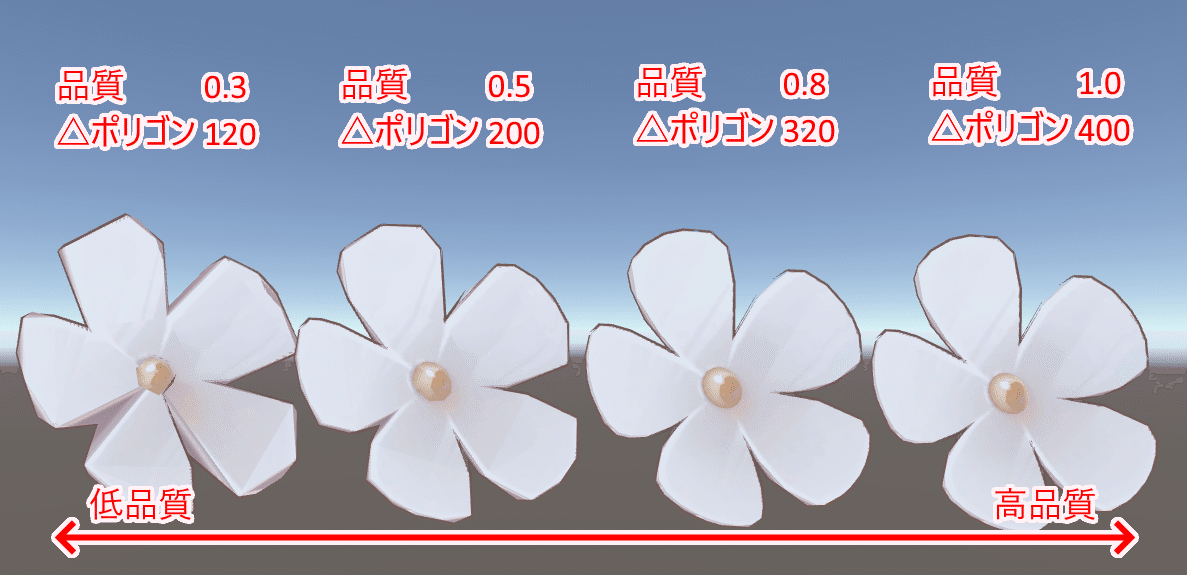
![](https://assets.st-note.com/img/1728818443-HQiNtKuCyvOZm5f6w3LP8bT1.png)  
An image from the guide linked above that shows different quality settings and the corresponding triangle counts.

#### Material Count

The easiest way to reduce this is by having [d4rkAvatarOptimizer](https://github.com/d4rkc0d3r/d4rkAvatarOptimizer) do it for you in Unity. Just add the d4rk avatar component to the root of your avatar and adjust the settings, and it will tell you how many materials it will reduce.

The following instructions using CATS are if you are working with your model in Blender.

Combine identical materials via CATS Optimization dropdown, Material tab.  
Create atlases of different materials. This will merge multiple textures/materials into one (reducing draw calls &amp; increasing performance).

<iframe allowfullscreen="allowfullscreen" height="314" src="//www.youtube.com/embed/YUZeBfYbfVo" width="560"></iframe>

#### Bone count

The fewer the better. You can reduce the number of bones by merging their weights into their parents. Many MMD models come with far too many bones on parts like clothing than is optimal for VRChat. CATS has a bone merging section.

#### PhysBone component

This is put on the parent bone of the to-be-affected child bones. The fewer the better. For example, if you want PhysBones on your hair, you can put a single dynamic bone component on the head bone (and exclude all the non hair bones) instead of putting a separate dynamic bone component on each chain of hair bones.

#### PhysBones collider

The colliders can be easily removed though [Pumkin’s Avatar Tools](https://github.com/rurre/PumkinsAvatarTools).

#### Avatar Audio

Put multiple sound effects on avatars in an optimized way by using [Animator Play Audio](https://creators.vrchat.com/avatars/state-behaviors/#animator-play-audio).

<iframe allowfullscreen="allowfullscreen" height="314" src="https://www.youtube.com/embed/BmXCXP6UsQ8" width="560"></iframe>

#### Quest Optimization

<iframe allowfullscreen="allowfullscreen" height="314" src="https://www.youtube.com/embed/8MkgXcidxg4" width="560"></iframe>

You can view all of the restrictions [here](https://docs.vrchat.com/docs/quest-content-limitations).  
[Quest Content Optimization](https://docs.vrchat.com/docs/quest-content-optimization)

#### The Sins of Avatar Stats (review)

- <p class="callout danger">**Absurd material counts** (USE [d4rkAvatarOptimizer](https://github.com/d4rkc0d3r/d4rkAvatarOptimizer), or MERGE SAME MATERIALS IN CATS, COMBINE DIFFERENT MATERIALS USING THE MATCOMBINER IN CATS)</p>
- <p class="callout danger">**Unassigned PhysBones collision checks**</p>
- <p class="callout danger">**Gratuitous PhysBones colliders / collision checks**</p>
- <p class="callout danger">**Gratuitous PhysBones components**</p>
- <p class="callout danger">**Gratuitous** PhysBone count (MERGE CHAINS VIA CATS!!!)</p>
- <p class="callout danger">**Seizure-inducing (or other obnoxious and unsolicited) effects**</p>
- <p class="callout danger">**Absurd polygon count**</p>
- <p class="callout danger">**Absurd particle count**</p>
- <p class="callout danger">**Realtime lights** (especially per pixel and shadow casting lights)</p>

# Custom Avatar Creation (Blender)

#### CATS

CATS is the Swiss Army knife of VRChat avatar creation in Blender, especially when converting non-VRChat avatars into ones that are VRChat compatible. It also makes it easy to fix a plethora of problems that come with 3D models.

[CATS Documentation (learn CATS here)](https://github.com/GiveMeAllYourCats/cats-blender-plugin)

#### Lip sync

To automatically generate lip sync via CATS, go to the Visemes dropdown. You must have at least 3 mouth shape keys to start: AA, OH, &amp; CH. Once you have those open CATS, open the Visemes menu, select the shape keys and click “Create Visemes”. \[This will create the 15 visemes necessary for lipsync in VRChat.\]  
  
If the 3 slots don’t automatically fill, try translating your model via the Model Options dropdown. If the shape keys aren’t already in your model you must create them using Blender.  
  
In Unity, fill the visemes via Pumkin’s Tools.

#### (Automatic) Eye Tracking

Allows an avatar’s eyes to dart around and focus on objects of interest. Created through CATS. The tooltip popups will guide you.  
Applied in Unity first through Pumkin’s Tools, then set the eye rotations in the Descriptor.

#### Deleting unseen geometry

If you have clothes on top of your base mesh, delete the polygons underneath that should be covered! This will not only increase performance, it will prevent clipping issues!  
  
Select the base mesh, go into wireframe mode and select the faces to delete. Then navigate to the Object Data Properties tab (inverted green triangle), create a new vertex group, and with nothing else but the faces you want to delete selected, assign them. Now rename the group descriptively and deselect.  
  
Before you delete these faces, save a new file first!

#### Rigging

<div id="bkmrk--3">  
<div><div><iframe allowfullscreen="allowfullscreen" height="314" src="//www.youtube.com/embed/Np3StFeVmLk" width="560"></iframe>

</div></div></div>  
Many models and bases will likely come pre-rigged. If you rig your own model it must conform to the [VRChat Rig Requirements](https://docs.vrchat.com/docs/rig-requirements)<span class="bb_link_host">\[docs.vrchat.com\]</span>.  
If using a humanoid avatar ensure that in the model import options it is set to humanoid.  
If using a non-humanoid avatar, use the generic rig \[and it is ideal that you use your own animation controller\].  
  
Rigging can be done in Blender by using rigify.

<div id="bkmrk--4"><iframe allowfullscreen="allowfullscreen" height="314" src="//www.youtube.com/embed/-gIL6VZ-bkE" width="560"></iframe>

</div><div id="bkmrk--5"><div><div>  
</div></div></div><iframe allowfullscreen="allowfullscreen" height="314" src="//www.youtube.com/embed/f2pTkW-1JkE" width="560"></iframe>


Rigging can also be done quickly and easily through the website [mixamo.com](http://mixamo.com).  
[Quick Start - Mixamo Avatar Creation](https://vrchat.fandom.com/wiki/Quick_Start_-_Mixamo_Avatar_Creation)<span class="bb_link_host">\[vrchat.fandom.com\]</span>

#### Weight Painting

The way the bones are mapped to the mesh is through weights. Bone weights can be painted onto the mesh via weight painting.  
  
Weight painting is hard. There is no perfect weight painting. You will suffer when weight painting.  
It’s OK and a necessary evil that every 3D artist must endure if they want to properly rig their characters.

<div id="bkmrk--6"><iframe allowfullscreen="allowfullscreen" height="314" src="//www.youtube.com/embed/dKZrzG5r13g" width="560"></iframe>

</div><iframe allowfullscreen="allowfullscreen" height="314" src="//www.youtube.com/embed/zVIFbqQAykk" width="560"></iframe>

#### Clothing

Clothing models can be searched for on the sites mentioned in the previous page (like booth.pm or [Boothplorer](https://boothplorer.com/)).  
You would then parent the clothing using VRCFury or Modular Avatar in Unity or CATS in Blender.  
  
The quickest and easiest method to create custom clothing in Blender is to select all the faces of your avatar that you want there to be clothing, marking seams, UV unwrapping, adding a texture and adding a solidify modifier to make the clothing look like it has depth and isn’t shrink wrapped to the avatar.  
  
Additionally you can sculpt the clothing mesh to your liking. For simple edits you can just use the Grab brush (G on keyboard).  
You can also sculpt using Blender’s physics based cloth brushes and bake the extra detail into a normal map.

<p class="callout info">Clothing can more realistically be created in Blender by “stitching” 2D planes with cloth physics applied to them.  
[https://youtu.be/HPz5gk\_AT6w](https://youtu.be/HPz5gk_AT6w)  
[https://youtu.be/7ULae\_1GVpc](https://youtu.be/7ULae_1GVpc)  
I would not recommend this method as it is tedious.  
  
If you are especially interested in making 3D clothing, you can either buy the Garment Tool for Blender by bartoszstyperek, or custom model your clothes. Custom modelling your clothes for your specifc model will usually make the rigging much easier and more accurate, plus it will usually result in a lower polygon count. Unfortunately, Marvelous Designer no longer sells a perpetual license, so I can't recommend it even to people who really want to get into designing 3D clothes.</p>

#### Hair

For an anime-styled 3D character, you’re going to want geometry-based hair (as opposed to particle-based). There are different ways to model hair depending on what you want your final result to look like.

<iframe allowfullscreen="allowfullscreen" height="314" src="//www.youtube.com/embed/BqWYgrXw7Jk" width="560"></iframe>

<iframe allowfullscreen="allowfullscreen" height="314" src="//www.youtube.com/embed/AcjGeo1x7rA" width="560"></iframe>

#### Texture Painting

The process of painting textures onto models. For non-PBR texture painting (just a diffuse texture) Blender works fine. Pre-made image textures can be edited through GIMP or Photoshop.

<p class="callout info">Substance Painter is by far the most robust PBR-texture painting application but also the most expensive. Alternatives include ArmorPaint (€16 for the precompiled version) and the free Quixel Mixer.  
  
<iframe allowfullscreen="allowfullscreen" height="314" src="//www.youtube.com/embed/FeJFg5uIIrc" width="560"></iframe>


Again if you are just painting a diffuse texture just use Blender.</p>

#### [Full-Body Tracking](https://docs.vrchat.com/docs/full-body-tracking)

VRChat advises against using rig hacks because they may break in future updates.

<div id="bkmrk--10"><iframe allowfullscreen="allowfullscreen" height="314" src="//www.youtube.com/embed/2sfTEBAl8sA" width="560"></iframe>

</div>####   


#### Complete avatar creation (NOT FOR BEGINNERS!!!)

Are you masochistic enough to make every part of an avatar yourself?  
Rainhet's avatar courses seem to be the most streamlined and simplest for creating an avatar from scratch in Blender.  
  
There is a [step-by-step playlist](https://youtube.com/playlist?list=PL2EEbgwoJzdtnUvwnLEErHmzuM9fbNdwT) and an [abridged playlist](https://youtube.com/playlist?list=PL2EEbgwoJzdtnUvwnLEErHmzuM9fbNdwT).