[Learned this from this tweet by Tupper which has a video demonstrating it.](https://twitter.com/dtupper/status/1519794313714044928?s=20&t=gRlkZ1Ah4TtlJBG3eTKtdg)
You can use less physbone colliders by clever use of physbone angle limits alongside the **pitch**, **roll**, and **yaw** fields. This can generally be used to prevent things such as hair, skirts, capes, etc, from clipping into your avatar's body. It helps keep your performance ranking high by allowing you to eliminate some unnecessary physbone colliders on your avatar. In Blender, you would enable **"Axes"** under your armature's viewport settings. This allows you to see the XYZ of each bone at it's head. [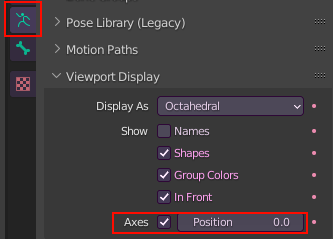](https://vrclibrary.com/wiki/uploads/images/gallery/2022-09/image-1662164888983.png) [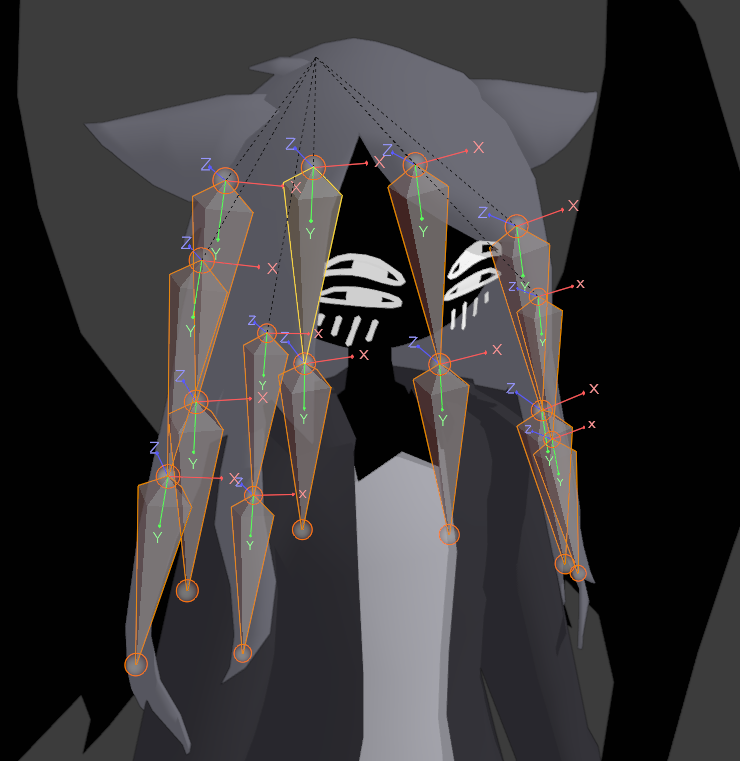](https://vrclibrary.com/wiki/uploads/images/gallery/2022-09/image-1662165229654.png) When done, XYZ axes should appear at the head of your bones, the one we want to pay attention to is the Z axis. *(Note: I have every bone except for the hair bones hidden in this image so that it's easier to see)* 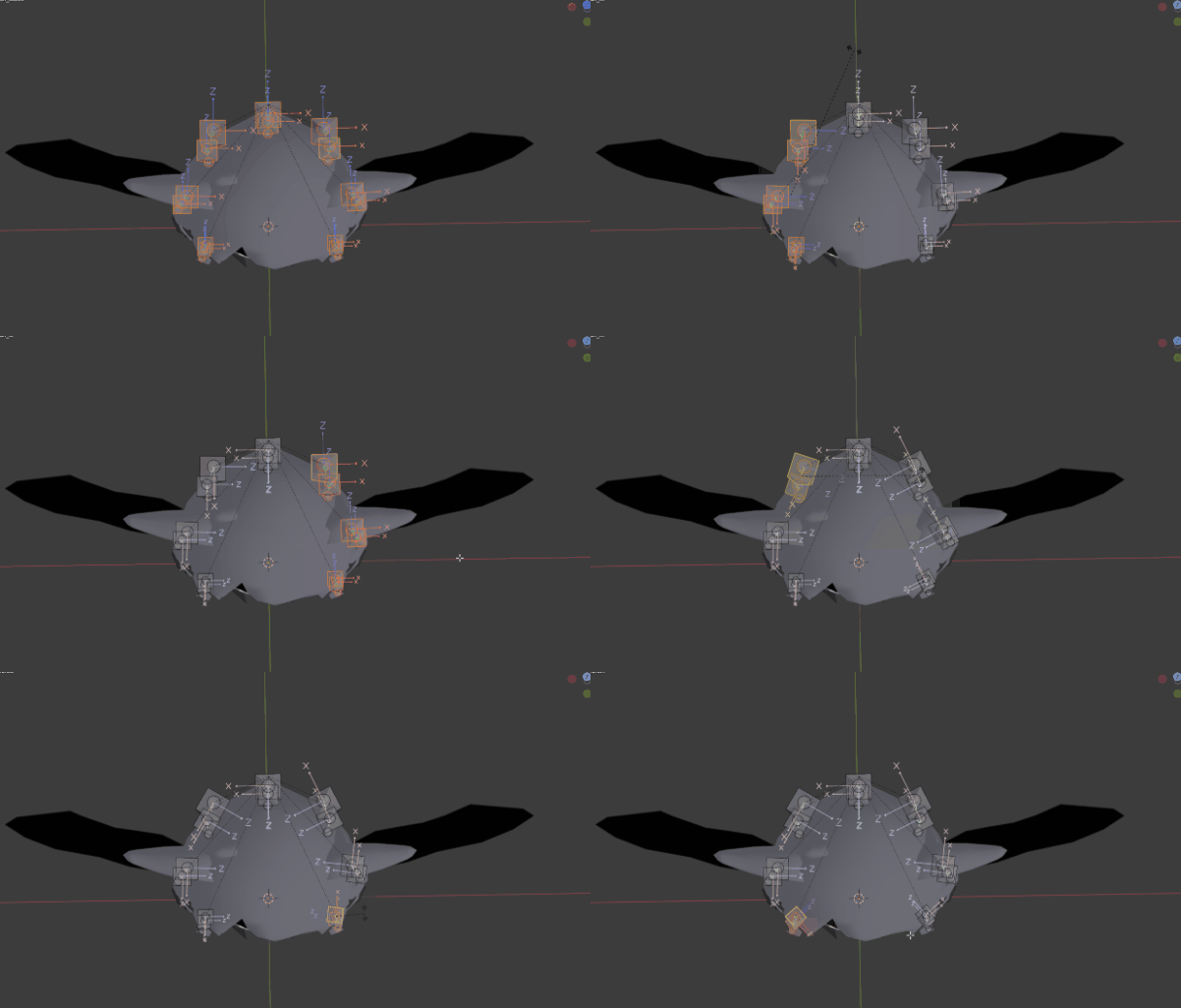We want to use **CTRL+R** in Blender to rotate the Z axis facing either inwards towards the head (as seen above) or outwards facing away from the head, either will work. Export the model to Unity.Save your existing scene in Unity before exporting the model and then go to a different scene, reopen the desired scene after the model has been fully exported and is in your Unity project. Otherwise it may screw with your model in undesirable ways. Reconfigure the model's rig by resetting the pose and enforcing T-Pose in the configuration screen. You should be able to safely return to your avatar's existing scene. If your model ends up contorting, I recommend using [*Pumpkin* *Tools*](https://github.com/rurre/PumkinsAvatarTools) to reset pose.
In Unity, adjust your physbone angle limit to whatever how much you believe you'll need, then adjust the **pitch** so that the **blue angle cone** is pointed away from your avatar, enough so it won't clip into yourself as much. Test in play mode to see if it clips through your model.If your model has longer hair, or a long cape, I recommend using curves for your **angle limit** and **pitch** to fine tune it.
[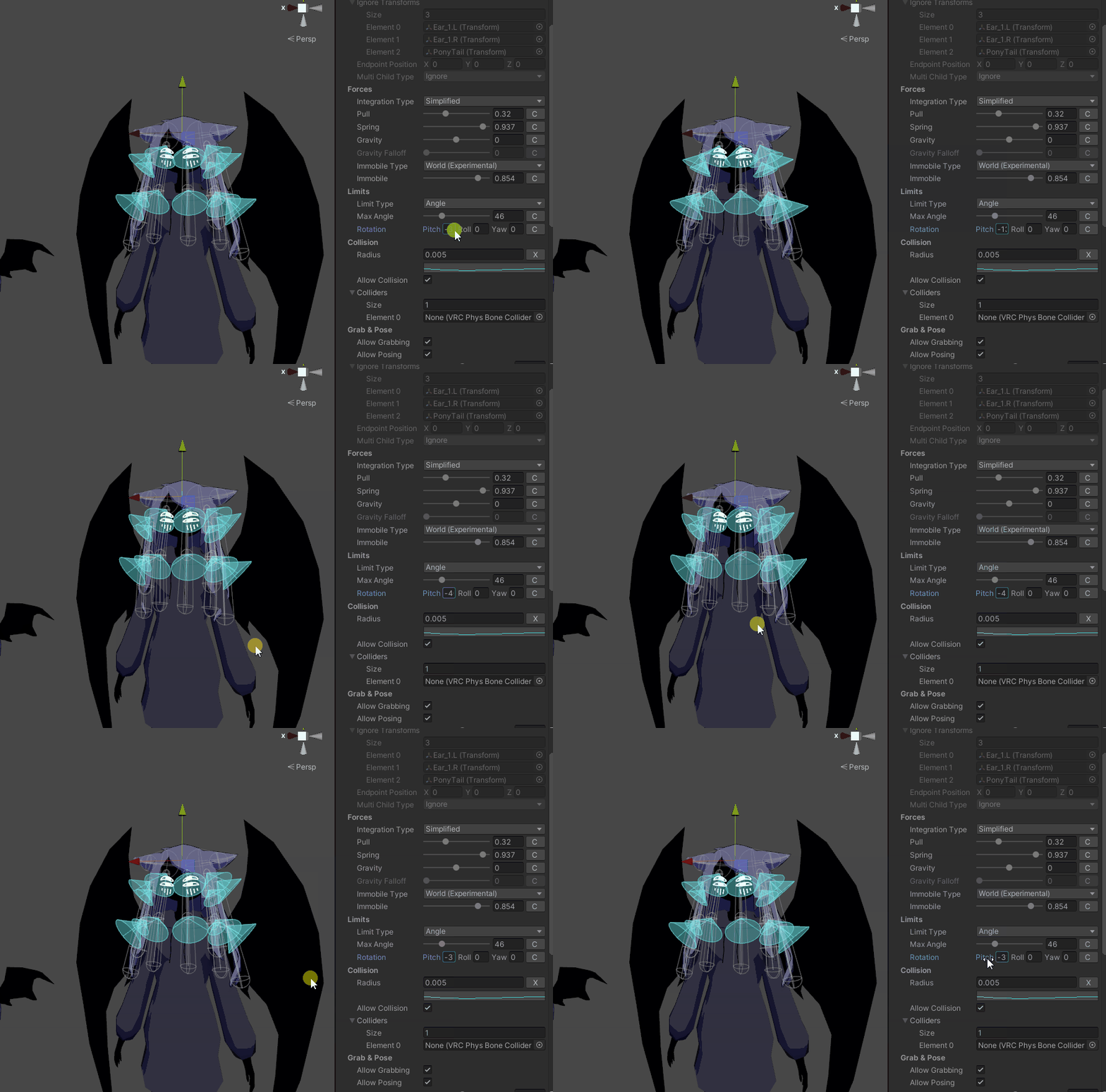](https://vrclibrary.com/wiki/uploads/images/gallery/2022-09/image-1662166432461.gif) As we can (sort of) see below now, it helps prevent a great deal of clipping into the model! Especially when moving backwards. [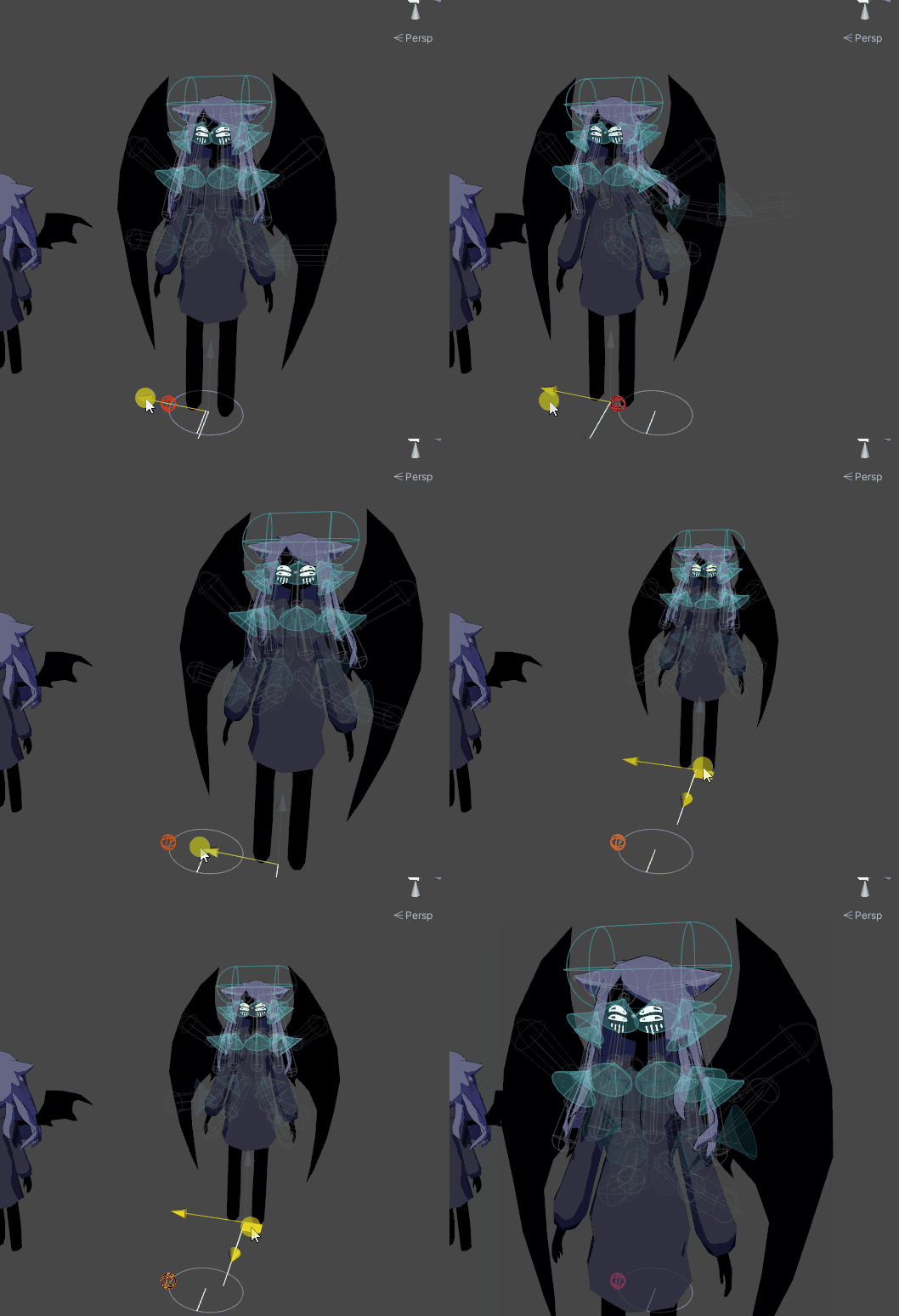](https://vrclibrary.com/wiki/uploads/images/gallery/2022-09/image-1662166633630.gif)