# World Thumbnail/World Image Guide including a Template
## Up to date Version of this Guide/Template:
[https://maebbie.github.io/World-Thumbnail-Guide-VRChat/](https://maebbie.github.io/World-Thumbnail-Guide-VRChat/)
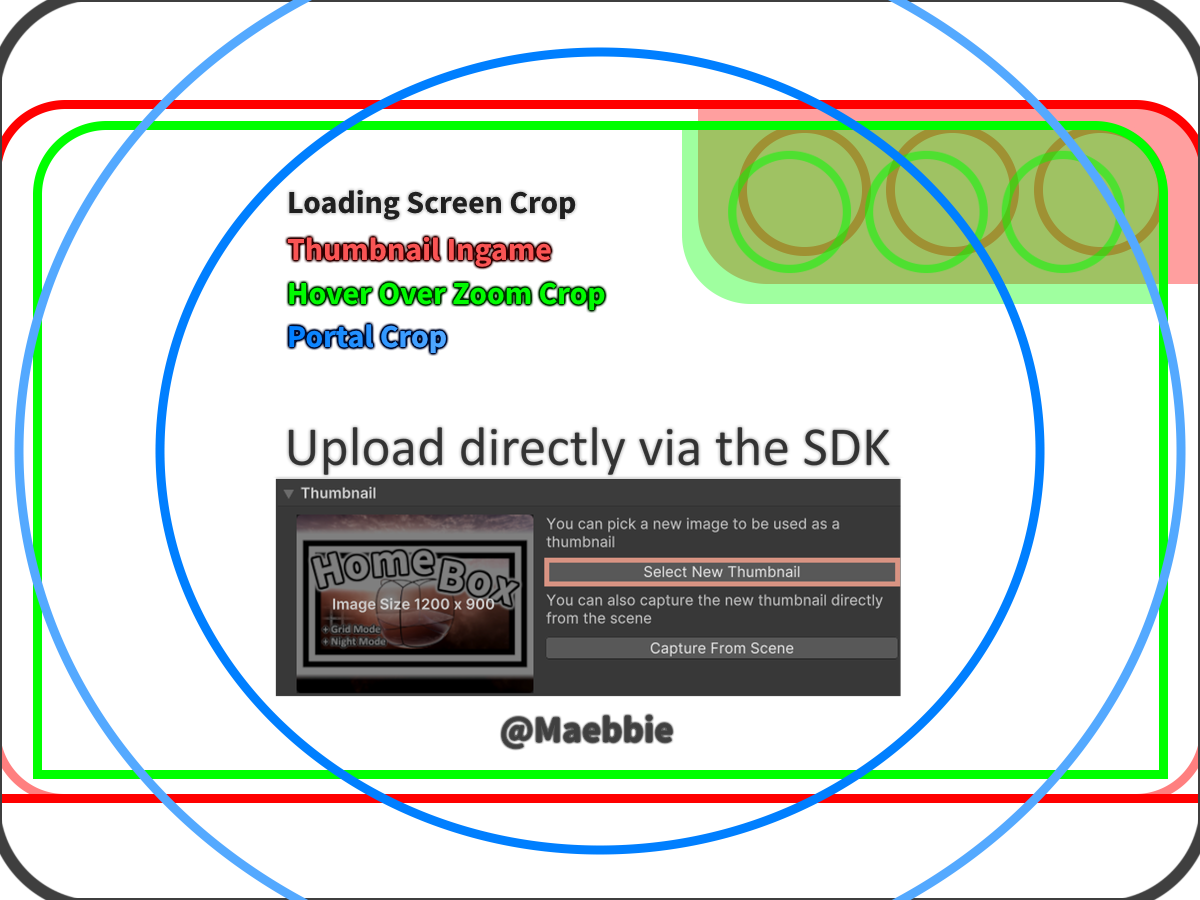
To help create your own Thumbnail you may use the provided template to help align existing visuals.
The image below covers guide lines representing the 4 different crops used. It is ready to be used with an existing thumbnail or as a base for making a new one. Simply set it as a layer above your visuals and remove it before uploading your world thumbnail.
[](https://vrclibrary.com/wiki/uploads/images/gallery/2024-09/world-thumbnail-template.png)
#### Grey box
**The grey box** is what users will see while loading into a world or on the website. As you see you can put something at the top and bottom, which is mostly seen loading in. An idea would be to put some more detailed update notes there or a thanks to whoever joined!
[](https://vrclibrary.com/wiki/uploads/images/gallery/2022-10/embedded-image-xjuifozh.png)
#### Red box
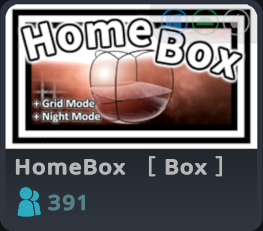
**The red box** is how your image will look in the world menu. This is the most important crop to get right in order to get people to click on your world. On the top right of this box there is an overlay indicating on which platforms your world is available at, it is see through.
[](https://vrclibrary.com/wiki/uploads/images/gallery/2022-10/embedded-image-wftepfah.png)[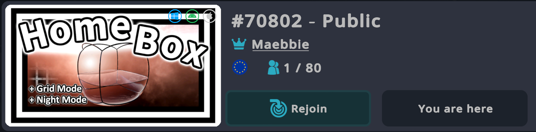](https://vrclibrary.com/wiki/uploads/images/gallery/2022-10/embedded-image-c9jsvfip.png)
#### Green box
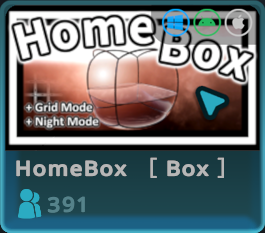
**The green box** is what a user sees when hovering over a world and it zooms in a little bit. Important here is, that the platform indicator is more opaque when hovered over. It may be wise to ensure nothing is hidden or cut off on the top right.
[](https://vrclibrary.com/wiki/uploads/images/gallery/2022-10/embedded-image-0bd1ujpp.png)
#### Blue and Lightblue circles
**The blue and lightblue circles** indicate what can be expected to be seen as a picture inside a Portal. The smaller of those 2 circles indicates what is always in view, when looking straight towards it. The bigger lightblue circle indicates where the actual cutoff happens, which is what is seen looking at the portal close up or at an angle.
Be aware the image is squished by about 33% horizontally before displayed in the portal.
[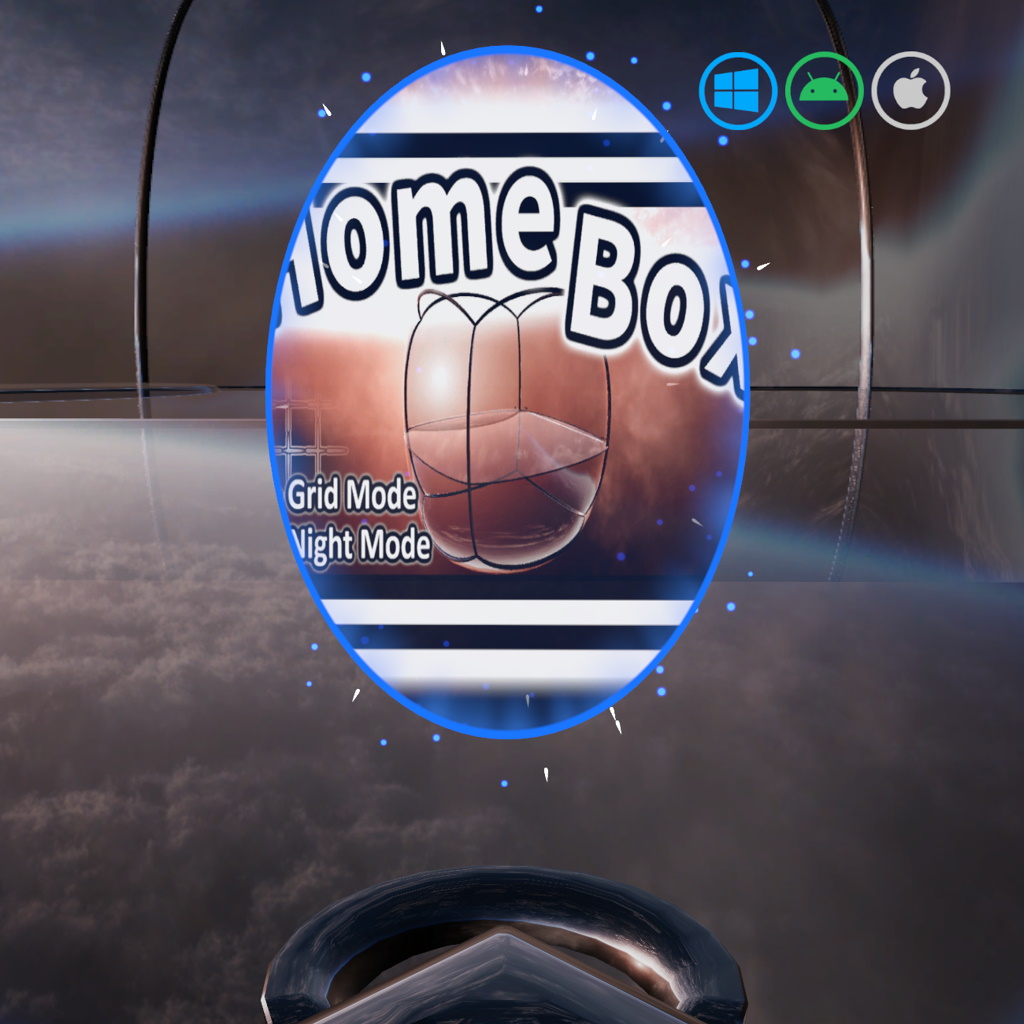](https://vrclibrary.com/wiki/uploads/images/gallery/2024-10/blue-circle-preview.webp)
Once you have everything lined up, you can delete this template layer. The template above already fits the right dimensions of 1200x900.
This article and its contents by Maebbie are licensed under [ CC BY-ND 4.0](https://creativecommons.org/licenses/by-nd/4.0/)