# Maebbie's precise Solutions
An assortment of specialized guides and tools for unique problems within VR, Unity & Blender.
# How to swap out Baked Lightmaps for Day&Night mode
### [](https://vrclibrary.com/wiki/uploads/images/gallery/2024-10/a05.jpg)See this Article also on:
[https://maebbie.github.io/Swap-Baked-Lightmaps-VRChat/](https://maebbie.github.io/Swap-Baked-Lightmaps-VRChat/)
This Guide will show you how you can swap Baked Lightmaps in VRChat. This is useful to create a Day and Night version of your world or multiple different lighting scenarios.
Compared to other common solutions, such as utilizing real time lights or using a tinted overlay, this method is both optimized and represents light better.
The core principle behind this method is to bake light differently on multiple copies of the same static mesh by placing them in different areas of your scene and later stacking them to be at the same location. This needs to be done, because VRChat does not allow you access to change Lightmaps directly.
I have made a [**video guide**](https://www.youtube.com/watch?v=VLU6A4JWsWk&list=PLHPl0SFKkUjNIZs5K9BV4pgXiLrQpEu2D) on this 4 years ago, but this guide has all images retaken and is reworked.
### Setting up the Scene
Start by putting everything in your scene you would like to bake as a child of an empty Gameobject. For this purpose calling it "static" would be fitting.
Have another Gameobject, which will have your Light Entities, Reflection Probes and all other non-static objects that may have different materials set up for your different lighting conditions. "dynamics" may be a fitting name for it. Things such as Water shaders that you would like to appear darker for a night version by editing its material.
[](https://vrclibrary.com/wiki/uploads/images/gallery/2024-10/a01.jpg)
Use this as your base to adjust the lighting. Use a duplicate of that scene (via Ctrl+D) to adjust the lighting for your additional lighting conditions. These copies of your scene won't have an effect on your main scene.
When adjusting the lighting please be aware, that you are limited to only one Directional Light later. You can use layers here to have multiple directional lights affect different meshes, however a cleaner approach would be to utilize a Spot Light to replace additional Directional Lights.
[](https://vrclibrary.com/wiki/uploads/images/gallery/2024-10/a02.jpg)
As you see a spotlight placed far away will serve as a great alternative.
On open worlds such us Atoll of Ether, that has a baked Day and Night version you can utilize a large plane, set to "shadows only" to block the directional light used for the day version creeping into the night version.
[](https://vrclibrary.com/wiki/uploads/images/gallery/2024-10/a03.jpg)
### Baking the Lights
Once you are satisfied with having set up your different lighting scenarios, copy the Gameobject containing the non-static other objects and light entities (previously referred to as "dynamics" Gameobject) to your main scene.
Then make a duplicate of your "static" gameobject within your hierarchy, that contains your static gameobjects.
Let's assume you would like to do a Day and Night version of your world, keep your Day-static and Day-dynamic Gameobjects as is and move the freshly duplicated Night-static and Night-dynamic Gameobjects far below that. This is how they can be baked in different ways.
[](https://vrclibrary.com/wiki/uploads/images/gallery/2024-10/a03a.jpg)
Use the large plane set to "shadows only" mentioned earlier to separate the 2, so lighting remains separate.
Now Bake your scene.
### Stacking the Geometry
The reason to keep things tidied up within 2 Gameobjects per scene is to be able to handle them easily in this step.
[](https://vrclibrary.com/wiki/uploads/images/gallery/2024-10/a04.jpg)
As you see, after your bake you will now have 2 distinct lighting conditions spaced far apart. Make sure you baked Lightprobes and Reflection probes as well. Now simply take those versions and after that place them all on the same coordinates. Simply setting the relevant Gameobjects (the "static"'s and "dynamic"'s) to 0,0,0 will do.
Please note that it is not possible to bake 2 or more different versions of Lightprobes, so choose the set you think fits best for all lighting scenarios. You may also opt to have only Avatars lit by a Realtime Light without shadows, this comes at a relatively large performance cost.
[](https://vrclibrary.com/wiki/uploads/images/gallery/2024-10/a05.jpg)
### Changing Skyboxes
You cannot rely on just having 1 Skybox set in the Lighting settings if you would like to change them along with your lighting.
Instead add an inverted sphere with a Skybox material applied for each of your lighting scenarios. Leave the skybox in your Lighting tab blank. Alternatively you can use Lyuma's SkyboxCubemapDual shader that allows you to change between 2 Skyboxes based on the rotation of the Sun entity: [https://gist.github.com/lyuma/38648c33c91a1994b98c5c5d0168a575](https://gist.github.com/lyuma/38648c33c91a1994b98c5c5d0168a575) .
Using a Procedual Skybox and adjusting the rotation of the Sun entity is also a good solution.
Make sure your Reflection Probes have full coverage of your World, as the fallback Reflection Probe is derived from the skybox set in the Lighting tab, which you may decide to leave blank.
#### Interact Setup
Now that you have everything baked and stacked on each other, you will likely want to change between your bakes ingame. To do so simply create a udon behaviour that enables one version and disables the others.
[](https://vrclibrary.com/wiki/uploads/images/gallery/2024-10/a06.jpg)
.Alternativly you can also make a Animation that enables and disables the components, this may be useful should you use a Procedural Skybox and want to animate the sun to move across the sky, along with the baked lightmap change.
Should you do this, a simple Animator Bool Toggle will be enough.
### Important Last Step
I would like to end this Guide with a very important note.
Please have all your baked variants enabled by default when loading in! This is important for Unity to be able to batch everything.
Let's say you want to start out in your Day version of your world and disable the Night version in unity, since it seems it wont be needed for now. If you do that and the user switches to the Night version ingame, it will render the Night version unbatched, meaning all the performance benefits gained by this method are for nothing.
Instead, have everything enabled when loading in, setup a OnEnable udon event and have that disable all your Lighting variants, except the one you wish to spawn in. This will ensure all Lighting variants are batched. The difference this makes is immense and crucial.
[](https://vrclibrary.com/wiki/uploads/images/gallery/2024-10/a07.jpg)
Swapping out baked light has great performance benefits and will feel more natural than using real time light or a tinted camera overlay. Few Worlds use this technique, the one shown in this guide was Atoll of Ether, however the VRChat Home also swaps out baked light.
This article and its contents by Maebbie are licensed under [ CC BY-ND 4.0](https://creativecommons.org/licenses/by-nd/4.0/)
# Blender 4 & 2.8x Mapping config for mapping
Showcased here is a highly refined Blender config to aid world creation in all its facets. It features WASD movement (like the one in Unity), an adjustable power of 2 snap-grid (Similar to ProGrids/ProBuilder), on-point layout tabs and much more. Continuously improved since 2019, it can be found on GitHub since 2024:
##### [https://github.com/Maebbie/BlenderWASD](https://github.com/Maebbie/BlenderWASD)
[](https://vrclibrary.com/wiki/uploads/images/gallery/2024-10/b00.jpg) The goal of BlenderWASD is to allow creators to easily make complete worlds within Blender, needing few further touch-ups using Unity or other engines. To accomplish this, BlenderWASD retains Blender's great modelling toolset, but adjusts it in key areas to make it easier to navigate as you will see outlined below.
### WASD-Movement
World creation often means you are creating large environments. The default movement within Blender is only good for singular models and becomes distracting to the creation process when engaging in environments with many objects. BlenderWASD brings viewport movement the way it is done in every modern game-engine to Blender. Meaning while holding right-click you will move with WASD and look around using your mouse. Functions previously on right-mouse are moved to middle-mouse press.
[](https://vrclibrary.com/wiki/uploads/images/gallery/2024-10/b02.jpg)
Should you prefer to make each object separately and import it into Unity 1 by 1 to place, then this movement can be turned off, by not importing the keybinds provided. See Setup instructions below.
### .Blend Blender Layout
The default Blender Layout is overhauled to condense it to what is essential for world creation. Elements that exist across multiple tabs remain in their same place for their respective tabs.
**It features the following tabs:**
[](https://vrclibrary.com/wiki/uploads/images/gallery/2024-10/b03.jpg)
#### Layout [](https://vrclibrary.com/wiki/uploads/images/gallery/2024-10/b01.jpg)
As the default editing window this is used for most of the 3D work, offering a 3D viewport frame in its center. On its bottom left is a small UV window to quickly glance at for sanity checks. On the top right is a second 3D viewport window, whose view is synched across all other tabs, which can be used to record timelapses or just serve as a secondary perspective for your worlds.
#### UV Edit[](https://vrclibrary.com/wiki/uploads/images/gallery/2024-10/b04.jpg)
A modified UV editing window to bring it in line with the general layout of this config. It is a 1:1 vertical split of UVs and the 3D viewport.
#### Material Edit[](https://vrclibrary.com/wiki/uploads/images/gallery/2024-10/b05.jpg)
A modified "Shading" window with a horizontal split of the 3D viewport and shader graphs. It initially launches you into the world shader configuration, aka the skybox you see in Blender. BlenderWASD has a custom sky gradient shader setup, where the color can be adjusted or set to day, night or something in-between.
[](https://vrclibrary.com/wiki/uploads/images/gallery/2024-10/b06.jpg)
When switching to the Object shader the shader on currently selected Objects can be adjusted.
[](https://vrclibrary.com/wiki/uploads/images/gallery/2024-10/b07.jpg)
By default a [grid texture by Toykitty](https://toykitty.booth.pm/items/3405609) is available in different colored materials. These are set to tile automatically, but you will need to create custom UVs and materials, before exporting your projects to Unity.
[](https://vrclibrary.com/wiki/uploads/images/gallery/2024-10/b08.jpg)
#### GeoNode Edit
Same in design as the Material Edit tab, but for [Geometry Nodes](https://docs.blender.org/manual/en/latest/modeling/geometry_nodes/index.html), a powerful tool for dynamically creating and enhancing models using nodes.
#### Animation
[](https://vrclibrary.com/wiki/uploads/images/gallery/2024-10/b09.jpg) Occasionally used to create physics simulations, e.g. for cloth, that are later turned into a static model.
#### Preview
[](https://vrclibrary.com/wiki/uploads/images/gallery/2024-10/b10.jpg) This tab cuts out adjacent elements to expand the 3d viewport, giving you the ability to get a better feel for your scene. FOV is set to 90°, which is the default choice for many.
#### PreviewVR
[](https://vrclibrary.com/wiki/uploads/images/gallery/2024-10/b11.jpg) Similar to the Preview Tab, however the FOV is set very low, in order to replicate how it would feel in VR while cropped in to a screen. This allows to approximate how a project would feel in VR, without actually needing to put on a VR headset. FOV is fairly accurate when viewed 1 meter from a regular monitor. [](https://vrclibrary.com/wiki/uploads/images/gallery/2024-10/b12.jpg)
### Power of 2 Grid
[](https://vrclibrary.com/wiki/uploads/images/gallery/2024-10/b13.jpg) A power of 2 Grid helps to create a coherent world layout. This workflow means you will always snap your edits on a absolute grid. This grid starts out at 1 meter increments from x,y,z 0,0,0, however by pressing + or - you are doubling or halving its increments respectively. Meaning pressing "-" twice would turn your 1 meter grid to a 0.25 meter grid. I behaves similar to ProGrids in Unity.
On the top right is a panel showing your current grid increment.
[](https://vrclibrary.com/wiki/uploads/images/gallery/2024-10/b14.jpg)
This grid can be turned off, by simply turning off snapping or changing snapping away from "Snap to Increment".
### Setup instructions
- Download the most recent version of BlenderWASD here: [**https://github.com/Maebbie/BlenderWASD/releases**](https://github.com/Maebbie/BlenderWASD/releases).
- Throw everything into the same folder.
- Start the BlenderWASD\_By\_Maebbie.blend file. This is the **.Blend Blender Layout** outlined above.
- Import the keybinds from BlenderWASDKeybinds\_By\_Maebbie.blend.py via Edit -> Preferences -> Keymap -> Import ->
- Select the Keybinds imported on the center top. This is the **WASD-Movement** outlined above.
- Put the gridoverlay.py in C:\\Users(your username)\\AppData\\Roaming\\Blender Foundation\\Blender(BlenderVersion)\\scripts\\startup. This will add a **Power of 2 Grid** and the respective panel.
### Video Guide
This video guide is a few years old and shows this config in motion.
#####
# How to Atlas Everything in your World (literally)
[](https://vrclibrary.com/wiki/uploads/images/gallery/2024-10/28.jpg)
### See this Article also on:
[https://maebbie.github.io/UV-Atlas-Everything-Guide-Blender/](https://maebbie.github.io/UV-Atlas-Everything-Guide-Blender/)
One of the most powerful tools to optimize your World for best performance is to use as few materials as possible. This is important, since each material has a compounding requirement of drawcalls/batches to render your scene. Simplified this means, each material generates 1 drawcall inherently per object or batched object. However each reflection probe and lightmap texture applied does add an additional one each. Other factors compound this even further, but the bottom line here is to highlight that each material added to your world will have a substantial performance impact. Reducing Materials used, means reducing drawcalls. This is crucial, because drawcalls are an instruction from a CPU to a Graphics Card to render something in a certain way. This is something that happens every single frame. VRChat is a CPU bottlenecked platform, where you GPU has a lot of free headroom, therefore the less strain you put on your CPU the more performance you gain.
If you are striving to have visual fidelity combined with high performance, then making a single Atlas Texture of all your textures used in your world will be the key to that. This advanced Guide will go into great detail on how to best achieve this task. It showcases a small example to follow along, as well as how it was done in the World Eventide.
Please note that you should be Baked Light and marking all non-moving objects as Batching, before you continue. These are 2 easy methods that also have a huge impact on performance.
I made a **[video guide](https://www.youtube.com/watch?v=urrhgBHVYGQ&list=PLHPl0SFKkUjNcC8r3tLFW1-WCdNCAAFjV)** about this 4 years ago, which is a bit outdated. For this Guide I retook all images and reworked it, so i recommend this guide.
### Preparing Models
When applying a material in Unity it will project its texture the way its UV map is projected on the model. Often that means you will have the material tiling along the surface of the model. On the UV Map this looks as though the UV Face is going out of bounds of its texture.
[](https://vrclibrary.com/wiki/uploads/images/gallery/2024-10/01.jpg)
However this means, you are limited to to only having one texture per material. If you were to add multiple textures to one image, your scene's textures would fall apart quickly.
[](https://vrclibrary.com/wiki/uploads/images/gallery/2024-10/02.jpg)
This model can be adjusted to allow for tiling a single texture from an atlas however. All you would need to do is to add several vertical and horizontal edge cuts to your model where you would want to repeat your texture, so that each square can represent one instance of a texture tiling.
[](https://vrclibrary.com/wiki/uploads/images/gallery/2024-10/03.jpg)
The process of getting there however can be unintuitive, which makes this a somewhat advanced technique. You will want to ensure, that each square you cut into an object is roughly the same size.
The best way to get these cuts is to use the Knife Project function in blender under Mesh -> Knife Project (or search it up via F3). To use this tool correctly You should prepare a large grid of edges with no faces. To do so subdivide a large plane, then Shortcut: X while in edit mode and select "Only Faces".
[](https://vrclibrary.com/wiki/uploads/images/gallery/2024-10/04.jpg)
Then select the Object you wish to cut through using this grid.
Enter Edit Mode
Hold Ctrl while in edit mode of said object and only then select your grid, still holding Ctrl.
With all this done head to Mesh -> Knife Project.
Line it up so the grid of edges is in front of your model. Make sure to enable Orthographic view before, to remove perspective (Shortcut: Numpad 5).
[](https://vrclibrary.com/wiki/uploads/images/gallery/2024-10/05.jpg)
Execute Knife Project and check the "Cut Through" option on the bottom left of the viewport. (See below)[](https://vrclibrary.com/wiki/uploads/images/gallery/2024-10/06.jpg)By toggling "Cut Through" you can update the cuts made before confirming. Just make sure it is checked at the end.
### Setting up UV's for an Atlas
The model is now prepared to manually tile textures on. To make this easier, continue using your materials with a single texture and not a texture on your atlas.
To start out, find a square with as little cuts as possible. UV map the texture on it so that it fills out the entire uv space from 0,0 to 1,1. As in only where the texture is shown within UV Editing.
[](https://vrclibrary.com/wiki/uploads/images/gallery/2024-10/07.jpg)
This will serve as your base.
Next use the blender plugin "Magic UV" to extend the UVs of this square onto adjacent squares. This can be done using UV -> Texture Wrap in the 3D viewport, set the options "Refer" and "Set" as quick favourites or keybinds. I set them to C and D.
[](https://vrclibrary.com/wiki/uploads/images/gallery/2024-10/08.jpg)
Now use "Refer" on the face that has your texture uv-mapped on and "Set" on a face next to it.
[](https://vrclibrary.com/wiki/uploads/images/gallery/2024-10/09.jpg)
Do this until you have filled an entire adjacent square. Often a square will have other edges intersecting it or cut off part way through.
As you see, your UV editing window now has 1 square filing out the original 0,0 to 1,1 UV space and one of a very similar size adjacent to it, overshooting.
[](https://vrclibrary.com/wiki/uploads/images/gallery/2024-10/10.jpg)
Since the goal is to use a texture from a texture atlas to tile everything, you should now move the newly UV mapped square from the adjacent UV space to your original 0,0 to 1,1 space. Stacking it on top of existing UV faces. Using Shortcut: Y will detach your selection into a separate island, use this before should it stick to adjacent faces.
[](https://vrclibrary.com/wiki/uploads/images/gallery/2024-10/11.jpg)
After you stacked it on the space, fix up minor discrepancies so that this newly uv mapped square is taking up the full 0,0 to 1,1 UV space. Ensure the correct alignment of each UV face, by moving it in 1 UV Texture increments only.
Repeat this process for your entire model.
[](https://vrclibrary.com/wiki/uploads/images/gallery/2024-10/12.jpg)
While the method described above will work for most parts of a model, this is not the only way to stack your uv maps. Smaller models may not need to have additional cuts at all.
[](https://vrclibrary.com/wiki/uploads/images/gallery/2024-10/13.jpg)
For long roads you could make a 4 by 4 meter section of it, which you uv map and then have an array modifier repeat, resulting in no additional work needed afterwards.
[](https://vrclibrary.com/wiki/uploads/images/gallery/2024-10/14.jpg)
Or sometimes it may just be worthwhile to manually uv map parts of a model again instead of using "Set" and "Refer".
Experimenting with normal UV project and UV Cube Project can help too.
As explained in the intro to this guide, the gpu has a lot of headroom available, meaning you can add many more polygons without any performance issues. This is what this method makes use of. The drawcalls saved by saving materials is far more beneficial than the polygons added to compensate.
### Creating an Atlas Texture
After finishing UV mapping all models within your World this way and moving everything to occupy the 0,0 to 1,1 UV space, it is now time to make an atlas for this setup.
This is as easy as selecting all individual textures and aligning them on a large texture.
[](https://vrclibrary.com/wiki/uploads/images/gallery/2024-10/15.jpg)
Ensure all textures are aligned accurately in a power of 2 configuration. This means, should you use a 4096 x 4096 (2^12) large atlas and 1024x1024 (2^10) textures, align your textures so that you could fit exactly 16 textures within your atlas. Should you have other textures or colors, place them where a 1024x1024 would have fit with some empty space around it. I.e Solid Colors are grouped in 2 1024x1024 Spaces on the top Left of Eventide's Texture Atlas.
See the grid below as a helpful baseline for your arrangements.
[](https://vrclibrary.com/wiki/uploads/images/gallery/2024-10/16.jpg)
The same applies should you decide to use up to 64 512x512 on a 4096x4096 atlas
. [](https://vrclibrary.com/wiki/uploads/images/gallery/2024-10/17.jpg)
To accurately place textures on your atlas, it is important to keep mip-maps in mind. Mip mapping on single-texture materials help to have them display well at a distance by calculating the pixels shown, based on adjacent pixels. With this setup however, it would mean that mip-maps on the edge of each texture in your atlas are going to take pixels from other textures right next to them into account. This will produce a bad looking grid, especially in VR. This is highlighted right below.
[](https://vrclibrary.com/wiki/uploads/images/gallery/2024-10/18.jpg)
Take that into account by scaling each texture down by 4 pixels on each side, meaning your 1024x1024 texture should be scaled down to 1016x1016 instead. 512x512 should be scaled to 504x504 instead.
After that repeat pixels on each edge of your textures by 4 pixels towards the outside. It will reclaim its original texture size of 1024x1024 by padding it.
[](https://vrclibrary.com/wiki/uploads/images/gallery/2024-10/19.jpg)
Now paste that texture onto your atlas. And repeat this process for all your other textures, while ensuring an accurate power of 2 placement on your atlas.
Having such padding will ensure that mip mapping is calculated properly later.
Repeat all this for your normal maps, emissive maps and the kinds as well, if you like. Mip mapping is less of a concern for maps other than albedo. Ideally you would do this process for all maps.
### Replacing your individual Textures with the Atlas Texture
With your models prepared at **Setting up UV's for an Atlas** and your atlas ready at **Creating an Atlas Texture** it is now time to bring it all together. Follow along closely:
Make your atlas texture the texture of a new material in blender, so that your atlas can be selected as an image in your uv editing window.
[](https://vrclibrary.com/wiki/uploads/images/gallery/2024-10/20.jpg)
Select every object in your blender scene in Object Mode. (Shortcut: A)
[](https://vrclibrary.com/wiki/uploads/images/gallery/2024-10/21.jpg)
Enter Edit mode and make sure no faces are selected. (Shortcut: Alt+A will remove all selections)
In your "Material Properties" select your first material and press the "Select" button. This will select all faces in your entire project that have that material applied.
[](https://vrclibrary.com/wiki/uploads/images/gallery/2024-10/22.jpg)
In the UV Editing window, you should now see all those faces occupying the 0,0 by 1,1 space. If this is not the case, touch it up accordingly.
As you want to have that occupy a small part of your atlas, scale it down to the real proportions in your atlas.
Should you have used a 1024x1024 texture on a 4096x4096 atlas, this would mean you would want to scale it down to 1016x1016 instead.
As explained in **Creating an Atlas Texture** the importance of having padding, requires scaling down your textures slightly.
Therefore to calculate how far you need to scale down your UV selection to fit its space on your atlas is as follows:
**1016 (size of texture on your atlas: 1024 minus 8 pixels of total padding) / 4096 (total atlas size)**
in this case your scaling on all axis should be set to: 0.248046875
Using a scale of 0.25 would be wrong!
**For 512x512 textures on a 4096x4096 the calculation would be: 504/4096 leading to 0.123046875**
*I understand you may be skipping through this Guide as it is very extensive, but please be aware of how this calculation came to be from reading the whole guide before it.*
Make a seperate backup of your .blend file here before continuing.
[](https://vrclibrary.com/wiki/uploads/images/gallery/2024-10/23.jpg)
You can also type these calculations as is in blender itself! As you can see on the bottom left on the screen above. Pasting pre-calculated decimals is alright too though.
Move the scaled down UV selection to the corresponding texture on your atlas. If you aligned your textures in a clean power of 2 grid, i.e using the grid above, you should be able to just easily snap it on the right texture. Zoom in and ensure its perfectly centered and that only the 4 pixels of padding on each side remain untouched.
[](https://vrclibrary.com/wiki/uploads/images/gallery/2024-10/24.jpg)
Repeat this process for all other materials, always ensuring that nothing else is selected before you start, otherwise you risk moving previously scaled down textures a second time.
Once finished, do a sanity check by selecting everything in your scene while in edit mode and make sure all textures are filled with UV faces, except their sourronding 4 pixels of padding. Note the padding at the bottom center of the following picture.
[](https://vrclibrary.com/wiki/uploads/images/gallery/2024-10/25.jpg)
Make another separate backup of your .blend file here.
Now that your UV mapping is finished up, remove all materials from every object in your .blend file except your Atlas Material. If an object does not have your Atlas Material yet, add it.
Your only Material remaining should be the Atlas Material.
[](https://vrclibrary.com/wiki/uploads/images/gallery/2024-10/26.jpg)
If all has worked out you should experience an immediate relief in framerates within blender, while your World still looks just the same.
[](https://vrclibrary.com/wiki/uploads/images/gallery/2024-10/27.jpg)
In a real project, it would look something like that:[](https://vrclibrary.com/wiki/uploads/images/gallery/2024-10/28.jpg)
Inspect your .blend file for any oddities in textures before finally importing it all into Unity, along with the Atlas texture.
### Advantages of this Atlassing method
This is one of the most advanced techniques you can learn as a World Creator. It can be done for your entire World project, unless you need a special shader for some textures. Water, Audio Link, Video Players, transparent things and the sorts would still need a separate material. On very large projects you may also apply this technique to use 2 or more atlases.
Manually tiling your textures and condensing them all into one Atlas has many advantages;
You will gain a massive performance boost, which leaves you with plenty spare headroom for visual fidelity and Udon programming. Even for Android and IOS!
You are independent from any special shaders, you only need the Standard one. This means maintaining your work relies on no 3. Party. Very Easy! This also means you are completely platform and engine independent, as everything is in one .blend file. I am personally happy to report, that in my many years as a world creator I have never had any issues with things in my worlds breaking that a simple reupload did not fix.
You can also flex your atlas in your World at no performance cost. [](https://vrclibrary.com/wiki/uploads/images/gallery/2024-10/29.jpg)
#### Thanks for your interest in learning this secret art!
This article and its contents by Maebbie are licensed under [ CC BY-ND 4.0](https://creativecommons.org/licenses/by-nd/4.0/)
# World Thumbnail/World Image Guide including a Template
## Up to date Version of this Guide/Template:
[https://maebbie.github.io/World-Thumbnail-Guide-VRChat/](https://maebbie.github.io/World-Thumbnail-Guide-VRChat/)
To help create your own Thumbnail you may use the provided template to help align existing visuals.
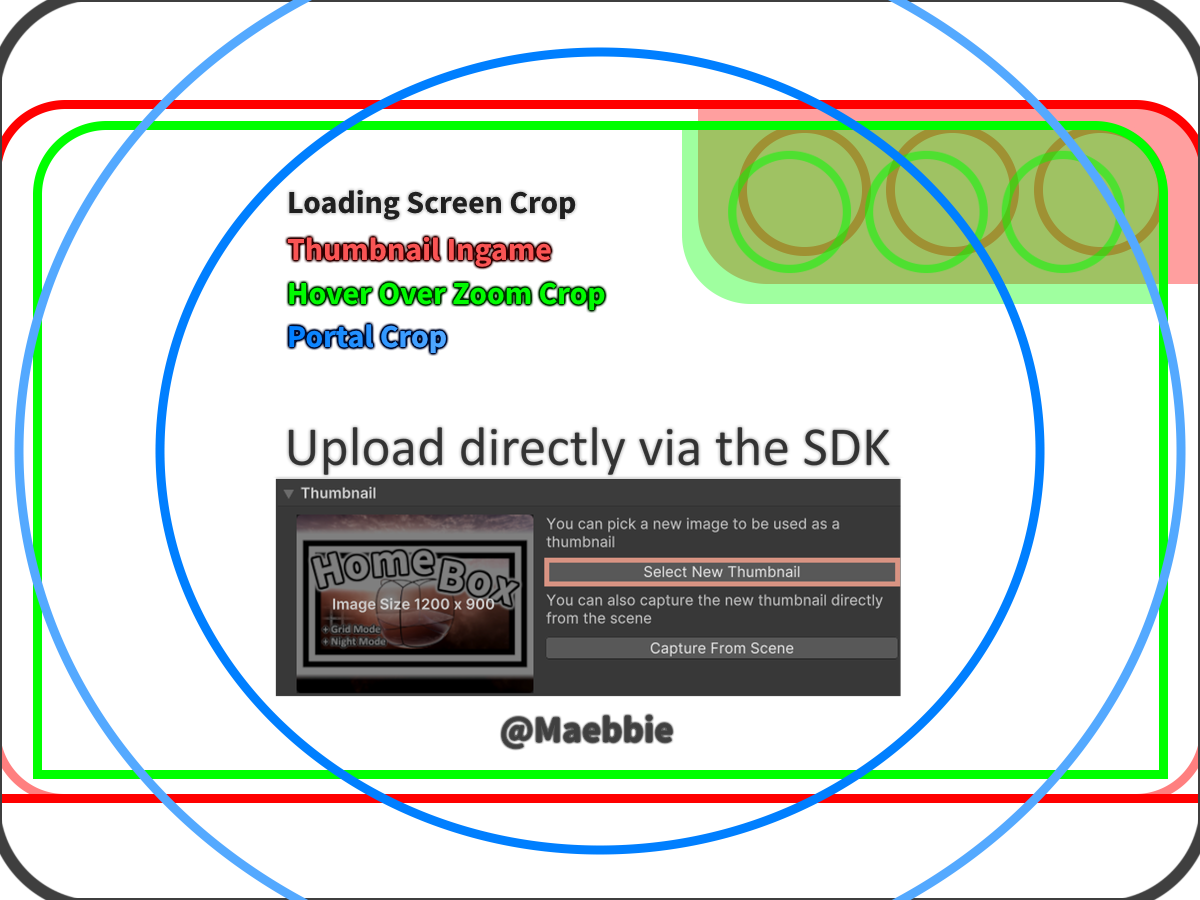
The image below covers guide lines representing the 4 different crops used. It is ready to be used with an existing thumbnail or as a base for making a new one. Simply set it as a layer above your visuals and remove it before uploading your world thumbnail.
[](https://vrclibrary.com/wiki/uploads/images/gallery/2024-09/world-thumbnail-template.png)
#### Grey box**The grey box** is what users will see while loading into a world or on the website. As you see you can put something at the top and bottom, which is mostly seen loading in. An idea would be to put some more detailed update notes there or a thanks to whoever joined!
[](https://vrclibrary.com/wiki/uploads/images/gallery/2022-10/embedded-image-xjuifozh.png)
#### Red box
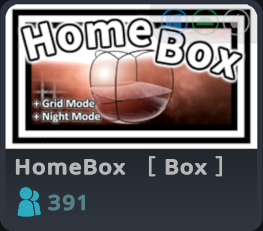
**The red box** is how your image will look in the world menu. This is the most important crop to get right in order to get people to click on your world. On the top right of this box there is an overlay indicating on which platforms your world is available at, it is see through.
[](https://vrclibrary.com/wiki/uploads/images/gallery/2022-10/embedded-image-wftepfah.png)[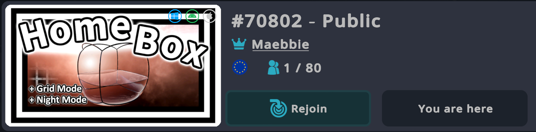](https://vrclibrary.com/wiki/uploads/images/gallery/2022-10/embedded-image-c9jsvfip.png)
#### Green box
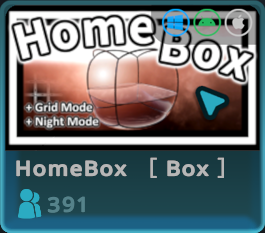
**The green box** is what a user sees when hovering over a world and it zooms in a little bit. Important here is, that the platform indicator is more opaque when hovered over. It may be wise to ensure nothing is hidden or cut off on the top right.
[](https://vrclibrary.com/wiki/uploads/images/gallery/2022-10/embedded-image-0bd1ujpp.png)
#### Blue and Lightblue circles
**The blue and lightblue circles** indicate what can be expected to be seen as a picture inside a Portal. The smaller of those 2 circles indicates what is always in view, when looking straight towards it. The bigger lightblue circle indicates where the actual cutoff happens, which is what is seen looking at the portal close up or at an angle.
Be aware the image is squished by about 33% horizontally before displayed in the portal.
[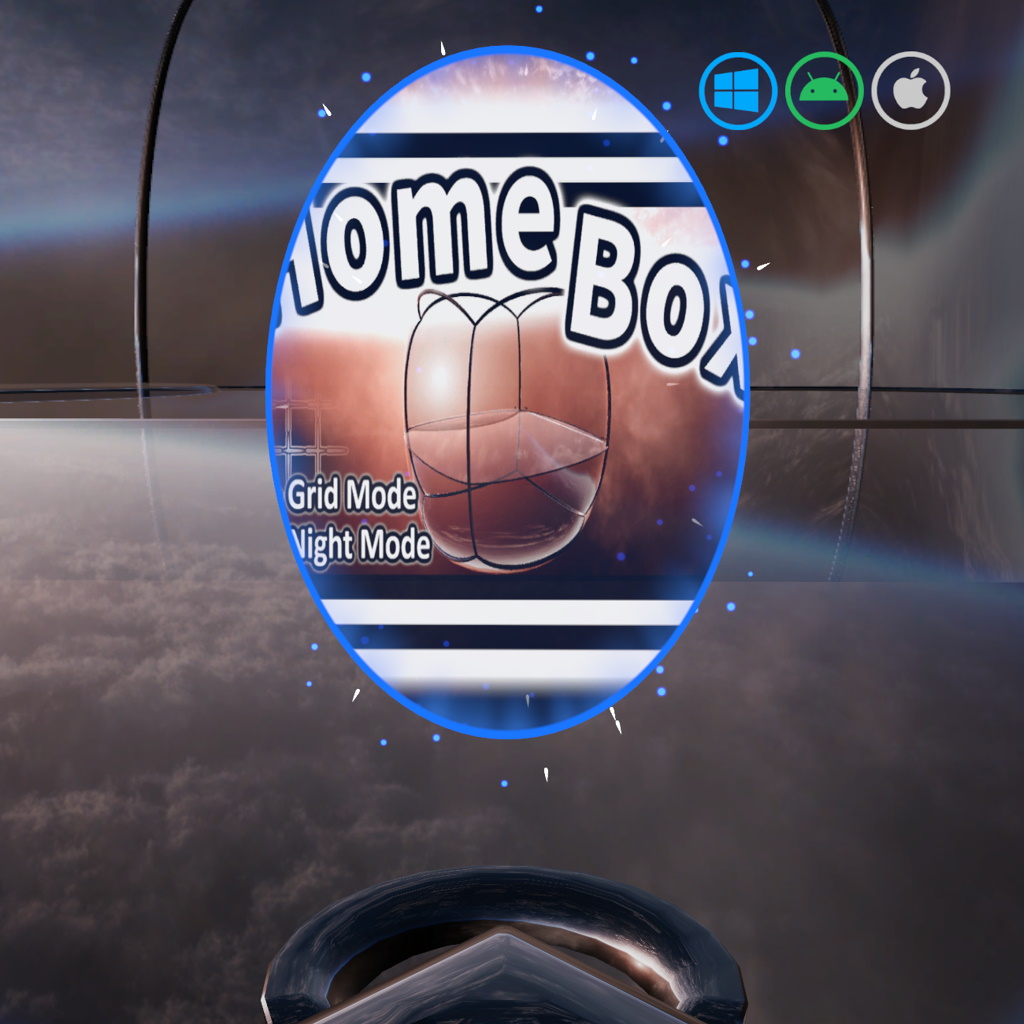](https://vrclibrary.com/wiki/uploads/images/gallery/2024-10/blue-circle-preview.webp)
Once you have everything lined up, you can delete this template layer. The template above already fits the right dimensions of 1200x900.
This article and its contents by Maebbie are licensed under [ CC BY-ND 4.0](https://creativecommons.org/licenses/by-nd/4.0/)
# Udon Graph Triggers (A dependency free Graph script pack)
Udon Graph Triggers is a collection of Udon Graph Behaviours that cover all essentials to set up basic world interactions. They use Udon Graph and require no other dependencies other than the VRChat SDK. The Pack can be downloaded here:
##### [https://github.com/Maebbie/Udon-Graph-Triggers](https://github.com/Maebbie/Udon-Graph-Triggers) [](https://vrclibrary.com/wiki/uploads/images/gallery/2024-10/u01.jpg) [](https://vrclibrary.com/wiki/uploads/images/gallery/2024-10/u02.jpg)
### Functionality
Each Behaviour acts as a single purpose trigger. To make this manageable they follow the following Naming Convention:
`Event Type - Affecting - State`
For Example:
`OnInteract - GameObject - Toggle` -> OnInteract-GameObject-Toggle.asset
`OnEnable - GameObject - On` -> OnEnable-GameObject-On.asset
Therefore each interaction only needs to be dragged to the "Program Source" field of the Udon Behaviour script to work. From there only the target/targets need to be selected.
[](https://vrclibrary.com/wiki/uploads/images/gallery/2024-10/u03.jpg)
### Node Layout
Each script follows a standardized Node Layout. This means the Event Node has the same coordinates on all Behaviours. Same for other reoccurring nodes such as "Set Active" or the for loop node. This aims to help understand each behaviour better and potentially use it as a stepping stone to modify them.
### [](https://vrclibrary.com/wiki/uploads/images/gallery/2024-10/u04.jpg)