Introduction to Unity
Teaches the concepts of Unity required for world creation. Most everything here pertains exclusively to Unity development, and is not VRChat specific.
Modeling
In this lesson, we will build the geometry of our room!
There’s something quick we should get out of the way first: look at the bottom right corner of the screen to make sure auto generate lighting is off. If it's on, click it and in the new window at the bottom where it says auto-generate, uncheck the box, then close the window.
Before we start using Probuilder, there are some settings that should be configured first. Go to Edit>Preferences and then click Probuilder. There are some changes I’d like you to make here from the default settings, and for the sake of time and not having to explain things that many may not understand, I’ll just rapid fire them.
Enable Show Action Notifications
Enable Auto Resize Colliders
Change Static Editor Flags to Everything
Change Collider type to Box Collider
Now you can close the preferences window and open the Probuilder window by going to Tools>Probuilder>Probuilder Window. You can dock the Probuilder tab just like any other. You can also switch between the icon view if you prefer by right clicking the tab, and selecting Icon mode or Text mode.
Grid snapping should be in the top bar. Click it to turn it on and off. Click the dropdown to adjust the settings. I recommend going into Unity's hotkey bindings and changing the increase or decrease size of the grid to + or _ on the keyboard, and reset the grid to 1 square meter by pressing 0. It will make you work much faster.
Now that that’s done, let’s create our first Probuilder object! Click new shape, select cube, and confirm. You will now see that a cube appears in the scene! If you click the Probuilder icons in the scene view, you will see that on the cube appear vertices, edges, and faces: these are the fundamentals that make up the geometry of all 3D models. If you click on any of them you will be able to move them around in the scene view, and they will snap to the grid set by Unity (if you have grid snapping on).
We want to make a room, so let’s make a floor. Click new shape, select plane, change the axis to be up, and set the length to be 6 and the width to be 5 and then click build. Reset the transform so that it is at the origin.
Now, decrease the grid size so it is about 0.125m. Add a cube with the hotkey Ctrl+K. Then go into face mode (the hotkey is K), select a side face, and scale it down so that the mesh is 0.125m thick horizontally. Now drag it out so that the mesh is the same length as the floor. You can see the dimensions of your Probuilder object by looking at the Probuilder script component in the inspector. The average height of a room is about 2.4m-2.5m, so let’s make it 2.5m tall to snap easily with grids. Press ctrl+d to duplicate the wall and drag it over to the other side of the plane. Now press ctrl+k to add a cube and repeat the process to create walls for the remaining sides of the plane, and finally add a ceiling.
You’ve now created a box! But it doesn’t look very much like a room. The biggest thing it’s missing is a window! To make a window, select one of the walls, go into edge select mode and with one of the edges selected press alt+u to add an edge loop. This will add a new loop of edges bisecting your mesh perpendicular to the edge you selected. Your edge loop should be selected after you create it, so drag it out of the way and create 3 more to make a cutout for the window.
Now select the two faces where the window is going to be and press backspace to delete them (don’t press delete; it will delete the entire object!). Now select the edge ring where one of the faces used to be, hold shift and use the gizmo arrows to extrude new faces to bridge the two holes.
There’s a problem: the faces are not actually connected to each other. To fix this, go into vertex select mode and press ctrl+a to select all of the vertices of the mesh, and in the Probuilder tab, click weld vertices. This will merge vertices that occupy the same position in space, also known as overlapping vertices.
To add windows, we’re going to add a cube and just add loop cuts and extrude them inwards to make a window. Now you’re getting the hang of 3D modeling!
If you select vertex colors in the Probuilder tab, you can set faces to a vertex color, which can help with visualization and you can later set those vertex colors to actual materials.
We now have the basic geometry of our room. In the next lesson we will learn about bringing our surfaces to life with materials and textures.
Textures and Materials
Now that we have our geometry, it’s time to apply some detail to the surfaces. The way this is done is through materials. Materials can be applied to the faces of geometry and combine a shader and one or multiple textures. To create a material, right click in the project tab and select Create>Material. The default shader is the standard shader, which is a physically based, or PBR shader.
Before we get too much into that, we should set up post processing in our scene. This can very easily be done with VRWorldToolkit. At the top menu bar, go to VRWorld Toolkit>Post Processing>Setup Post Processing and click OK. The defaults should be ideal but if you want to adjust them I would recommend first reading this guide by Silent.
I want you to go to this website, ambientCG, and pick a wood floor that you would like to see in your room. When you find one you like, check the dimensions (we’ll need these for later), MAKE SURE THE DIMENSIONS ARE THE SAME (not that non-square textures can’t be used, but they require more steps, are less optimized and don’t compress as well) download 1K PNG, extract, and import into Unity by creating a new folder labeled “_materials" in the project tab and dragging in the folder.
This is going to be the most theory intensive lesson because the knowledge of how PBR shaders work is necessary to make correct, good looking materials.
Having a single PBR shader ensures that all materials have consistent shading applied to them, just like in real life. PBR is based on real physical principles, so to understand PBR, you must understand how light interacts with surfaces in the real world. If we drag our material onto the floor we made in the last lesson, we can follow along to see how the standard shader incorporates these principles.
When light hits a surface, some of that light is reflected. Naturally, some light will be absorbed by the materials, but the reflected light is what allows them to be visible. The wavelengths that are absorbed, and, more importantly, the ones that are not, is what gives a surface its color. You can set a base color by clicking on the color picker of the albedo (also sometimes referred to as diffuse or base color).
In the color picker window, at the bottom you’ll see the red, green and blue channels. Above that you’ll see the color picker UI, where up and down controls value, left and right saturation, and the wheel around it controls hue. However, this setup is deceiving, because as you increase saturation, value is decreased. And even more confusing, the amount of value decrease varies depending on the hue, with yellow being the brightest hue and blue being the darkest. Here's a video that covers this in more detail but it is something to keep in mind.
The next parameter is specularity, which determines the way light is reflected off of a surface. A 100% specular surface would reflect all of the light rays that hit it at the same angle. At the opposite end of the spectrum is diffuse reflection, where light bounces around inside a material before being reflected in a random direction.
If you click the shader dropdown, you’ll see that there is a standard shader, and a standard (specular) shader. These are two different ways of thinking about PBR because metals are distinct from non-metals (aka dielectrics). Dielectrics typically don’t have a specular component, while metals typically don’t have a diffuse component (exceptions would be imperfections like rust or dirt). The specular workflow gives the artist more control but also allows for the creation of materials that aren’t physically possible. The metallic workflow is therefore generally easier and more intuitive; I would recommend using it over the Specular variant unless your material comes with a specular map.
Now for the other slider you see on the Standard shader: smoothness; this controls the clarity of the reflection. Many materials, like a lot of metals, can be quite reflective but that reflection can still be blurry. This is due to the many micro imperfections on the surface invisible to the naked eye but still affect the angle at which rays of light are reflected (In other programs this gloss or its inverse, roughness).
Another key component of PBR is fresnel, which is applied automatically; essentially, a surface is more reflective when viewed at more intense angles. Additionally, with transparent surfaces, like water on a lake, they are at their most transmissive when viewed perpendicular to the surface and at their most reflective when viewed parallel to the surface. You can easily see fresnel on spherical material previews.
Now let’s put the albedo map for our wood floor into the correct slot in our material! You should now see how the texture is tiled across the surface, but if we bring in a 2m tall capsule for player reference, the planks look too small. So to get the correct tiling scale we have to take the dimensions of the texture (in meters) from the website we got it from, whip out our calculator, and divide 1 by those dimensions. The result is what we plug into the X and Y tiling slots in the material, and now it’s the correct scale.
If you look around for textures, you will see diffuse and albedo, which are both supposed to go into the base color slot. The difference between these two similar texture types is that diffuse textures have directionless shading (like because of crevices where it’s harder for light to reach), while albedo textures have all their shading information removed and put into an ambient occlusion, or AO map. The advantage of this is that the material can react to changes in lighting, for example shining a flashlight against it.
Let’s plug in the AO map to our material! For it to display correctly, click on the texture in the project tab and in the inspector uncheck where it says sRGB (Color texture), since this is a grayscale texture.
Most every surface exhibits details too small to reasonably recreate with geometry. This is where the normal map comes in. Place it into the appropriate slot, click the Fix Now button that appears and now you should see that the material now really “pops”. What a normal map does is change the angle at which light is reflected for each pixel in the texture, also called a texel.
(Each pixel in the normal map represents a vector, where red is horizontal, green is vertical and blue is depth. The “default” blueish purple in a normal map is 50% red, 50% green, and 100% blue, which indicates no change in lighting angle of the corresponding surface.)
Heightmaps are used to fake depth in a material. This should also be set to non sRGB like the AO map. When we apply it we should see the change in our material but it may look a bit off. That’s because in Unity they are approximated by using a technique called parallax mapping, but it breaks when viewed at sharp angles. Typically I don’t set the intensity very high, either the default 0.02 or lower.
We talked a lot about reflection, and as you should see the reflection of the wood floor doesn’t look very accurate. It looks like it’s reflecting the sky! That’s because the reflection in objects is set to the skybox as the default. To change this, create a reflection probe by right clicking in the hierarchy and going to Lighting>Reflection Probe.
A reflection probe is essentially a 360 camera, capturing a spherical view of its surroundings. The resulting image is called a cubemap, and is used for the reflections in objects.
Place the reflection probe in the middle of the room. Under the reflection probe component in the inspector window, there should be two buttons, click on the left one first. This is the bounds, and the objects inside it will have their reflections affected by the probe. The right is the probe origin, or where the reflection probe will capture from.
Now let’s make the material for our windows! Create a new material, name it glass, and drag it onto the window panes. Change the rendering mode to transparent, select the albedo color window and under the RGBA channels, decrease the A channel to 0. The A channel stands for alpha and it controls transparency. Now increase the smoothness to the maximum. Now we have a window that we can see through! Note that if you increase the metallic or specular the transparency decreases. Remember that increasing the specularity not only decreases the base color, it also decreases transparency.
The next important concept to understand is that of material slots. Each polygon is assigned a material, and material slots are a part of the mesh. You can see the assigned materials at the bottom of the inspector window when you click on the object.
We should always compress the textures in our world because they are going to be downloaded by every person who visits the world. To do this, click on the texture file in the inspector and check “crunch compression”. Your textures will now boast a much smaller file size, at the expense of compression artifacts (but no one is going to notice or care). Then click on the Android icon and check “override Android settings”. Then under format, click RGBA Compressed ASTC 6x6 block (this compression algorithm will ensure our textures do not look awful on Quest. Alternatively, you could switch to 4x4 block for better compression but with a higher file size). We should also probably reduce the max texture size on both platforms; this will also have the largest impact on the world’s download size.
There are a couple of other settings we should change. Under Advanced, check Streaming Mip Maps (required for VRChat), change the filter to Trilinear and the Aniso level to 8. Now click the sliders icon in the top right to the inspector (in between the ? bubble and the 3 vertical dots) to create a preset. This way every texture you import from now on will take the settings from this preset (except for those imported from a UnityPackage).
You can also go into VRWorldToolkit>Quick Functions>Mass Texture Importer to change all the textures in the Scene en masse. After a world build you can go into VRWorld Toolkit>World Debugger>Build Report to see all the assets in the world sorted by largest file size.
Unfortunately, Unity’s Standard shader doesn’t support plugging in roughness maps as is. These are very useful as they give varying smoothness throughout the material which adds realism (like a wet road with puddles, the puddles would be smooth while the road wouldn’t be). Unity only supports using smoothness maps (aka gloss maps, the inverse of a roughness map) as the alpha channel of the metallic or albedo texture. There are several ways to implement roughness maps:
- The easiest way would be to use a different shader, like Autodesk Interactive (or Moochie standard, Silent Filamented, or other community shaders which will be covered in a later lesson)
- Use an add-on like SmartTexture to pack the roughness map into the albedo or metallic texture, check invert color and use luminance (it has crashed when I used it so don't forget to save!!)
- Use image editing software like GIMP to create an alpha channel and layer mask for the albedo or metallic texture, invert the roughness map, copy paste it as the alpha and export
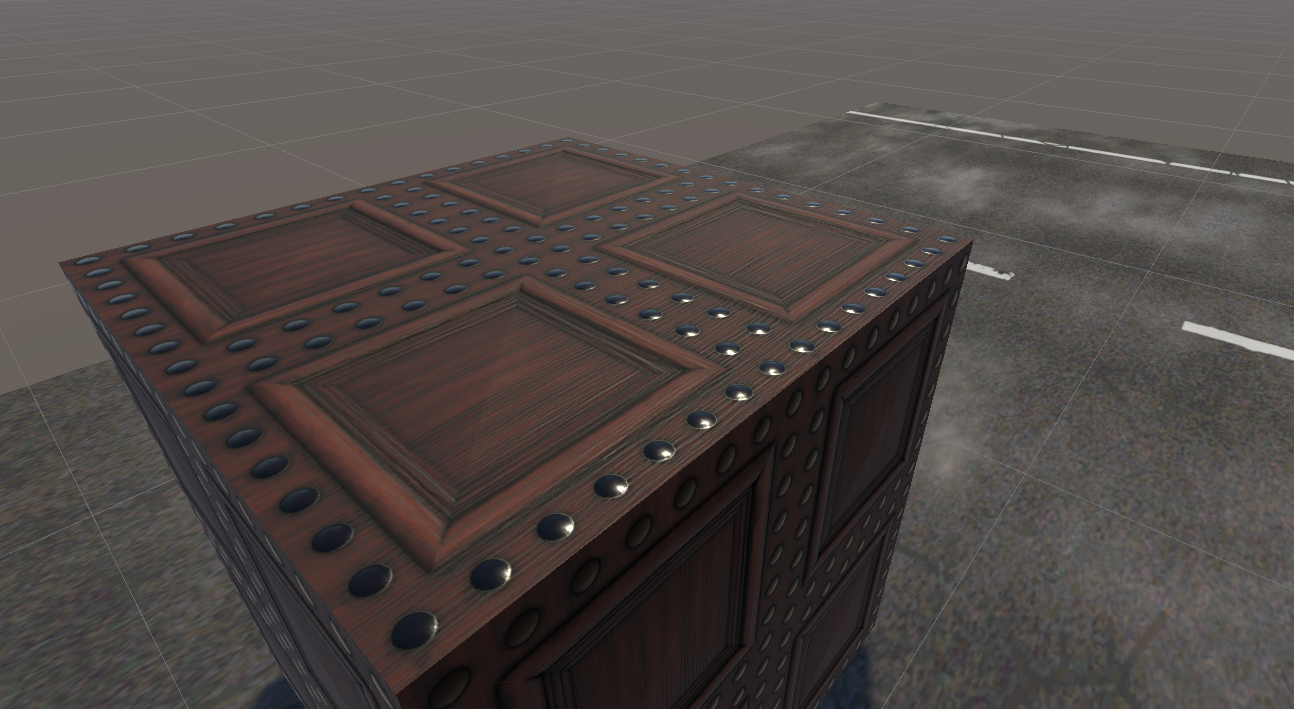
This wood pattern texture is a good example of when smoothness maps make a difference; notice how the nails are very specular and have high smoothness while the wood has little specular and varied mid-smoothness that match with the grains.
[h2]UV window and UV stitching[/h2]
Click on the UV editor in the Probuilder tab. UV coordinates is what tells the mesh how to project the textures onto the faces. The U and V are the 2D axes of the UV space, since X, Y, Z and W are already taken by the 3D space.
We won’t get much into UV editing in this course because Probuilder does most of that for you, but the most useful thing to know is how to stitch UVs. To do that, with the UV window open, click on a face in the scene view and then hold shift and click another connecting face. The UVs will now stitch, and make the texture continue without a seam between the faces.
Now you can find some other textures to finish the room, and we can move onto the next stage, lighting!
Lighting
Welcome back to the 4th lesson in this tutorial series where we will create proper lighting for our room!
Something I should have mentioned last episode was finding reference photos to influence your choice of textures. As a beginner you shouldn’t be trying to create your own styles but instead try to replicate styles that already work. For example, in my world Room at Sea, I looked at beach houses and found elements from the references that I liked that I wanted to incorporate into my own scene, those being: color pallet; a lot of whites and grays, some poignant blacks and a light blue and beige color combination.
When making your own room, try not to clash styles and stick with just one, at least for now; for example, instead of clashing New York interior brick with Floridian spanish-influenced architecture, just stick with one or the other, and focus on the elements of that style which really work and give you the feeling or vibe you want to have when being in that space. For this tutorial series I am going to go with a minimalistic Scandinavian apartment style since it makes sense for the small room we are creating and it's relatively easy to make in 3D because of its simplicity.
In summary, look at reference images and have them influence your modelling, your choice of textures, and your lighting, which we will get into at the end of this lesson.
When looking for references I would recommend image based browsing sites like Pinterest or Houzz; both make it easy to search for similar looking interiors and save images you like. The great thing about Houzz is that there will typically be multiple images of each residence. And as you should notice by looking at Scandinavian apartments there are a few things that should jump out to you that makes the style: minimalism, in geometry of the interior structure and objects, and limited color, with most of the scene having no color at all. This analysis is only scratching the surface of visual composition; if you want to learn more about it I would recommend watching Blender Guru’s videos on topics like color, composition, and lighting.
https://youtube.com/playlist?list=PLjEaoINr3zgH9vCr47kSS5W8PEJBNIiwK
Additional software like PureRef and Allusion can be used for viewing and browsing through reference images saved to your computer.
There’s also some special techniques you can use to easily modify materials more to your liking. I found a plain plaster texture on textures.com (which requires an account) but it was a little dark for my liking. For this material, since there was little detail in the albedo texture and I didn’t really care for it anyway, I can remove the albedo texture from its slot and instead choose whatever color for the paint I want while still retaining the detail from all the other PBR maps. If you don’t want the material to look as bumpy, you can decrease the strength of the normal map. And one last thing, you actually don’t need to open a separate calculator to get the correct tiling because you can just do the math inside the box.
Now onto lighting. This in combination with our material choice is what visually makes our scene. What we’re going to do is create baked lighting; this means that lighting will be precalculated on your computer so it doesn’t have to be calculated on the player’s, drastically increasing performance and lighting quality. It does this by calculating the lighting for all the static objects and “baking” the shading into a lightmap. Dynamic objects (like avatars) are lit by using light probes.
First, make sure that all the static objects in the scene are marked as “static” in the inspector tab (or specifically, at least lightmap static in the dropdown; this tells Unity that we want that object to use baked lighting).
Set all the lights in the scene to Baked.
Next, open the lighting tab by clicking on auto-generate lighting in the bottom right corner or by going to Window>Rendering>Lighting. It might pop up as an undocked tab, but you can dock it wherever you like. Personally, I like to put it in the same space as the inspector on the right and then switch between the two.
Under Realtime Lighting, turn realtime global illumination off. I won’t get into it here since this is supposed to be a beginner tutorial series but unless you know what you’re doing with it you should have it disabled.
Under Mixed Lighting, with Baked Global Illumination on, set the Lighting Mode to Baked Indirect. This means we won’t have realtime lighting for our dynamic objects but this is what we want because realtime lighting has a heavy performance cost.
Now we get to the lightmapping settings. The first option is the lightmapper, change it to Progressive GPU. As of recording the GPU lightmapper is still in Preview which means it is not production ready; if it gives you errors or glitches you can switch to Progressive CPU but for quick iteration GPU lightmappers are much faster than CPU ones.
For the lightmap resolution, rather than simply explaining everything it would be best to get a visualization of it in your own scene. In the Scene view, at the top right, click the dropdown where it says Shaded and go down to Baked Lightmap. Here you will see a visualization of the lightmap texels in your scene. What the lightmapper does is calculate the lighting for each texel and then puts that into a pixel in the lightmap. Don’t worry, we’ll get to see the lightmap once it’s baked so you can get a better visualization.
The Lightmap Resolution is in texels per unit. If you drag left and right to decrease and increase the value, you can see that the amount of texels in the scene changes. This value essentially means how much lighting resolution we want to give to our objects, where higher resolution means higher quality and less pixelation, but also means that our lightmaps will take up more storage and take longer to bake. Right now, let’s set it to 20 so that it will bake faster, and we can increase it before our final bake.
In the rendering component of an object you can adjust its lightmap scale.
Other important settings include:
- Prioritize view: if enabled it will prioritize baking in the view of the scene tab first.
- Light bounces: the more bounces, the more realistic. Outdoor scenes may not need as many bounces, indoor scenes will greatly benefit from them. Noticeably increases bake times so probably best to keep it around 2 until the final bake where you can increase the bounces to the maximum.
- Lightmap size: this is just the max lightmap size, set this to the largest (it will increase performance because there will be fewer lightmaps)
- Ambient Occlusion: turn this on for realistic ambient shadows
With it all set up, click generate lighting at the bottom, and wait. For larger scenes this can take a while but since our scene is so small and we set the lightmapper to use the GPU it shouldn’t take too long. If you switch between Baked Lightmap and Shaded views in the scene view, you should now be able to get a better idea of how baked lighting works.
From here you can tweak the lighting as you like before the next bake. And with the Progressive lightmapper’s prioritize view, you get a noisy preview of how the result will look as it is baking.
In a room, it would make sense to have a light in it. If you right click in the Hierarchy, go under Lighting, you will see the 4 different types of lighting in Unity:
- Directional light: essentially the sun. The rays have infinite distance, so shadows cast with this light will always be parallel, and its position is irrelevant, only its rotation matters. It comes by default with every new scene and there should be a maximum of one per scene.
- Point light: a light source with a finite range in all directions
- Spot light: has a finite range within a cone shape with an angle defined in degrees between 0-180
- Area light: a flat 2D light source over an area. Baked only, no realtime.
Point light seems to make the most sense for our scene. Add a new point light and put it near the ceiling. DO NOT put it in the ceiling! The light is simulated from the point where it is placed, so if it is inside the ceiling it won’t work properly!
Click on bake. We should now see the reflection in the wood. But if we move the camera, the reflection doesn’t move. This is because by default the cubemap is projected as if it is from an infinite distance away, which is great for outdoor areas where there won’t be visible parallax. But for indoor areas this means the reflection will look off if the camera or player view is not at the origin of the reflection probe. Let’s turn on box projection for the reflection probe. What box projection does is project the cubemap to the bounds of the reflection probe, which simulates parallax but also makes clear seams in the projection. This is the ideal setting for indoor spaces.
OK, we now have lighting for the static objects, but what about the dynamic ones? Right click on the Hierarchy, Lighting>Light Probe Group. It should now appear in your scene as a web of 8 spheres. Each of these spheres is a probe, and for each probe, Unity calculates how it would be shaded at that point in space. As dynamic objects move through the light probes, they blend the lighting data of the nearest ones.
If you click on the light probe group, you should see in the inspector that you can press a button to toggle probe editing mode. From here you can click on and move individual probes, shift click them to add them to the selection, and ctrl+d to duplicate them. Now the objective is to fill our room with light probes. But how should we fill it? The easiest way would be to fill our room with probes like a 3D grid, but then we wouldn’t get the most accurate lighting. The optimal way to place light probes is to place one wherever there is a change in lighting!
Let’s go place them in the obvious spots, like wherever there is a clear light cutoff, like sunlight hitting the floor. Just above the floor, place light probes in the four corners of the sunlight, and then in the four corners just out of the sunlight. Do the same but at the window. Now place light probes around other lights in the scene, and at the edges of any shadows.
At the top of the lighting window you’ll notice environment lighting, where it says Skybox. This is what will determine the cubemap that gets used for the fallback reflections of the scene, or when an object is outside the bounds of a reflection probe. Right now Unity will bake a cubemap of our skybox, which is not what we want because the skybox won’t be a proper reflection of our scene if everything is going to be inside our room. Click “Skybox” and set it to custom. Then in the project tab navigate to the reflection probe (which should be under Scenes>Scene name) and drag it into the slot.
If you look at the Scandinavian apartments again, you’ll notice that a lot of them have no artificial lights. Their lighting is coming from outside, but it’s not from a direct light source which creates sharp shadows.
Let me ask you a question: when you are outside during the day, where does light come from? The obvious answer is the sun, which is the most intense light source, but the full truth is that light comes from everywhere. That’s why surfaces in the shade outside during a clear day have a blue tint, because that environmental lighting is coming from the sky.
By default, the source of environmental lighting is the skybox. I’ll show you how to import external assets in the next lesson, including an overcast skybox, but for now we can just make our own gray skybox by right clicking in the project tab and going to Create > Material. Then change the shader to Skybox > 6-sided and the color to a slightly bright gray. Now disable all other light sources, hit bake, and you now have beautiful diffused interior lighting. If you think it’s a bit dim you can increase the indirect intensity, which will brighten the skybox. This is physically incorrect, but we are artists, not scientists; we do not need to obey the laws of physics, we can bend them to our will!
One last important optimization to mention is Occlusion Culling, which will increase the performance of your world by not rendering objects that aren’t in the player’s view. Go to Window>Rendering>Occlusion Culling and click Bake. If you click Visualization at the top of the tab, select your camera, move it around and you can see how Unity will now draw the scene.
To get better occlusion culling right click in the hierarchy>lighting>occlusion area and then fit this volume to the places in the scene where it is possible for the player to be.
It’s best to clear occlusion culling data while you are still editing static objects in the scene and then bake before uploading. If it’s not working correctly (objects are disappearing when they should still be in view) either re-bake or tweak the settings under Bake in the Occlusion tab. Note that occlusion culling only affects the visual rendering of objects, so processing of them will still occur even when out of view!
Tweak the settings of the lights, bake again at higher settings, and your room should now have beautiful and performant baked lighting! Next lesson will go over how to add external models to the scene.
External Assets and Prefabs
Again I have to backtrack at the first part of the lesson because it turns out a topic I chose not to cover last episode is actually of importance because our scene’s lighting comes primarily from the environment (indirectly) rather than from a light source component. If you look at some parts of the wall you may see that some of them look a little blotchy. This is being caused by both the indirect and environment samples and by the filtering in the lighting tab.
Rather than simply explain it I feel it is best to show you to truly understand how the technology works. Slight trigger warning, I’m going to disable the filtering and the scene is going to look very noisy and ugly. For most of you it will be unpleasant to look at but if it disturbs you in any way you can skip ahead ten seconds. This is what the lighting looks like with the filtering turned off.
The reason it looks so noisy is because of how ray tracing works; essentially a higher sample count means less noise. However, under filtering>advanced, you can see that there are denoising options. These reduce noise by using AI denoising algorithms. By increasing the number of samples, the baked result has less noise, and there is less blotchiness in the bake, at the expense of render time. From what I could read and from my testing, it appears that the environment samples is bounded by the indirect samples, so I’m going to increase both by about fourfold to 2000. If you are in a state where you are baking a lot just to preview your lighting you will probably want to decrease this until your final bake.
In scenes where the primary light sources are from light components, this typically isn’t something to worry about. It’s only because our primary light source is the environment that this becomes something worth considering. Direct lighting will always be far more accurate, far less noisy and take far less time to bake than indirect lighting.
Onto the main topic of this lesson. For those who don’t know, an asset is just anything that goes into a 3D scene. There are websites you can download 3D assets from (always make sure you are legally allowed to use them) but the place I would typically check first is the Unity asset store. You can either browse it from inside Unity (windows>Asset Store), but the in-editor browser is slow, so I recommend using a dedicated browser. Go to the following link: https://assetstore.unity.com/
The convenient thing about the Asset store is that the assets are made specifically for Unity. I say this for two big reasons: one, many of the assets are simply drag and drop and don’t require much additional setup or configuration (if any). Two, many 3D models that you find on other websites will have polygon counts that would be absurd for VR games (>20,000 polygons for simple objects). This is because they are not intended for games but for movies or 3D renders which don’t share the same technical limitations. The recommended maximum polygon count for Quest worlds is 50,000 triangles according to the official VRChat documentation, and even if you don’t plan on uploading to Quest I would still keep a soft polygon limit in mind. Saving a few dozen here or there would be negligible for performance, but it wouldn’t make sense to have a single object with 50,000. If you still want to use that object and it doesn’t come in a low-poly version I would recommend taking it into Blender and either using the decimate modifier (which is quick and dirty) or baking to lowpoly.
The first asset we should search for is a proper skybox. Just type skybox into the search bar, check free assets only, and I’m going to use this allsky free pack for this tutorial because it is free, popular, and high quality. After it is in your asset library, click open in Unity which will take you to the package manager. You can also open it by going to Window>Package Manager and then making sure the dropdown at the top left next to the + dropdown is set to “My Assets”. Now click on download and import and they will be in your project. Find the overcast skybox material and drag it onto the skybox in the scene. It looks a little dark so I’m going to increase the exposure to the point that the highlights are not overexposed.
Our room looks kind of barren, why don’t we search for some furniture? Pick out something you like. I’ll search for a sofa. I’ll be using this sofa pack for this tutorial but even if you’re not you can still follow along with your model of choice. Since this is your room I encourage you to make it your own, and that means using modelling, textures, lighting, and assets that fit your scene. That means you shouldn’t put in elements that would clash with each other, and every part should ideally complement every other part.
First, add the model on the page. Download and then import through the package manager. Once imported look for a prefabs folder, click on the one you want, duplicate it, and drag it in the scene.
Before we get into that it’s necessary to know what a prefab is. A prefab is a gameobject with all its components intact. The advantages of working with prefabs is that if you have a lot of the same gameobjects in a project and you want to edit them all at once, you can do so without having to individually edit each one.
Say we want all our windows to be the same. Instead of having to edit each one individually, we can make them a prefab by dragging our parent window object from the Hierarchy into the project tab. You should now see that the object icon in the Hierarchy turns from a hollow gray to a solid blue! You can edit prefabs by double clicking on them in the project tab, or by right clicking the prefab in the hierarchy and clicking open prefab asset, and the scene view will focus on just the prefab. Edits you make from here will apply to all instances of the prefab. Exit out of this view with the arrow at the top left of the scene tab. If you make a change in one of the instances of the prefab you can right click on that parameter in the inspector and click “apply to prefab”. If you want to make one of the instances of the prefab no longer a prefab, you can right click on it in the hierarchy and click unpack prefab. You can also put prefabs inside of prefabs; unpack prefab only unpacks the parent prefab while unpack completely also unpacks any nested prefabs.
The sofa prefab I got didn’t come with any colliders. Let's add some by double clicking on the prefab in the project tab, going to the gameobject that has the mesh renderer component (so the colliders will conform to the bounds of the mesh when they are first added) and adding box colliders and shape them as a simple boxed version of our mesh. For the colliders for the cushions of the sofa I’m going to make one, click the 3 dots, copy component, and then paste component as new. This way the height of the two colliders will be exactly the same and players won’t notice when walking from one collider to the other.
For complex objects, you could make a simplified collision mesh with probuilder (or blender), make it a child of the model gameobject, and disable its mesh renderer and add a mesh collider component. The primitive collider components are more optimized and reliable so it’s preferable to use a compound of those when possible.
Our sofa is also static, so don’t forget to tick that box.
Let’s add some seats to the sofa. Search for VRCChair, duplicate VRCChair3 and then double click on the newly created VRCChair4. Delete the gameobject with the chair mesh and scale down the collider vertically. Open the sofa prefab, drag in the new VRCChair and place it under where you want there to be a seat. Make it face the correct direction; make sure that the tool handle is set to local rotation, then the blue arrow, the z axis, is forward. Ensure that the top part of the collider is above the collider of the sofa. The seat and exit gameobjects are empty and are only used for the transform where the player will sit and exit; you can adjust them if you like. Duplicate the chair prefab if you want more seats.
There is a VRChat layer called walkthrough, and it allows players to walk through objects that have colliders, while physics objects like pickupables still react to them. Since elevation change can be one of the most disorienting parts of VR, especially for new users, I tend to set many smaller static objects to this layer by default. In a later tutorial, I’ll show how to toggle these objects between the Walkthrough and Default layers.
Also, find the model file for the object in the project view (you can get to this by clicking on the mesh in the mesh renderer component of the object). In the inspector under the model tab, ensure that generate lightmap UVs is checked. You will have to do this for every model you import that is set to be lightmapped (unless it specifically states that it comes with UV2s for lightmapping).
Imported textures are not compressed! Don’t forget to compress them!
Don’t forget to move your light probes so that they are not in places which dynamic objects can’t reach or places where they will be blocked from receiving any light (like inside of objects)!
As for models from other sites, they require more setup than ones from the asset store. Typically there will be a model file and separate texture image files, so you will have to create a new material and plug in the textures yourself. The ideal 3D model format to import into Unity is .fbx, but .obj also works for static meshes. If you are downloading from an external site, make sure it is one of these formats. DO NOT import .blend files into Unity and drag them into your scene, there will likely be issues. And don’t forget to check Generate lightmap UVs if the object is going to be lightmappped!!!
You can use a 360 degree image or an HDRI as your skybox. I’m going to go to a website called polyhaven which has public domain HDRIs. When you find one that you like, download the 2K EXR (both are compatible with Unity but EXR is preferred). Drag into the project window, and it looks like a 2D texture. We want to project this texture like a sphere, hmm, when have we done this before? It sounds kind of similar to the cubemap of the reflection probe. To change the projection of the texture, click on it and in the inspector change the texture type from 2D to Cube. Now you can just drag the texture onto the sky and Unity will create the skybox material for you. You could even combine a higher intensity skybox with a low intensity directional light for artistic effect.
Note that the projection and scale of 360 degree pictures will not look correct as a skybox, and that there will not be any parallax when the player moves. This makes rooftop shots the best 360 images to use since when viewed through a window you naturally wouldn’t see much parallax.
If you want world music or sounds in your world, drag an audio file into your project and then drag it into the scene, and it will automatically come with an audio component. In the inspector click Add Component and search for VRCSpacialAudioSource (which makes the sound work in VRChat). If your sound is world music, you probably don’t want the sound to be coming from a certain point in the world, so go under advanced options and uncheck Enable spacialization.
For better compression, click on the audio file, set the format to Vorbis and drag down the compression slider. If the compression is noticeable you can drag it up until it isn’t.
If your sound is spacialized then having a stereo audio file won’t matter so set it to mono for a reduced file size.
And that’s about it for this episode. This marks the halfway point in the series; the tutorials up until this point were mostly just generally learning the Unity software with an emphasis on interiors. From here on out, the tutorials will mostly be about learning implementations of Unity components specifically for VRChat. In the next lesson, we will go over how to add a mirror and a toggle for that mirror using world space UI.